
A busy photo background need not follow your subject into a listing or profile with an AI background remover. The same cutout can also become a design asset for social media, a product page, or a presentation.
Start by uploading your photo, then let an online tool select the subject and remove the background. You can preview the result before downloading a file with a transparent background. The steps are quick, but the best choice depends on your image and what you plan to do next.
This guide explains how to check the edges, choose a useful file, and prepare the result for a design or catalog. Some tools add features such as background changes or bulk processing, while their terms and free limits differ. The most useful result is a cutout that fits its destination without needing to be rebuilt.
Key Takeaways
- Upload a photo and preview the cutout before using it.
- Choose a tool based on image count and editing needs.
- Use a transparent PNG when you need to layer the subject.
- Check hair, fur, glass, and other fine edges at close zoom.
- Keep the original photo until the exported file works in its destination.
AI Background Remover: Remove Image Backgrounds for Free
A browser-based remover can identify a photo’s main subject and separate it from its surroundings without a manual outline. A free AI background remover can isolate a subject from an uploaded image, though account rules and free limits depend on the tool. Preview the cutout before you use it, especially around fine hair or clear objects.
The alpha channel is the transparency information in an image that lets the background show through. PNG supports an alpha channel, so a transparent PNG can hold the subject while leaving surrounding pixels clear. That makes it useful for placing one image over another.

Upload a photo and inspect the cutout
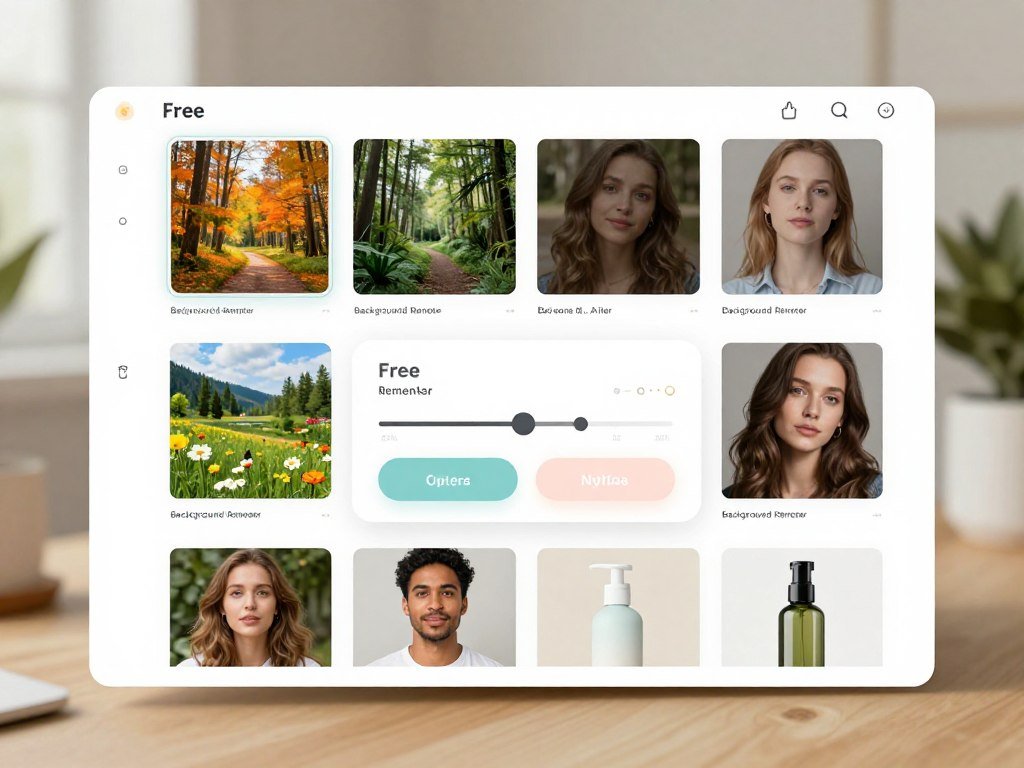
Choose a photo from your device and upload it to the online background remover. The tool usually selects the main subject automatically, then shows a preview with the removed background. Look at the whole image first, then check details that may blend into the surroundings.
A one-click result can miss a thin object or leave a faint border around hair. Zoom in enough to spot those issues, but also return to normal size to judge the full image. A very close view can make small flaws seem larger than they will appear in a finished layout.
Backgroundless is one example of a tool that offers free bulk processing, background changes, and text overlays. Those features are specific to that service, not a standard package across every remover. A single-photo workflow may be all you need for one profile or product image.
Download a transparent file
When the preview looks right, download the cutout in a format that keeps transparency. PNG is a common choice for layering, while a JPEG has no transparent pixels. Some tools may offer other export options or apply limits to free downloads.
Keep the original photo untouched until you have checked the transparent download in its intended layout.
Open the downloaded file in the design app, listing editor, or presentation where you plan to use it. A checkerboard preview often signals transparency, but the target app gives you a more useful test. Keep the original file untouched until the transparent download has been checked in its intended layout.
Which free background remover fits your workflow?
The best free choice for a single cutout is different from the best one for repeated edits or a design already in progress. For one quick image, choose a tool with a clear upload-and-download path; for a set, choose one that supports batch work. “Free” can mean a credit allowance, a small preview, or limited downloads, not unlimited full-size files.
The table compares the main free-use terms and what each workflow suits. Check the exported pixel dimensions as well as the preview, since a small preview may not work for a large listing or print layout.
| Tool | Free-use condition | Output or workflow | Best fit |
|---|---|---|---|
| Backgroundless | No signup or watermark | Bulk removal and background edits | Several cutouts and simple edits |
| BgEraser | No signup or usage limits | Batch background removal | Repeated image sets |
| Remove.bg | Unlimited previews up to 0.25 megapixels, about 625 × 400 pixels; one credit for HD removal up to 50 megapixels | Preview downloads or credit-based HD | Testing or occasional HD work |
| Adobe Express | Single-image removal within monthly generative credits | Transparent PNG without a watermark | One cutout within an existing design workflow |
| Magic Studio | One low-resolution image at a time, with ads and a logo | Single-image download | A quick, low-resolution result |
Backgroundless and BgEraser may suit people who want to process more than one file without creating an account. Remove.bg gives unlimited preview-size downloads, but its free website previews are much smaller than its HD output. One Remove.bg credit covers HD removal up to 50 megapixels, which is a different use case from its preview downloads.
Adobe Express offers free single-image removal through a monthly pool of generative credits. Its output is a transparent PNG without a watermark. The monthly generative-credit limit can shape how often you use that route, even when you only need one image at a time.
Magic Studio’s free route adds both ads and a logo to a low-resolution download. That may be enough for a quick draft, but it can be a poor fit for a polished listing. Check the downloaded pixel dimensions, not just the preview, before using a free cutout in print.
How can you remove backgrounds from multiple images online for free?
Yes, online batch tools can remove backgrounds from multiple images in one run, but their maximum batch sizes differ substantially. BgEraser handles up to 20 files per batch, while Pixelcut lists a maximum of 10,000 images. A batch ceiling is not a promise that every file will finish at the same speed.
Choose a tool by the size of your set and the kind of images you have. A small group of similar product photos needs less setup than a large catalog with people, glass, and varied lighting.
| Tool | Maximum batch size | Practical fit |
|---|---|---|
| BgEraser | Up to 20 files | Small sets without signup or usage limits |
| ClearCutout | 50 images | Medium sets with a free tier |
| Picsart | 50 photos | Medium photo batches |
| Icons8 Background Remover | 500 images | Large sets that need one run |
| Pixelcut | Up to 10,000 images | Very large product catalogs |
Pixelcut can apply consistent sizing, padding, and white or custom backgrounds across product sets. That can save repeated setup when each item needs the same frame. A large maximum is useful only if your files and workflow fit the service.
Batch processing works best when the input photos share a purpose. A mix of close-ups, people, and reflective objects can produce uneven results even in one run. Use this short process to find trouble early:
- Group similar source photos together.
- Confirm the destination background for the set.
- Process a small test set first.
- Review the complete downloads before publishing.
BgEraser supports batches of up to 20 JPG, PNG, or WebP files with no signup or usage limits. ClearCutout supports up to 50 images, Picsart processes up to 50 photos, and Icons8 Background Remover supports up to 500 images. Pixelcut’s stated ceiling reaches 10,000 images.
Those numbers describe maximum batch sizes, not processing speed. File size, device, and the service’s queue can affect how long a run takes. Run a representative sample first when a catalog mixes close-up products, people, and reflective items.
Which file formats and image sizes work best?
Start by checking both the source file extension and the finished file type you need. A transparent PNG works well when the subject must sit over another design, while JPEG does not preserve transparent pixels. The upload formats and size limits depend on the selected tool.
Several online tools accept common formats such as JPG, PNG, and WebP, but support is not identical. Pixelcut also accepts HEIC, while Magic Studio lists TIFF among its supported types. Check both ends of the workflow before uploading a photo.

| Tool | Accepted formats | Stated upload limit | Output |
|---|---|---|---|
| Adobe Firefly | JPEG, PNG, WEBP | Up to 50MB | Transparent PNG |
| Backgroundless | JPG, PNG, WebP | No size figure listed | Transparent PNG |
| BgEraser | JPG, PNG, WebP | No size figure listed | Transparent PNG |
| Pixelcut | JPG, PNG, HEIC | Up to 50MB and 6000 × 6000 pixels | PNG |
The PNG format can store transparency through an alpha channel. The W3C PNG specification describes how PNG stores image data, including transparency information. This lets a design app show the layer below the transparent parts of your cutout.
Adobe Firefly accepts JPEG, PNG, and WEBP uploads up to 50MB, then downloads the cutout as a transparent PNG. Backgroundless and BgEraser accept JPG, PNG, and WebP, and export transparent PNG files. Pixelcut accepts JPG, PNG, and HEIC up to 50MB and 6000 × 6000 pixels.
Magic Studio also accepts TIFF, along with JPG, JPEG, PNG, HEIC, and WEBP. Format support differs by tool, so do not assume a file that opens in one remover will work in another. If the image must sit over a new design, confirm that the downloaded PNG opens with transparency rather than a solid fill.
How do you clean up hair, fur, and fine edges?
A cutout can look clean at thumbnail size and still show a halo when enlarged around hair or a thin product edge. Automatic selection can struggle with flyaway hair, fur, thin frames, jewelry, and semi-transparent details. Use small edits, then judge the full image again.
Look for two different problems: missing subject detail and leftover background. A keep or restore brush brings back part of the subject; an erase brush removes background that the first pass left behind. These actions solve opposite edge errors.
Refine a portrait cutout
Zoom in around the hairline and shoulders, where a strip of the old background may remain. Make short brush strokes rather than painting across a long edge. Then zoom out and check whether the hair still looks natural against the clear area.
Backgroundless has a Magic Brush with keep-and-erase tools for refining edges. Photoshop Select and Mask includes a refine-edge brush that can help recover individual hairs. Neither tool can promise a perfect edge on every photo.
A low-contrast subject may blend into the background so closely that the selection has little visual detail to follow. Motion blur can make the edge even less distinct. A hard-edged product is often easier to refine because its outline is clearer.
Check products and reflective details
Thin frames, jewelry, glass, and polished metal can carry reflections from the original scene. Removing those pixels may also remove a real part of the object, while leaving them may create a faint patch of background. Compare the cutout with the source photo when an edge looks uncertain.
Work in a simple order: zoom in, make a few small strokes, and inspect the whole image again. If a tool offers separate keep and erase controls, choose the one that matches the visible problem. Avoid broad strokes near details that touch the background.
Check whether an edge has a pale or dark fringe against the color you plan to use. A halo that blends into one backdrop may stand out against another. Judge the refined edge at both close zoom and the size at which the finished design will be seen.
What happens to your uploaded photo and data?
The key privacy question is whether the image is processed on your device or uploaded to a service for processing. On-device processing can reduce the need to send image data to a server, but it does not answer every privacy question. Local processing and a stated deletion window describe different handling.
A service may process files on your device, while another may upload files and state how long it keeps them. A local-processing label does not prove anonymity or describe every part of a service’s data practices. Read the current privacy terms for the tool you plan to use.
Local browser processing
Backgroundless processes removal on the device by default. It uses WebGPU when supported and falls back to CPU/WASM when needed. Processing time can change with your device, browser, image size, and whether the model has finished downloading.
That can make the same photo take different amounts of time on different devices. A browser with WebGPU support may use that path, while another setup may rely on the CPU/WASM fallback. The number of images in a run can also affect how long you wait.
Backgroundless and Remove Anything are listed as offering unlimited free removals with local browser processing. Backgroundless supports free bulk runs of up to 40 images in 2026. Those details describe its workflow, not a guarantee about every browser or device.
Uploaded-file retention
BgEraser automatically deletes uploaded files and generated results within 2 hours. A stated deletion window explains how long files remain available after upload; it is not the same as processing files locally. Treat those as separate details when weighing a service.
For a private photo, consider whether the image needs to be uploaded at all. You may prefer a local workflow if your device and browser support it, but local processing alone does not establish every privacy term. Before uploading a sensitive photo, read the selected tool’s current privacy terms and retention details.
How can you replace a background or keep it transparent?
Keep the background transparent when the same subject needs to work across several designs or colors. A transparent PNG lets you place the cutout over different layouts, while a finished image has a solid, gradient, patterned, or photographic backdrop. Choose the treatment that matches the final use.
A transparent cutout suits repeat use in a product card, social post, or presentation. A replacement background is more convenient when you need one finished image that is ready to share. The choice also affects how closely the subject needs to match the new scene.
Keep a reusable transparent cutout
Save a transparent version when you expect to reuse the subject in more than one layout. Backgroundless can export PNG or PSD from its layer workflow. A layered PSD can keep elements separate for later edits, while PNG is a straightforward choice for placing the cutout in another app.
Canva lets you refine a cutout with Erase and Restore, save reusable assets to Brand Kit, and continue in a template. That workflow can help when the subject belongs in more than one social graphic or presentation. It also keeps the image and the layout work close together.
Canva and Firefly can also help create or edit replacement scenes. A comparison of free AI image generators can help you choose a tool for that separate task. For more control over the scene, use a clear image prompt that describes lighting, framing, and the space around your subject.
Generated settings can be useful when you need a new look, but check the result against the real subject. A beginner guide to creating AI images covers reference images and scene edits. For property photos, practical advice on AI in real estate stresses truthful imagery and keeping the original photo.
Put the subject into a new scene
Backgroundless can replace the old area with a solid color, gradient, pattern, or uploaded image. Canva can help carry the cutout into a template, where you can add text and other design elements. Keep the subject’s scale and position believable next to the new background.
A generated scene may not match the original subject’s lighting or shadows. A bright background behind a subject lit from the side can look pasted in. If you are building a graphic for a client, AI-assisted creative work should still follow the client’s needs and asset-use rules.
Canva can also help make social graphics from prompts, while Photoshop offers more direct image edits. The ChatGPT app comparison discusses how those design tools fit into a wider workflow. Match the replacement scene’s light direction and contrast to the subject before treating the composite as finished.
How do you make consistent product photos for a catalog?
A product catalog looks more cohesive when every item is framed and presented by the same visual rules. Keep product position, spacing, background color, and shadow treatment steady across the set. Consistent presentation helps different product photos feel like one catalog.
Background removal can make product images easier to place on a shared template. Still, each destination has its own listing requirements, so an image prepared for one marketplace may need changes elsewhere. Amazon, eBay, and Shopify are separate places to prepare product imagery.
Standardize the product image set
Set a common crop and subject size before you prepare every photo. A bottle that fills most of one frame can look out of place beside a small item with wide margins. Use the same background and shadow style unless a specific product needs a different treatment.
Backgroundless processes bulk images in turn to keep memory use bounded. That can support a catalog workflow without asking the browser to hold every image at once. Compare the output across the full set, since small shifts in crop or color can become clear side by side.
Use this checklist as you review the catalog:
- Align the product position within each frame.
- Keep margins consistent around each item.
- Compare shadow treatment across the set.
- Inspect color accuracy against the original.
A white background may suit a clean catalog set, while a lifestyle photo may need a more complex scene. Do not make a generated setting look like an accurate product photo if it changes the item’s real appearance. Product concept images and accurate product photos serve different purposes.
Reuse cutouts across sales and social channels
Keep one well-checked cutout as a starting point for sales and social designs. Then size and place it for each destination instead of stretching one finished image into every shape. A square listing image and a wide banner can need different framing.
Use accurate alt text and keep key product details in readable page text. A practical guide to AI search and SEO explains how useful images and clear page text work together. The image should support the product information, not replace it.
When you prepare a large catalog, compare images from different points in the set. A crop may shift after a long run, even if the first few look right. Compare one image from the beginning, middle, and end of the set before publishing the whole catalog.
When should you use Firefly, Photoshop, or a browser editor?
Choose a browser editor for a fast cutout and Photoshop when you need to preserve and revise the mask. Adobe Firefly offers an online upload workflow, while Photoshop gives you more control over hidden image pixels. The right choice depends on how much control you need after removal.
Adobe Express fits a different step: its current Remove Background button works on an image already placed in a design. It is not a standalone upload-and-download remover. That distinction matters if you want to start with a photo and download a cutout.
Use Firefly for an online cutout and continued design
In Adobe Firefly, upload an image in the Edit tab, then choose Remove Background from Quick Actions. The tool creates a cutout that you can open directly in Adobe Express or Photoshop on the web without uploading the image again.
That route can suit a quick cutout that needs a little more design work afterward. As of October 2026, Adobe Express no longer hosts Adobe’s standalone upload-and-download background remover. Its Remove Background button applies to images already placed in a design.
Adobe Express can be useful once you have placed an image in a layout, but it does not replace Firefly’s standalone upload route. A guide to design and image-editing apps can help you compare Canva and Photoshop for continued work.
Use Photoshop when the mask needs deeper control
Photoshop’s Remove Background action creates a non-destructive layer mask. A mask hides parts of a layer without deleting the hidden pixels, so you can restore them later with a brush. This is useful when an automatic selection removes a small part of the subject.
Select and Mask includes a refine-edge brush for recovering individual hairs. You can also use a brush to restore or hide parts of the mask as needed. Save the layered file when you may want to revise the cutout instead of keeping only a flattened export.
A browser editor can be quicker for a one-off image, while Photoshop is better suited to edits that need revision. Keep the layered file when you may need to restore pixels that an automatic selection removed.
How to Remove Background in Illustrator in 2026
Illustrator can remove white from vector artwork directly, but a JPEG needs a different preparation step. Use Image Trace with Ignore White for raster artwork that you want to trace, or select matching white shapes in artwork that is already vector. The no-Image-Trace route works only when the artwork is already vector.
A JPEG’s white area is part of its image pixels, not a separate vector shape. Remove that background in Photoshop before tracing the file in Illustrator. The two Illustrator routes below apply to different starting files.
Remove white areas with Image Trace
For traced artwork, turn on Ignore White before expanding the trace. Illustrator can then treat white areas as transparent vector shapes. Review the result after expansion, since the trace turns the image into editable paths.
Keep white artwork without Image Trace
If the artwork is already vector, Select > Same > Fill Color can select shapes with the same white fill. You can delete the selected background shapes without tracing the file. Check that white details in the subject are not included in the selection.
Use the steps that match your source art:
- For a raster image, open Image Trace and enable Ignore White.
- Choose Object > Image Trace > Expand to make the trace editable.
- For existing vector art, choose a white shape and use Select > Same > Fill Color.
- Review the selection, then delete only the white background shapes.
If the image is a JPEG, remove its background in Photoshop before tracing it in Illustrator. A JPEG does not contain separate vector objects that Illustrator can select by fill color. Save a copy before expanding a trace or deleting matching vector shapes.
How can you remove a background image from a Snapchat Public Profile photo?
Remove or replace the photo background in an image editor first, then add the finished picture to the Public Profile. Snapchat’s profile controls let you choose a photo from Memories or Camera Roll, then adjust its position and scale. The background edit happens before you add the profile picture.
A profile picture may appear to people beyond your existing friends. It can show in Add Friends, Search’s Add a Friend section, and Suggested For You on Profiles. Choose an image that you are comfortable displaying in those places.
Update the picture with these steps:
- Open your Snapchat profile.
- Tap Public Profile, then tap the pencil icon.
- Choose a photo from Memories or Camera Roll.
- Adjust its position and scale in the preview.
- Tap Confirm when the crop looks right.
Prepare the image before opening the profile controls. You can remove the old background or add a new one in an image editor, then save a finished picture to your camera roll. Snapchat lets you pick that picture and adjust how it sits in the profile frame.
The profile picture may appear in Add Friends, Search’s Add a Friend section, and Suggested For You on Profiles. The preview helps you check how much of the subject remains visible after cropping. Check the crop and scale in the profile preview before tapping Confirm.
What does a paid background-removal plan cost?
For occasional edits, compare a credit pack with a monthly subscription before paying for unlimited access. Prices range from a few dollars for a small credit pack to monthly plans and a time-limited desktop license. The best fit depends on how often you finish images, not just how many you upload.
Credits charge for individual removals, subscriptions renew on a monthly or yearly schedule, and a desktop license may cover a fixed term. The table lists five options with different access models.
| Tool or plan | Stated price | Relevant access condition |
|---|---|---|
| Firefly Standard | $9.99 per month | Unlimited Remove Background use |
| Remove.bg | $3 for 3 credits; $39 per month for 200 credits; $89 per month for 500 credits | Pay-as-you-go credits or monthly subscription |
| Photoshop single-app plan | $22.99 per month | Photoshop access |
| PhotoScissors desktop license | $29.99 for 1 year | Unlimited processing during the license term |
| Canva Pro | $18 per month or $144 per year | Canva Pro plan |
Firefly offers free daily generations with an Adobe account, while Firefly Standard costs $9.99 per month and includes unlimited Remove Background use. Remove.bg offers three pay-as-you-go credits for $3, or subscriptions with 200 credits for $39 per month and 500 credits for $89 per month.
Other listed options include Morphed plans starting at $9 per month with background removal and batch processing. Cloudinary’s free tier includes 25 background removals per month. The Adobe Photography plan with Lightroom and 1TB of storage costs $19.99 per month.
Krea’s free plan has a daily compute allowance that refills daily, and paid plans start at $9 per month. Pixelcut Pro costs $10 per month or $8 per month with yearly billing, while its free removal is limited. Canva Pro costs $18 per month or $144 per year, and its free background-removal route is limited.
PhotoScissors costs $29.99 for one year of unlimited desktop processing. A credit pack can suit occasional edits, while a monthly plan may fit regular work. Match the plan to the number of finished images you actually need, not just the number you might upload.
What should you check before downloading a cutout?
Before downloading, compare the cutout with the original so a missing edge or stray fragment is easier to spot. Busy or low-contrast edges can need a manual review even after automatic selection. Check the image at normal size and close zoom before you export it.
Choose a transparent PNG when the cutout needs to sit over another image or color. JPEG cannot retain transparent pixels, so it works only when the file has a finished background. The right export depends on where the image will appear.
Use this five-point check before you download:
- Inspect the outline at normal size.
- Check for leftover background halos.
- Look for missing details in the subject.
- Confirm whether the background should be transparent or solid.
- Open the exported file in the app where it will appear.
Test the exported file in the design or listing where it will appear, since a preview alone cannot confirm the final result.
Look closely at hair, fur, thin frames, and low-contrast edges. An automatic selection may trim a real detail or leave a fringe from the old scene. Compare the outline with the source photo so the subject keeps its shape.
Then open the file in the destination app and place it over the intended background. A transparent preview may look right in the remover but appear as a solid fill elsewhere if the export is wrong. Test the exported file in the design or listing where it will appear, since a preview alone cannot confirm the final result.
Conclusion
A good cutout starts with the right workflow for the image and the job it needs to do. Choose a background remover based on how many images you have and how much editing control you need. Then check that the transparency and edges hold up in the finished design.
Start with a non-sensitive test photo rather than an important product image or private portrait. Preview it at the size where you plan to use it, then open the download in its target app. Try one representative photo, inspect the downloaded file, and use that result to decide whether the workflow fits your next image.
FAQ
Can an AI background remover keep the original image resolution?
Yes, some tools can keep the original resolution, but each tool sets its own output rules. Pixelcut states that it keeps the original resolution for supported uploads up to 50MB and 6000 × 6000 pixels. Check the dimensions of the exported file, since a preview may not show the final size. A larger source file does not guarantee every free tool will export full resolution.
Can I remove a background from a HEIC photo?
Yes, you can use Pixelcut for a HEIC photo because it accepts HEIC alongside JPG and PNG. Other background removers may support a different set of formats, so check the upload options before selecting a file. If your chosen tool does not accept HEIC, save a compatible copy first. Keep the original so you can return to it if needed.
Why does a cutout look jagged around hair or glass?
Jagged edges can appear when fine hair, glass, or other transparent details blend into the old background. Automatic selection may have trouble deciding which pixels belong to the subject. Use a refine or restore brush with small strokes, then inspect the edge at close zoom. Check the whole image again afterward, since a close view can hide problems with the overall shape.
Can I replace a background with a solid color instead of downloading a transparent PNG?
Yes, choose a solid-color replacement when the image needs a finished backdrop. Use a transparent PNG when you plan to layer the subject over another color, photo, or design. A solid background is ready to use as one flat image, while transparency gives you more room to place the subject in other layouts. Preview the color with the subject before exporting.
Is local browser processing the same as a service deleting my upload?
No, local browser processing and a stated deletion window describe different handling. On-device processing means the tool works on your device, while a deletion window explains how long an uploaded file remains with a service. BgEraser deletes uploaded files and generated results within 2 hours. A local-processing label alone does not describe every privacy term.
Does Adobe Express still have a standalone background remover?
No, as of October 2026, Adobe Express’s Remove Background button applies to an image already placed in a design. Adobe Firefly provides the standalone upload workflow: upload an image in the Edit tab, then choose Remove Background from Quick Actions. You can open the cutout in Adobe Express or Photoshop on the web without uploading it again.



