Roughly 70% of American homes now own a smart TV, and most of those TVs can display whatever is on an Android phone with a couple of taps. Yet the number one reason casting fails isn’t a broken device. It’s that people confuse two very different features that both carry the word “cast.” Once that distinction clicks, the whole process becomes almost boringly simple.
This guide walks through the real mechanics: what Google Cast actually does, when screen mirroring is the right tool, how to handle Samsung and LG TVs, and the specific mistakes that cause the spinning-wheel-of-death on a phone screen. No jargon walls, no assumptions that every phone behaves the same.
Casting vs. Mirroring: The Distinction That Fixes Most Problems
Before touching a single menu, it helps to know which of two jobs you’re asking the phone to do.
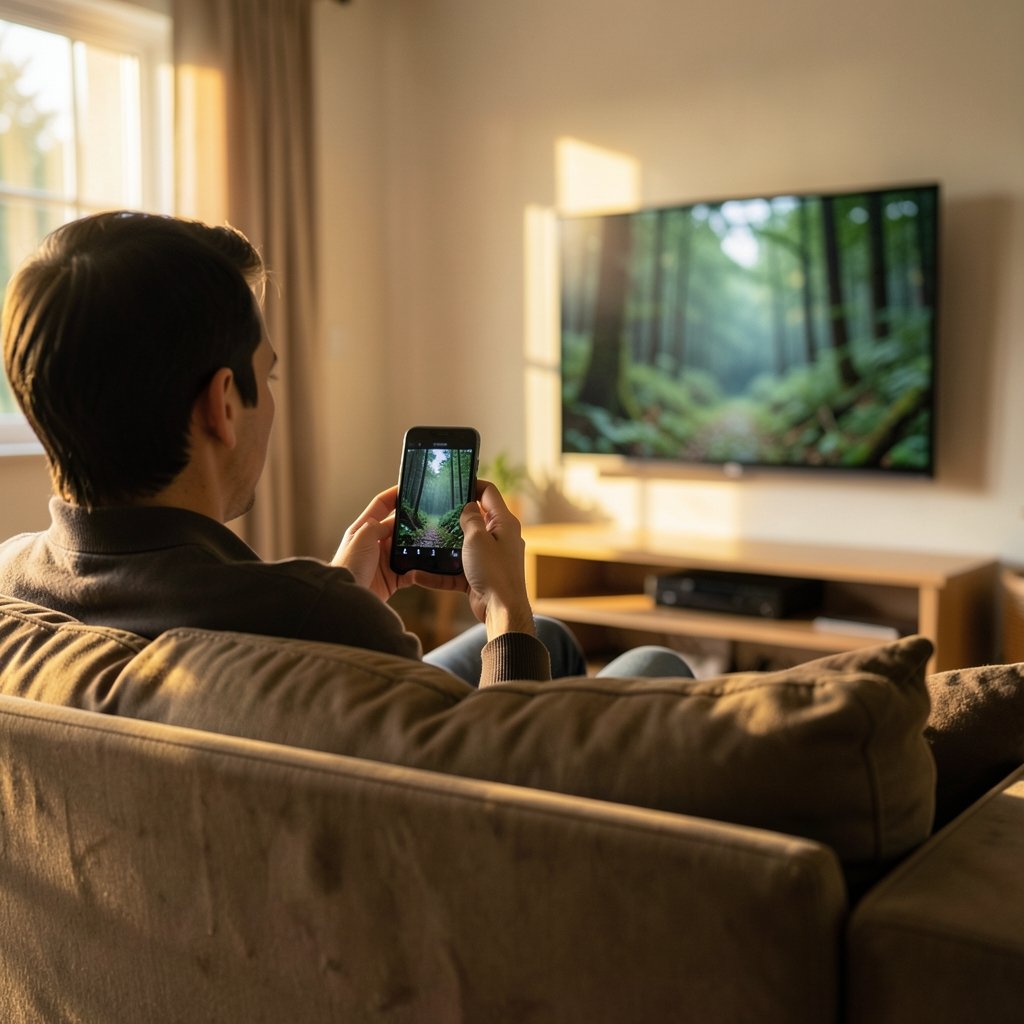
Casting means the phone hands a video’s web address to the TV, and the TV streams it directly. The phone becomes a remote control. You can lock it, take a call, or walk into another room, and the video keeps playing. This is how the Cast button works inside YouTube, Netflix, Spotify, and most major streaming apps.
Screen mirroring duplicates the phone’s entire display on the TV in real time. Every notification, every scroll, every accidental autocorrect mishap shows up on the big screen. It’s the right choice for photo slideshows, presentations, browser content, and apps that have no Cast button.
| Feature | Casting | Screen Mirroring |
|---|---|---|
| What plays on TV | One app’s video stream | Everything on the phone screen |
| Phone can be used freely | Yes | No, it mirrors live |
| Battery drain | Low | High |
| Best for | Netflix, YouTube, music | Photos, slides, unsupported apps |
| Typical protocol | Google Cast | Miracast or Cast Screen |
Most frustration comes from trying to mirror when casting would work better, or hunting for a Cast icon in an app that never supported it. As a rule: if the app has a Cast icon, use it. If it doesn’t, mirror.
What You Need Before You Start
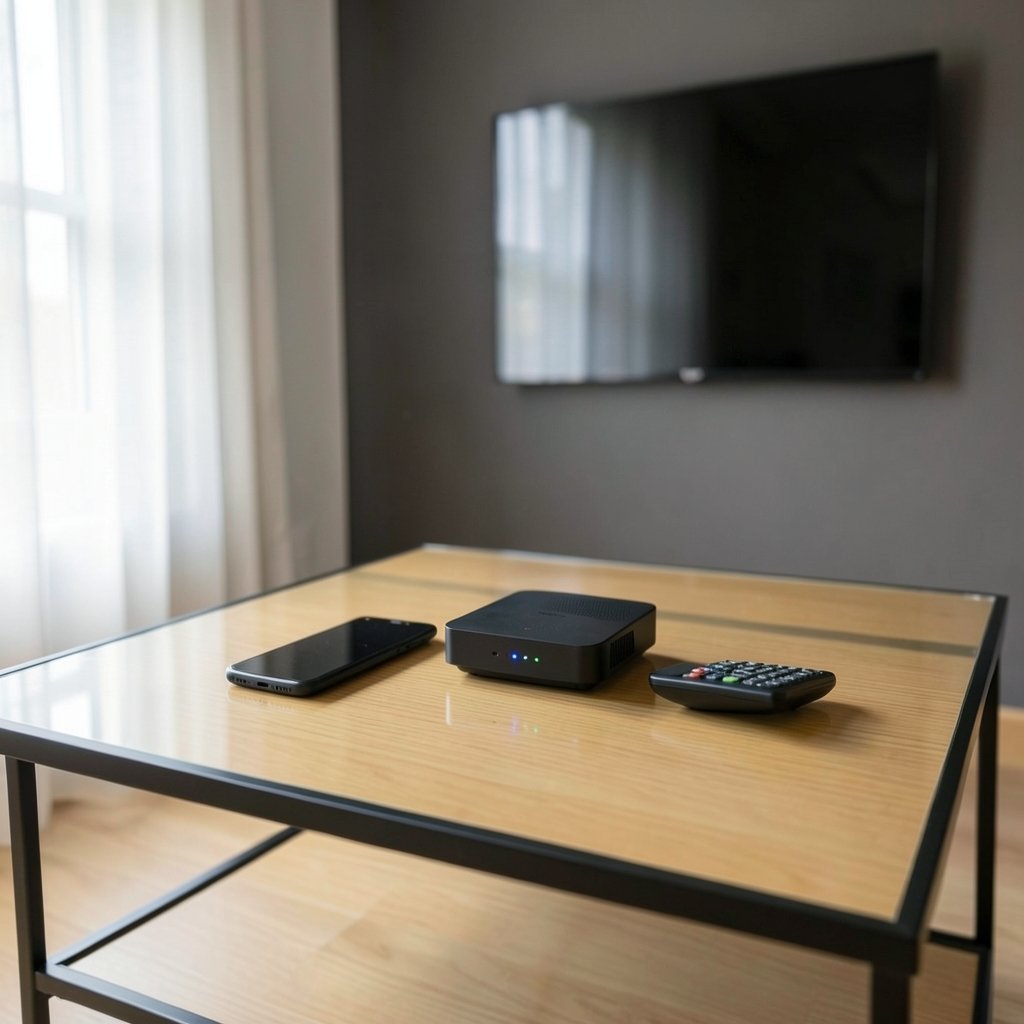
The requirements are modest, but skipping any one of them is where setups quietly fall apart.
- An Android phone running a reasonably current version of Android. The system Cast tile has been part of Android since the mid-2010s, though exact menus vary by manufacturer.
- A Cast-compatible TV or a streaming device plugged into it. That means a TV with Chromecast built in, a Chromecast dongle, or an Android TV / Google TV device.
- Both devices on the same Wi-Fi network. This is non-negotiable for Google Cast, and it’s the single most common cause of “device not found.”
- The Google Home app installed, which is now the standard place to set up and manage Cast devices. Older guides referencing a separate “Chromecast” app are out of date.
One practical note: guest Wi-Fi networks that isolate clients from each other will block casting entirely, even though both devices show as connected. If the phone sees the internet but not the TV, that isolation setting is usually the culprit.
How to Cast From an App (The Easy Path)
This is the method to try first, because it produces the best picture and the least battery drain.
- Open the streaming app, such as YouTube or Netflix, and start the video.
- Look for the Cast icon, a rectangle with curved waves in the corner. It usually sits in the top corner of the video player or the app’s main toolbar.
- Tap it. A list of available devices appears.
- Select your TV or streaming device.
- The video jumps to the TV. Use the phone to pause, scrub, or change volume.
If the icon is missing, check that the phone and TV share a network, then force-close and reopen the app. Casting support is built into the app itself, so a missing icon is almost always a network or app-state issue rather than a hardware one.
For people who also want to move content the other direction, knowing how to reverse image search on Android pairs nicely with casting photos to a big screen for a quick visual check.
How to Mirror Your Entire Android Screen
When there’s no Cast button, mirroring takes over. The path differs by phone brand, but the concept is identical.
Stock Android and Pixel
Swipe down twice from the top of the screen to open the full Quick Settings panel. Look for a tile labeled Cast or Screen Cast. Tap it, choose the TV from the list, and confirm. On some builds the tile is hidden; tap the pencil or edit icon to add it to the active panel.
Samsung Galaxy
Samsung uses Smart View, now folded into the SmartThings ecosystem. Swipe down to Quick Settings, tap Smart View (sometimes labeled “Cast”), and pick the TV. Samsung phones also connect cleanly to Samsung TVs through the same panel without any extra app.
Other Manufacturers
Motorola, OnePlus, Xiaomi, and others each ship their own label, often “Cast,” “Screen Mirroring,” or “Wireless Display.” The tile lives in Quick Settings on virtually every modern Android skin. If it’s absent, the phone may not support the mirroring standard at all, which is worth checking before assuming a fault.
The Miracast Question
Miracast is a Wi-Fi Direct-based mirroring standard that doesn’t need a shared network at all, since the phone talks straight to the TV. Support is genuinely inconsistent: many TVs accept it, some Android phones dropped it in certain versions, and Google’s own Pixel line has had patchy support over the years. If a TV advertises Miracast and the phone does too, mirroring usually works without a router in the picture. If either side lacks it, fall back to a Cast device.
Casting to Samsung and LG TVs Specifically
Owners of the two biggest TV brands often hit brand-specific quirks.
Samsung TVs accept casting through the built-in Cast receiver, so the standard Cast icon in apps works. For full mirroring, Samsung’s own Smart View path is the smoothest. Older Samsung sets may require enabling the feature in the TV’s general settings first.
LG TVs use Screen Share under the Home dashboard’s input list. Open it on the TV, then trigger mirroring from the phone. LG’s webOS also accepts Cast from apps on most recent models.
The trick with both brands: start the receiver on the TV first, then initiate from the phone. Doing it in reverse often leaves the phone scanning a device that isn’t listening yet.
Wired Options When Wireless Fails
Sometimes Wi-Fi is congested, the router isolates clients, or the TV simply refuses to cooperate. A cable cuts through all of it.
Phones with USB-C video output can drive an HDMI display through a USB-C to HDMI adapter. Support is device-dependent, so check the phone’s spec sheet before buying an adapter. The payoff is a rock-solid, zero-latency mirror that works on any TV with an HDMI port, hotel rooms included.
For a hybrid approach, a cheap HDMI streaming stick turns any dumb TV into a Cast target in about five minutes of setup. That’s often the smarter purchase than a new TV.
Common Mistakes and What Actually Works
A few patterns show up again and again in troubleshooting threads and support forums.
Assuming the TV is Cast-ready. Plenty of smart TVs run their own platform without Google Cast built in. The TV being “smart” doesn’t mean it speaks Android’s language. A $30 dongle solves it.
Ignoring the network split. A phone on 5GHz and a TV on 2.4GHz is usually fine, since they’re the same network. A phone on cellular data, or on a guest SSID, is not. Confirm the exact network name on both devices.
Mirroring DRM-protected video. Some apps block mirroring of protected content, and the TV shows a black rectangle with audio only. That’s not a bug; it’s the content owner’s restriction. Use the app’s own Cast button instead.
Leaving the phone screen awake during long casts. Mirroring keeps the display active and drains battery fast. For a two-hour movie, cast from the app rather than mirroring, and plug the phone in.
Forgetting that casting survives sleep. When casting properly, the phone can lock and the stream continues. If the video stops when the screen turns off, the phone was mirroring, not casting.
If the goal is turning the phone into a productivity tool alongside the TV, learning how to record your computer screen is a useful companion skill for capturing what you present on the big display.
Getting the Best Picture and Sound
Casting quality depends mostly on the source and the network, not the phone. A few habits help:
- Keep the phone and router in reasonable range. Casting streams from the internet to the TV directly, but the phone still needs a stable connection to send commands.
- Prefer the app’s Cast button over mirroring for anything longer than a few minutes.
- If audio lags behind video during mirroring, a quick pause and resume usually resyncs it.
- For music, cast from the streaming app rather than mirroring so the phone stays usable.
For anyone building out a phone-first entertainment setup, the same network hygiene that makes casting reliable also matters when picking accessories like the best wireless chargers for iPhone and Android, since a phone that stays charged is a phone that stays cast-ready.
Conclusion
Casting an Android screen to a TV comes down to one decision made early: is this a job for the app’s Cast button, or for full screen mirroring? Casting wins for streaming, mirroring wins for everything else, and the same Wi-Fi network is the quiet requirement behind both. When wireless refuses to behave, a USB-C to HDMI adapter or a cheap streaming stick removes the variable entirely.
The technology has been stable for years. What trips people up is terminology and network setup, not the hardware. Get those two right, and the phone-to-TV handoff becomes one of those features you stop thinking about because it simply works.
Frequently Asked Questions
Why can’t my Android phone find my TV for casting?
The most common cause is that the phone and TV are on different networks or the router isolates clients. Guest Wi-Fi networks frequently block device-to-device discovery. Confirm both devices show the same network name, then restart the Google Home app. If the TV has no Google Cast support at all, no amount of troubleshooting will make it appear; a streaming dongle is the fix.
Do I need a Chromecast to cast from Android?
No, not if the TV already has Chromecast built in, which many smart TVs from major brands do. A separate Chromecast or Android TV device is only necessary when the TV lacks native Cast support. Check the TV’s input list or settings menu for “Chromecast built-in” before buying anything.
What’s the difference between casting and screen mirroring?
Casting sends a video’s address to the TV so the TV streams it independently, freeing the phone for other tasks. Screen mirroring duplicates the phone’s live display on the TV, including notifications and app interfaces. Casting uses less battery and looks sharper; mirroring works with apps that have no Cast support.
Can I cast my Android screen to a TV without Wi-Fi?
Only through Miracast, which uses a direct Wi-Fi Direct link between phone and TV rather than a shared network. Support varies widely by device. The other option is a wired connection using a USB-C to HDMI adapter on a phone that supports video output. (Miracast)
Why does the TV show a black screen when I mirror a video?
That’s usually DRM protection. Apps holding rights to movies and shows can block screen mirroring so the content can’t be recorded, leaving audio playing over a black frame. Use the app’s own Cast button instead, which is permitted and produces a better picture anyway.
Does casting drain the Android battery quickly?
Casting from an app barely touches the battery, because the TV does the heavy lifting and the phone only sends commands. Screen mirroring is the opposite: it keeps the display active and encodes video continuously, so it drains fast. For long sessions, cast from the app or keep the phone plugged in.