In 2024, Amazon shipped more smart speakers than any other brand worldwide, and analysts expect the global smart speaker market to keep growing toward roughly $40 billion by the early 2030s. Yet search forums are still flooded with one question: why won’t Alexa connect to Wi-Fi? The answer is rarely a broken speaker. More often it’s a 5 GHz network, a phone with Bluetooth switched off, or a router that hides the 2.4 GHz band behind a single clever-looking network name. (Best name wifi) (Amazon Alexa)
This guide walks through the full setup process, the fixes that actually work, and the mistakes that trip up even tech-savvy households.
What You Need Before You Start
A few minutes of prep saves an hour of frustration. Gather these first:
- The Alexa app on an iOS or Android phone, updated to the latest version.
- Your Wi-Fi password, typed correctly. Sounds obvious, but a single wrong character is the most common silent failure.
- Bluetooth enabled on your phone. Discovery depends on it.
- A 2.4 GHz network, especially for older Echo Dots and Echo Shows. Many older models only support 2.4 GHz, while newer ones are dual-band.
- The router’s admin access, in case you need to split bands or disable band steering.
One more thing worth knowing: Amazon devices can use Wi-Fi Simple Setup (also called Frustration-Free Setup), which pulls saved credentials from your Amazon account or from a previously connected Echo. If you already own one working Echo, adding a second is dramatically easier. (Amazon Alexa Setup and Help)
The Standard Setup: Step by Step
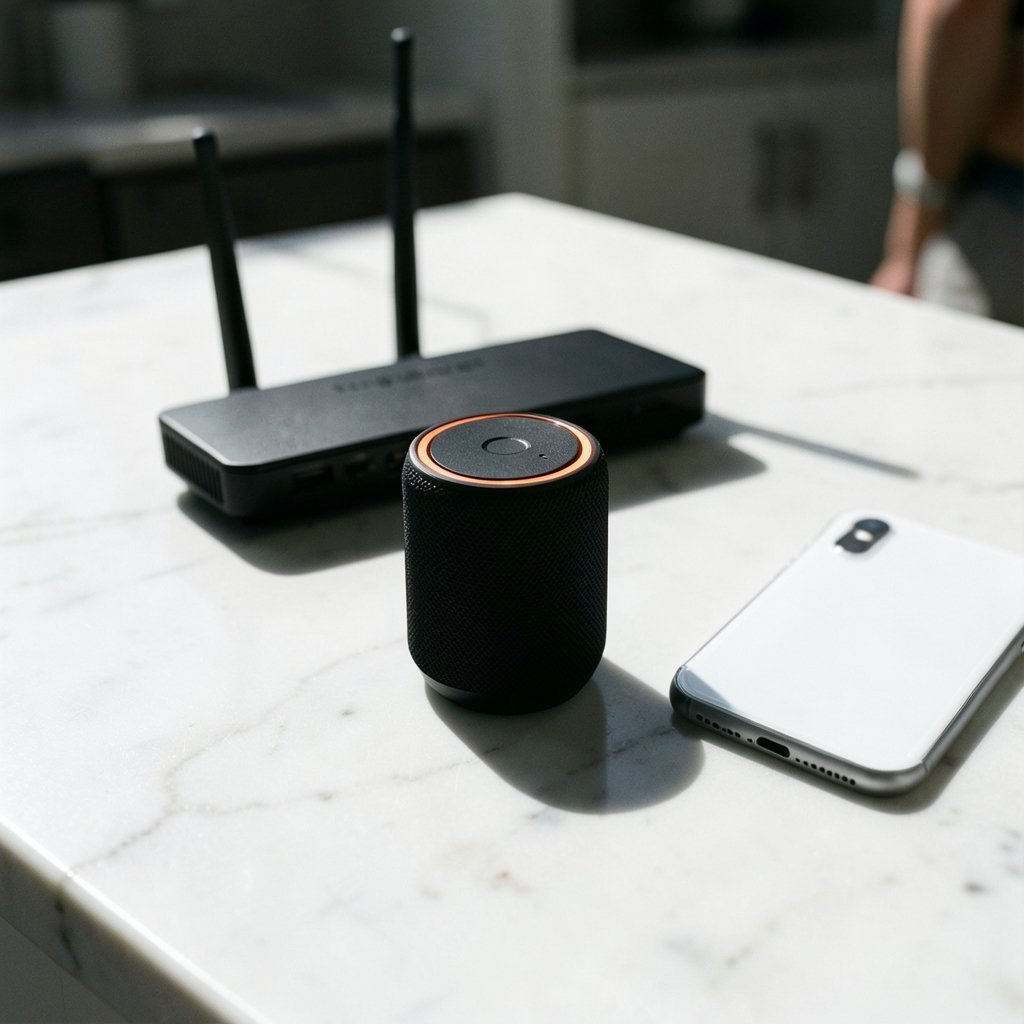
This is the path that works for most people on the first try.
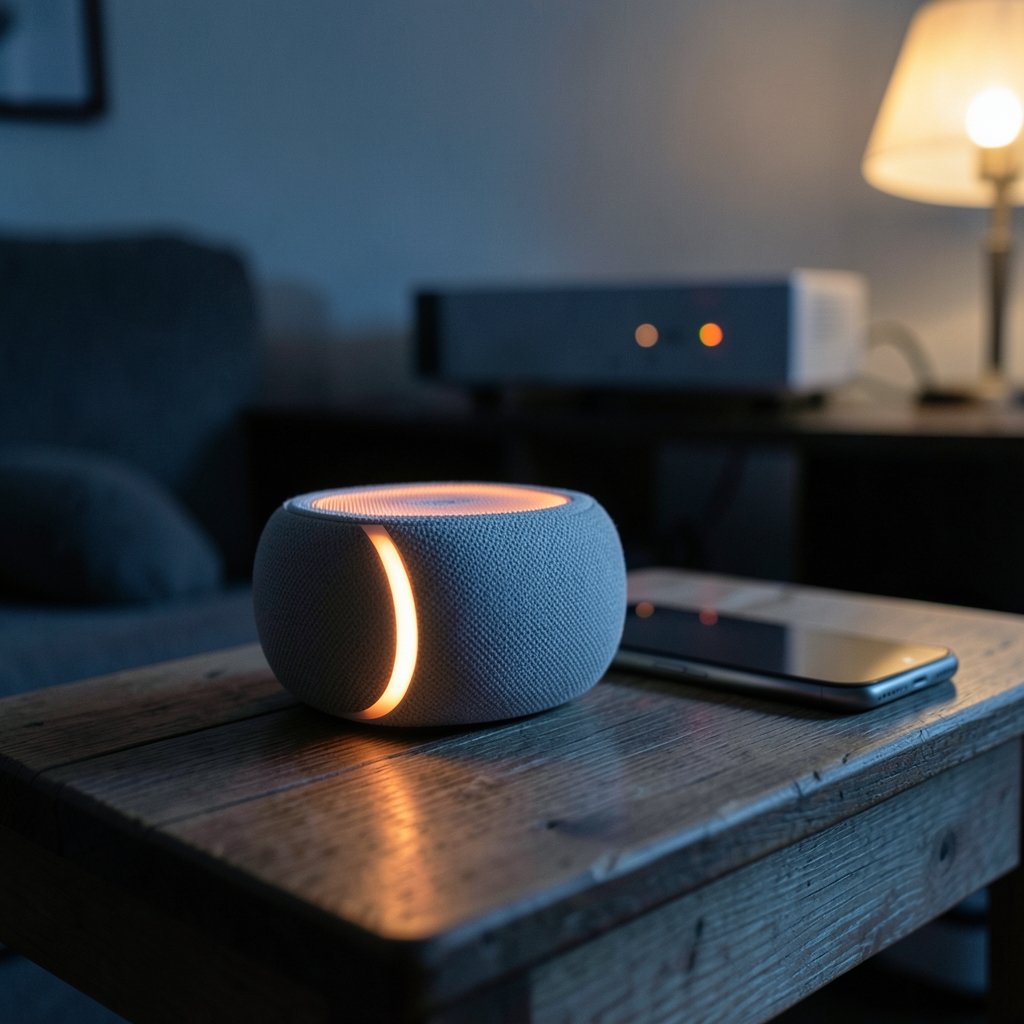
- Plug in the Echo and wait for the light ring to turn orange or blue. That means it’s in setup mode.
- Open the Alexa app and sign in with the Amazon account tied to your devices.
- Tap the Devices tab, then the plus icon, then Add Device.
- Choose your device type (Echo, Echo Dot, Echo Show) and follow the on-screen prompts.
- Select your Wi-Fi network from the list and enter the password.
- Wait for the confirmation chime. The ring turns solid blue briefly, then off. That’s success.
If the app asks you to scan a barcode on the device, do it. It saves typing and reduces errors.
If Your Echo Won’t Enter Setup Mode
Sometimes the speaker boots straight into a previous network state. Press and hold the action button (the dot on top) for about five seconds until the light turns orange. On Echo Show models, hold the volume-down and microphone-off buttons together. That forces a fresh setup.
The 2.4 GHz Problem, Explained Simply
Here’s the thing nobody tells you at the store: most home routers broadcast two networks, 2.4 GHz and 5 GHz. The 2.4 GHz band is slower but travels farther and penetrates walls better. The 5 GHz band is faster but shorter-range. Older Echo speakers can only see the 2.4 GHz one.
Modern routers often combine both bands under one network name using a feature called band steering. The router decides which band each device gets, and it doesn’t always make the right call for a smart speaker. The result: the Echo sees the network, accepts the password, and then quietly fails.
The fix depends on your router:
| Router Setting | What It Does | What to Change |
|---|---|---|
| Band steering | Merges 2.4 and 5 GHz under one name | Turn it off temporarily |
| Single SSID | Same name for both bands | Rename the 2.4 GHz network (e.g., “Home-2.4”) |
| Guest network | Isolated network for visitors | Avoid it for Echo devices |
| MAC filtering | Blocks unknown devices | Add the Echo’s MAC address |
| WPA3-only mode | Newer security standard | Switch to WPA2/WPA3 mixed if setup fails |
After connecting, you can usually re-enable band steering. The Echo remembers the credentials.
Patience beats rebooting. Too many people power-cycle the router five times before checking whether their phone is even on the right network.
When the App Can’t Find Your Echo
Discovery failures are the second-biggest complaint. Work through these in order:
- Check Bluetooth. The phone must have it on, and the Alexa app needs Bluetooth permission in your phone’s settings.
- Move closer. Within a few feet of the speaker during setup.
- Restart the app completely; putting it in the background alone does not restart it.
- Forget and re-add the device in the Alexa app.
- Check for Amazon account mismatches. If the Echo was registered to a different account (a former roommate’s, say), you’ll need to deregister it first.
A quick note on naming: if you have several networks saved and can’t remember which is which, it helps to know how to pick a clear, memorable network name so setup never becomes a guessing game. A descriptive SSID like “SmithHome-2.4” tells you instantly which band you’re joining.
Changing Wi-Fi Later (Moving House, New Router)
You don’t need to factory reset. Open the Alexa app, go to Devices, select your Echo, tap the gear icon, and choose Change Wi-Fi. The speaker re-enters setup mode and you pick the new network.
If that menu option is missing on an older device, the button-hold method works: press and hold the action button until the light turns orange, then run through the standard setup again.
Alexa Still Won’t Connect? Check These Five Things
- The password has a special character your phone autocorrected. Turn off smart punctuation or reveal the password before submitting.
- Your router has a hidden SSID. Echo devices generally can’t join hidden networks during setup. Unhide it temporarily.
- You’re on a captive-portal network (hotel, dorm, office). These require a browser login and won’t work with Echo.
- Enterprise security (802.1X) is enabled. Echo devices don’t support it.
- The router’s firmware is outdated. A router reboot and firmware update fixes a surprising number of mystery failures.
If you’ve tried everything and the device still refuses, check whether your specific model has a known quirk. New hardware sometimes ships with connectivity changes that only show up in regulatory filings first, which is exactly what happened with the reported PS Portal 2 Wi-Fi Alliance filing in 2026 and the wave of discussion it triggered about certification details leaking ahead of launch. The same pattern applies to Echo hardware: the filing tells you the radio specs before the box does.
Security Habits Worth Building
Once Alexa is online, a few small habits protect the whole household:
- Use WPA2 or WPA3, never WEP or open networks.
- Give IoT devices their own network if your router supports it. Smart speakers don’t need access to your laptop.
- Enable two-factor authentication on your Amazon account. A compromised account can control every Echo in the house.
- Review connected devices in the Alexa app every few months and remove anything you don’t recognize.
Convenience and security pull in opposite directions. The goal is a setup that’s easy to live with and hard to exploit.
How Long Should Setup Take?
| Scenario | Typical Time |
|---|---|
| First Echo, simple router | 3–5 minutes |
| Adding a second Echo with Wi-Fi Simple Setup | Under 2 minutes |
| Troubleshooting a 5 GHz conflict | 15–30 minutes |
| Full reset plus router changes | 45 minutes or more |
The variance is almost entirely about the network, not the speaker. A clean 2.4 GHz network with a simple password makes setup nearly instant.
Common Mistakes That Cost People Hours
Typing the password on the TV remote. If you’re setting up an Echo Show with the on-screen keyboard, it’s easy to mistype. Use the app instead.
Assuming the Echo is broken. A speaker that connects to Wi-Fi but shows a red ring usually has a server or account issue, not a network one.
Ignoring the app version. Outdated Alexa apps have known discovery bugs. Update before you troubleshoot.
Skipping the deregister step when buying a used Echo. A secondhand device tied to another account will never connect to yours until it’s deregistered.
Forgetting that mesh systems behave differently. Mesh nodes sometimes hand devices off mid-setup. Temporarily disabling the second node can help.
A Word on Older vs Newer Hardware
Echo generations differ more than the marketing suggests. Early Echo Dots are 2.4 GHz only. Later models added dual-band support. Security protocol support (WPA3) also varies by generation. Before you blame your router, check the spec sheet for your exact model. Amazon publishes per-device pages listing Wi-Fi bands and supported security types.
This matters because advice written for a 2016 Echo Dot can actively mislead someone setting up a 2024 model, and vice versa. The setup flow has also shifted over the years between the Amazon shopping app and the Alexa app, so follow whatever the current app prompts show rather than an old YouTube tutorial.
Frequently Asked Questions
Why can’t Alexa find my Wi-Fi network?
The most common reasons are a 5 GHz-only network, a hidden SSID, or band steering merging both bands under a name the speaker can’t properly join. Temporarily split the bands or rename the 2.4 GHz network, then retry. Also confirm Bluetooth is on, since discovery depends on it.
Does Alexa need 2.4 GHz or 5 GHz Wi-Fi?
It depends on the model. Many older Echo devices support only 2.4 GHz, while newer ones are dual-band. If you’re unsure, check your specific model’s spec page. When in doubt, connect to 2.4 GHz first; it works with every generation.
How do I reconnect Alexa to a new router?
Open the Alexa app, go to Devices, select your Echo, tap the settings gear, and choose Change Wi-Fi. If that option isn’t available, hold the action button until the light turns orange and run the standard setup again. No factory reset is required.
Why does my Echo show a red ring after setup?
A red ring usually signals a server or account problem rather than a network failure. Check that your Amazon account is active, that the device is registered to the right account, and that your internet connection is working. Restarting the Echo often clears it.
Can I connect Alexa to a hotel or office Wi-Fi?
Generally no. Echo devices don’t support captive-portal logins (the web page where you accept terms) or enterprise 802.1X security. A travel router or a phone hotspot is the practical workaround.
How do I reset an Echo to factory settings?
Press and hold the action button for about 25 seconds until the light ring turns orange, then release. On Echo Show models, hold volume-down and microphone-off together. The device erases its Wi-Fi credentials and returns to setup mode.
Conclusion
Connecting Alexa to Wi-Fi is a five-minute job when the network cooperates and an afternoon project when it doesn’t. The difference almost always comes down to three things: the right band, a correctly typed password, and a phone with Bluetooth enabled. Get those right and the setup flow is genuinely smooth.
Start with the standard app-based setup. If the Echo can’t see your network, suspect 5 GHz or band steering before you suspect the speaker. If the app can’t see the Echo, suspect Bluetooth or a stale app version. And if you’re adding a second device, let Wi-Fi Simple Setup do the work for you.
A little knowledge about how these devices talk to routers turns a frustrating ritual into a routine one. Once the ring glows blue and the confirmation chime sounds, you’re done, and the speaker fades into the background where it belongs.