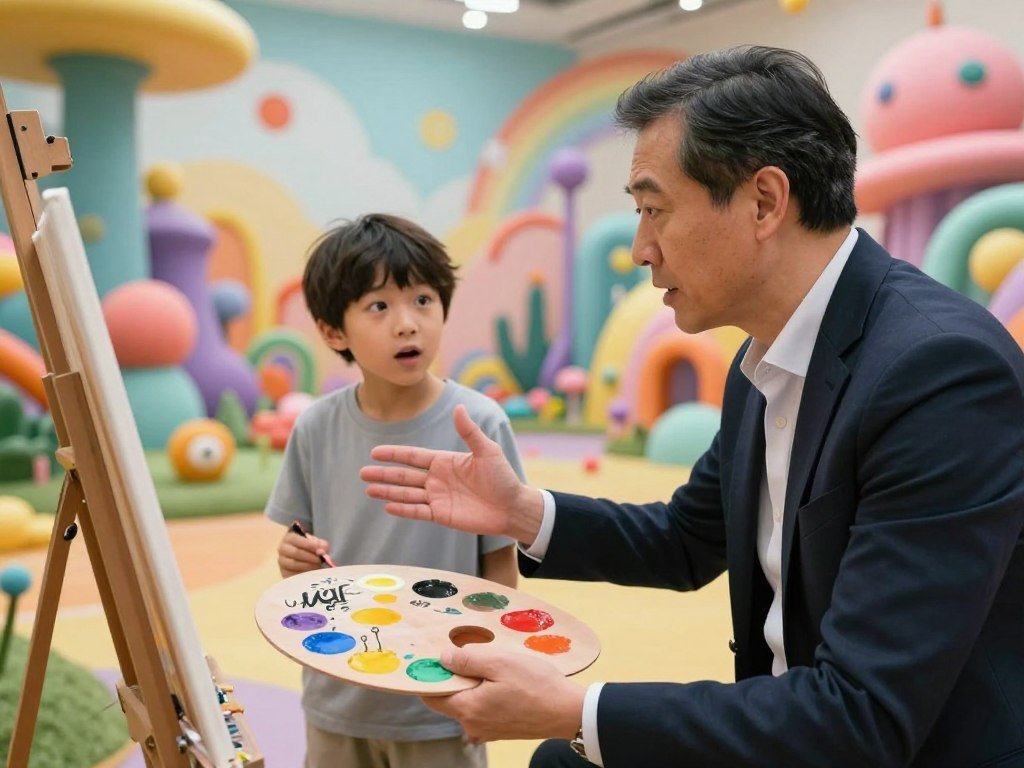
A character can look right in one image and drift in the next, even when the prompt barely changes. That shift can disrupt a story, game, or set of social posts. You want the same character to stay recognizable while the scene, outfit, or pose changes. A fixed seed means the same seed value reused for generations to constrain how much the result changes. It can help with testing, but it does not lock every detail.
To generate AI images of characters, describe the subject and visual style, create a starting image, then reuse it as a reference for new scenes. You will still need to review each result. A face, hairstyle, or jacket can change when the prompt adds new details. Good lighting and a clear image make those changes easier to spot. A clear starting design and a repeatable reference workflow make the next generation easier to judge.
Key Takeaways
- Choose a clear base image with recognizable features.
- Use Character Reference to guide later image generations.
- Change one major scene or pose detail at a time.
- Save prompts and approved outputs together.
- Review each result before adding it to a character sheet.
How to Create Consistent Characters With Leonardo AI
Start by deciding which details must identify the character in every image and which details can change with the scene. Stable traits might include the face, hair, eye color, and signature clothing. Character Reference uses one base image as a visual guide for later variations, not as a guarantee of an exact match.
Choose two or three distinctive details as visual anchors. A prompt can state age, face shape, hair, and clothing, then describe the scene separately. For example: “A middle-aged man with medium-length gray hair, brown eyes, and a worn leather jacket, standing in a rainy city street, cinematic painted style.”
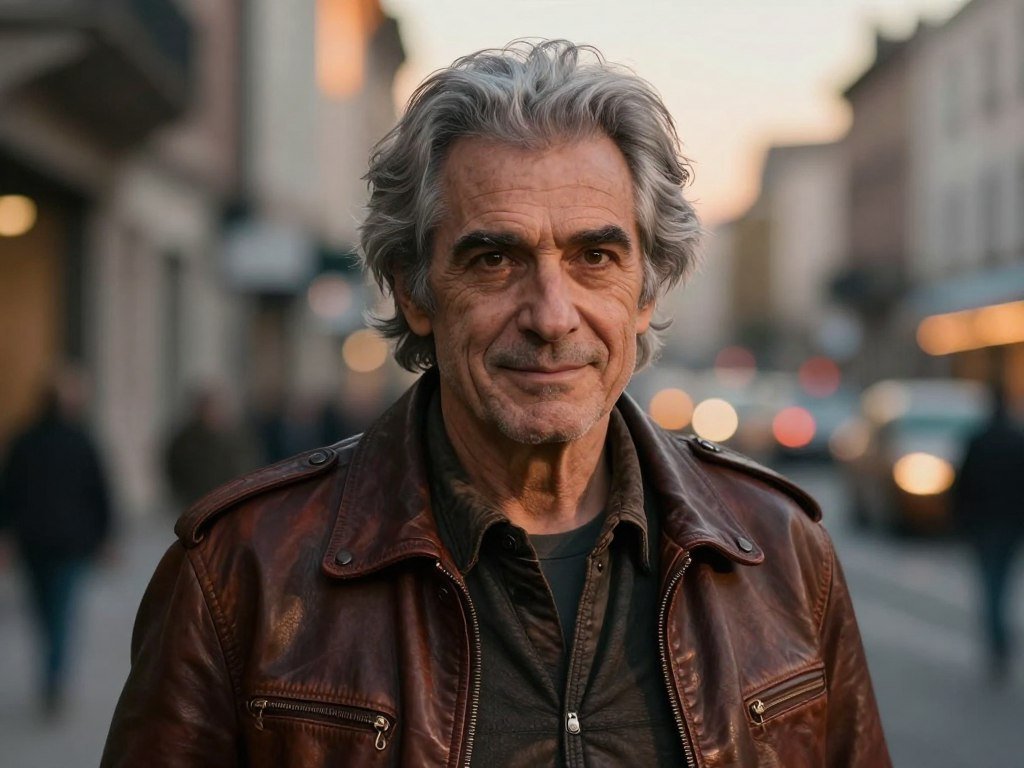
Write a specific prompt for the character’s defining traits
Keep the defining features clear and direct. If the character has a narrow face, say so; if the hair is wavy, name that too. Avoid giving the same trait two different descriptions, such as “short hair” and “long curls.” Conflicting prompts can pull the image in different directions.
Separate lasting appearance from details that belong only to one image. “Brown eyes and gray hair” can stay in each prompt, while “rainy city street” can change to a forest or a bedroom. This gives the model room to create a new scene without losing the visual cues you chose.
A prompt is only one part of the process. You can find more help with writing prompts and reviewing AI images, including ways to describe the look you want from a reference.
Choose a clear base image and set reference strength
Generate five to ten prompt variations, then select a well-lit, clear image with a face and outfit you can recognize. Open Character Reference from the image thumbnail beside the prompt bar. The available strength choices are Low, Mid, and High.
Low strength leaves more room for pose changes, while High strength keeps more of the reference. A suggested range is 0.6-0.8, though the best setting depends on the change you need. High strength can also make large pose or scene changes harder.
Character Reference guides appearance, but it does not reproduce every detail exactly. A stronger setting can preserve more of the base image while limiting larger changes.
The Leonardo AI image-guidance documentation explains the reference controls and their limits. Save the selected base image with its original prompt so you can return to the same visual anchor.
How do you set up a repeatable generation workflow?
A repeatable setup begins with one approved image, one clear scene prompt and only a small number of changing variables. Keep the test focused so you can tell whether a new pose or scene prompt caused a change. A fixed seed is useful for small adjustments, while image guidance can help steer composition or style.
Use the seed to compare nearby variations, not to force a major redesign. A fixed seed can help keep the overall look and pose stable. It gives you less freedom when you ask for a very different pose or scene. For composition or style, use a guiding image when those are the details you want to control.

- Create or upload the base image you want to reuse.
- Attach it with Character Reference.
- Set reference strength to 0.7 as a starting point.
- Keep the seed fixed while testing small changes.
- Generate options, then refine the variations you select.
To reuse a seed, copy it from a generated image and enter it in Advanced Settings. Keep the scene prompt steady while testing a pose, or keep the pose steady while testing a background. Changing both at once makes the results harder to compare.
| Method | Input | Best suited to | Tradeoff |
|---|---|---|---|
| Character Reference | A character image | Identity cues across new scenes | Guidance, not a fixed identity |
| Fixed seed | The seed from a generation | Small changes to a similar composition | Less freedom for major changes |
| Composition or style reference | A guiding image | Arrangement or visual style | Not a substitute for character reference |
Image guidance can steer composition and style, but each guide serves a different purpose. A comparison of AI image generators can help you weigh tools by their image controls and editing options.
When a new pose matters more than a near-match to the base image, lower the reference strength before changing several other settings.
How do you turn variations into a usable character sheet?
A useful character sheet is a selected set of images that answers a production need, not a pile of every generation. Plan the sheet first, then choose poses or expressions that help with the project. For a game concept, you might need front, side, and three-quarter views; a story scene may need a few clear expressions.
Change one major element at a time and save each successful prompt with its output. That makes it easier to trace a useful image back to the settings that made it. Leonardo AI workflows can support game assets such as turnarounds, expression sheets, and pose variations.
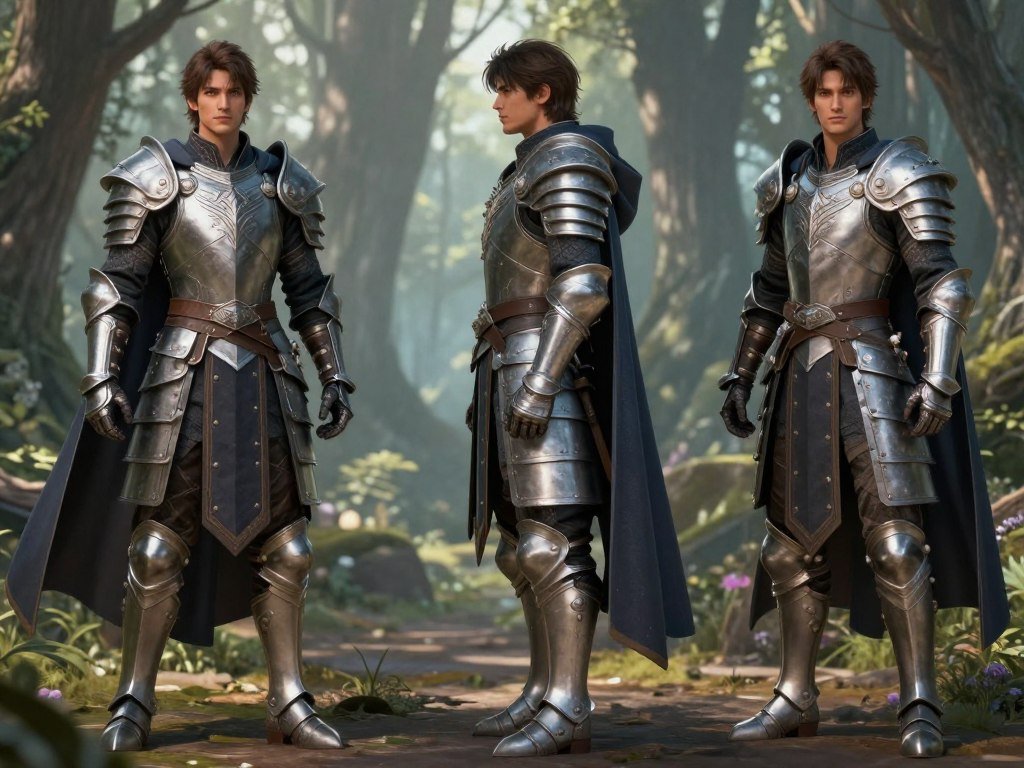
Build pose and expression variations for the project
Make each prompt serve a specific slot on the sheet. A front view can show the outfit clearly, while a side view can reveal the hair shape and profile. For expressions, keep the scene simple so the face remains easy to judge.
Use this process to build the set:
- Choose the sheet’s purpose.
- Write a prompt for each pose or expression.
- Generate 4-8 variations.
- Keep and label outputs that preserve the chosen identity cues.
Labels such as “front view, neutral” or “three-quarter view, surprised” make the images easier to sort later. For each prompt, change one major element, such as the pose, rather than changing pose, outfit, and lighting together.
Review identity cues before keeping an image
Compare each image with the base image, not only with the previous result. Check the face, hair, outfit, and body shape. Keep a variation only if it fits the identity standard you set for the project.
| Identity cue | Keep stable | Change intentionally |
|---|---|---|
| Face and eye color | Same defining traits | Expression |
| Hair | Color and recognizable style | Slight movement or angle |
| Outfit | Signature garments | Costume only when intended |
| Pose | Recognizable body proportions | Position and action |
The Multi-Character Scene Builder can combine up to five characters in one scene. Check each person’s features separately, since traits can blend in a group image. A guide to AI generators for creators can also help you compare tools for image work.
Keep the prompt and reference used for each approved variation beside the image so the sheet stays reusable.
How reliable is Leonardo AI Character Reference?
Treat Character Reference as a strong visual guide, not a promise that every output will be identical. Some variation is normal, even when you use the same character image. A 2026 comparison found that seven to eight out of ten generations of the same character remained recognizably similar, while the rest had noticeable differences.
That result is a general indication, not a guarantee for your project. Hair, face shape, clothing, and other features can drift, especially when prompts add conflicting details or complex scenes. Image guidance helps steer a generation; it does not lock character identity as a fixed rule.

Model choice can affect the result, and Leonardo AI’s model lineup changes over time. Its developer documentation keeps a page on model changes and retirements. Check that your chosen model still supports the image guidance settings you plan to use.
A simple scene gives you fewer details to inspect, while a crowded scene can make small changes harder to spot. Look closely at the face, hair, clothing, and body shape. For a project with several recurring characters, set a clear standard for what counts as recognizable before you sort the outputs.
Generate options and keep only the images that meet that standard. An image that is attractive but changes a signature feature may not fit the same character across multiple scenes. Review the full image, too: a face may look right while the clothing or body proportions have shifted.
Before producing a large batch, test the chosen model with the character, scene complexity, and style you actually plan to use.
What can you do with Leonardo AI’s free plan?
The free plan can support character experiments, but each generation draws from a token allowance that resets every 24 hours. Plan a few tests before spending tokens on many near-duplicate images. Leonardo AI provides 150 tokens every 24 hours, and the cost changes with the model and generation settings.
Reuse a clear base image and Character Reference while keeping an eye on token use. That is a practical way to make consistent characters with Leonardo AI for free. Test one pose or scene change at a time, then keep the useful results instead of generating a large batch without a clear goal.
Budget tokens around the model and settings
Token use depends on the model and the settings you choose. A free AI image generator comparison can help you think through each tool’s allowance and limits. Leonardo AI’s free plan is suited to small experiments, not endless retries.
Before a test, decide what you want to learn. You might compare two scene prompts, check one outfit, or see whether a new pose still reads as the same character. If the first results show a clear problem, adjust the prompt before spending tokens on more versions of it.
Decide whether public creation and custom training fit
Free-plan generations are public, while paid plans add private creation. Keep that difference in mind when the image includes unpublished designs or sensitive details. Paid plan prices and terms are not needed to make a choice here; the key point is that free creations are public.
Custom Elements are another option, but they are different from reference-based generation. An Element is trained with at least 10 images, with up to 50 supported for Flux Dev. Character Reference uses a base image to guide a generation; custom training uses a set of images to teach a model a look.
Training takes a collection of images rather than one visual guide, so it calls for more preparation. Make sure the images represent the traits you want the model to learn. For a small project, a reference workflow may be simpler to test first.
Free-plan generations are public. Keep sensitive or unpublished work out of them unless the plan’s privacy terms fit your project.
Keep sensitive or unpublished work out of public generations unless the plan’s privacy terms fit your project.
Conclusion
A consistent visual set starts with a character design you can describe and recognize. A clear base image, a few stable visual anchors, and careful review give you a useful way to maintain character consistency across multiple images. They can support recurring characters in games, comics, and stories without promising an exact match every time.
Start small and save the versions that meet your project’s needs. Choose one character, save its clearest base image, and test a small pose sheet before building a larger project.
FAQ
How to make AI characters consistent?
Reuse a clear reference image, keep defining traits stable in the prompt, and review several generations. The image guides the model, but does not force an exact match. Keep a short description of the face, hair, eye color, and signature clothing beside the image. Compare each new result with those traits, then save only the versions that still read as the same character.
What is the best AI generator for consistent style characters?
Leonardo AI is a practical choice for reference-led character variations when you want to change scenes or poses. Character Reference can guide appearance while your prompt changes the setting. It does not guarantee a fixed identity, so check the face, outfit, and other identifying details in each result. The best fit depends on the controls your project needs.
What is the best free AI character generator?
Leonardo AI’s free plan provides 150 tokens every 24 hours, and generations are public. Token costs depend on the model and settings, so a daily allowance may create different numbers of images for different workflows. Use planned tests rather than many near-duplicates, and avoid public generations for sensitive or unpublished work.
How are people making the AI characters?
They describe a design, generate and select a base image, then reuse it as a reference while changing the scene or pose. A prompt can name stable traits, such as hair and eye color, along with the image’s style. People then review the outputs and keep the ones that preserve the character’s main cues.
Can Leonardo AI keep the same outfit while changing a character’s pose?
Yes, you can keep the outfit description and reference image consistent while changing the pose prompt. Name the signature garments clearly, then ask for one new position or action. Clothing can still drift because the reference guides rather than fixes every detail. Compare the outfit in each output and discard versions that change key garments.



