

Ultrawide vs Dual Monitors for Productivity in 2027
Two monitors have been the default productivity setup for years, but the ultrawide monitor has become a serious rival. A single 34-inch or 49-inch curved screen promises the same screen space without the bezel in the middle, the extra cables, or the second power brick. The question is whether that promise holds up in real work.
The answer depends on how you work. Writers, coders, and spreadsheet users value uninterrupted width; people who keep a video call open on one screen while working on the other often prefer a physical split. Both setups can transform a cramped laptop screen into a proper workstation. The differences are in window management, desk space, eye strain, and how your work is divided.
This comparison tests ultrawide vs dual monitors for productivity in 2027 across screen real estate, window management, desk space, cost, and comfort. By the end, you should know which setup fits your work, your desk, and your budget.
Key takeaways
- Ultrawide monitors give you one seamless workspace with no bezel, which suits writing, coding, and video editing.
- Dual monitors give you a true physical split, which suits video calls, dashboards, and two apps at once.
- A 34-inch ultrawide roughly equals two 24-inch screens, while a 49-inch super-ultrawide equals two 27-inch screens.
- Dual monitors are usually cheaper, easier to upgrade one at a time, and simpler to replace.
- For most people, the deciding factor is workflow: one big canvas favours ultrawide, two jobs favours dual monitors.
| Factor | Ultrawide monitor | Dual monitors |
|---|---|---|
| Screen space | One seamless canvas, no bezel | Two screens, bezel in the middle |
| Window management | Needs software zones | Natural split, one app each |
| Desk space | One stand, one cable set | Two stands, more cables |
| Typical cost | From around $350, 34-inch | From around $300, two 24-inch |
| Best for | Writing, coding, timelines | Calls, dashboards, two apps |
| If one fails | Whole display lost | Other screen keeps working |
Prices are approximate and change often, so check current pricing before you buy.
The case for an ultrawide monitor
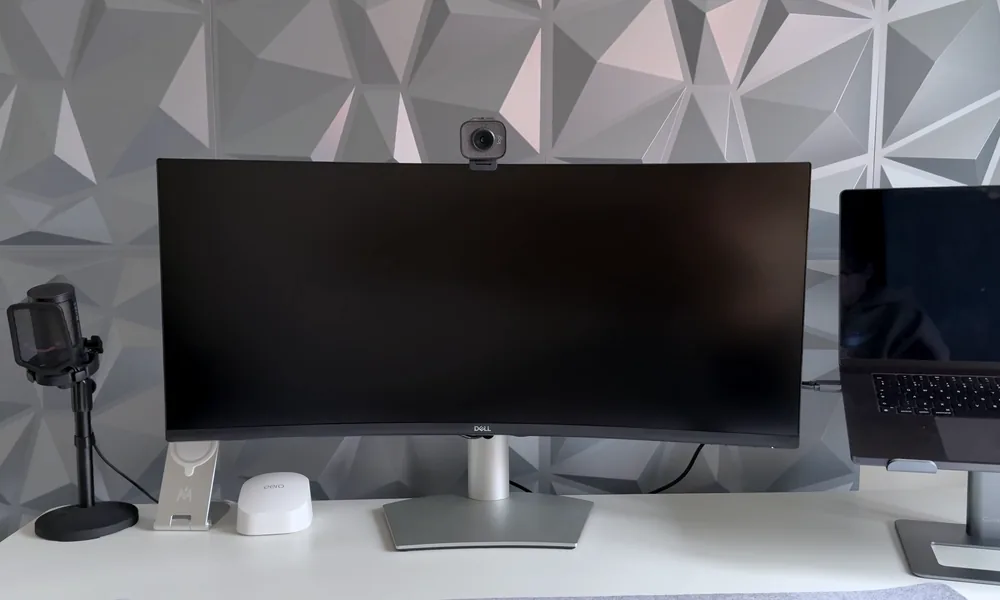
An ultrawide monitor replaces two screens with one wide, usually curved, panel. A 34-inch ultrawide at 3440 by 1440 gives roughly the width of two 24-inch monitors with no gap in the middle, and a 49-inch super-ultrawide at 5120 by 1440 matches two 27-inch screens. That seamless width is the point: a document, timeline, or spreadsheet can stretch across the full display without a black bar cutting it in half.
The curve matters more than the marketing suggests. On a flat screen this wide, the edges sit further from your eyes than the centre, which can make text at the edges feel distant. A gentle 1800R or 1500R curve brings the edges closer. For video editing, the wide timeline is genuinely useful: you can see more of a project at once without overlapping windows.
Ultrawides also simplify your desk. One stand, one power cable, and one video cable replace the clutter of a dual setup, and a single monitor arm handles the whole display. If you pair it with one of the best ultrabooks of 2027, a single USB-C cable can carry video, power, and peripherals. The trade-off is dependence: if the panel fails, you have no screen at all until it is repaired.
The case for dual monitors
Dual monitors are the classic productivity setup for a reason: the split is physical, obvious, and impossible to get wrong. One screen holds your main work, the other holds everything else — email, chat, a video call, a reference document, or a dashboard. You never have to drag windows into zones; you just look left or right.
That separation helps focus. When a video call lives on its own screen, it stays visible without covering your work, and you can glance at it without losing your place. The same applies to monitoring: a live dashboard or support queue can sit permanently on the second screen while you work on the first.
Dual monitors are also cheaper and more flexible. Two decent 24-inch or 27-inch screens often cost less than one good 34-inch ultrawide, and you can mix sizes, upgrade one at a time, or replace a failed panel without losing your workspace. If one monitor dies, the other keeps you working. The downsides are the bezel in the middle, more cables, and a wider footprint.
Screen real estate and window management
On paper, a 34-inch ultrawide and two 24-inch monitors offer similar total pixels, but the experience differs. The ultrawide wins for single tasks that benefit from width: long documents, wide spreadsheets, code with a side panel, and video timelines. The dual setup wins for two distinct tasks, because each app gets its own full screen.
Window management is where ultrawides demand more effort. Windows and macOS snap windows to halves and quarters, but an ultrawide really needs thirds or custom zones to use its width well. Tools like Microsoft PowerToys FancyZones let you define layouts — two-thirds and one-third is popular — but it takes setup. Dual monitors need none of this: full screen on the left, full screen on the right, done.
Some older software does not handle ultrawide aspect ratios gracefully, stretching or letterboxing instead of filling the screen. Most modern productivity apps are fine, but if you rely on niche tools, check that they support 21:9 before committing. Dual monitors avoid the problem entirely, since each screen is a standard 16:9 display.
Desk space, cost, and eye strain
Desk space favours the ultrawide, but not by as much as you might expect. A 34-inch ultrawide is about 32 inches wide, while two 24-inch monitors side by side span roughly 44 inches. The ultrawide needs only one stand, though its deep curved base can eat into desk depth. Two monitors on a single dual arm take up a similar footprint, so the gap narrows with a good arm.
On cost, dual monitors usually win. Two solid 24-inch 1080p screens cost around $300 in total, while a decent 34-inch ultrawide starts around $350 and good ones run $500 or more. A 49-inch super-ultrawide can cost $800 to $1,000, which buys a very good pair of 27-inch 1440p monitors instead. Prices are approximate, so check current pricing, but the pattern holds.
Eye strain is a draw with good habits on either setup. Both need the top of the screen at or just below eye level, about an arm’s length away, with brightness matched to the room. Ultrawide users should sit a little further back so the edges stay in comfortable view. Dual-monitor users should angle the second screen slightly and keep the main screen directly ahead. Whichever you choose, take a short break every hour.
The verdict: which setup wins for productivity?
For most productivity work, the two setups are closer than their fans admit, and the winner is decided by workflow. If your day is spent in one big canvas — writing, coding, editing video, or huge spreadsheets — the ultrawide wins, because the seamless width removes friction. If your day is spent switching between two things — a call and a document, a dashboard and a ticket queue — dual monitors win, because the physical split matches the way you work.
There are clear exceptions. Video editors, musicians, and data analysts who live in wide timelines should go ultrawide. Support staff, traders, and anyone who monitors a live feed while working should go dual. And if you already own one good monitor, buying a second matching one is the cheapest upgrade of all.
Our overall pick for productivity in 2027 is the dual monitor setup for most office workers, because it is cheaper, more flexible, and fails gracefully. But the ultrawide is the better choice for focused creative work. Either way, the jump from one screen to two — or to one very wide one — is the biggest productivity upgrade most desks will ever get.
How to choose your monitor setup
Start by watching how you actually work for a week. Count how often you have two apps open at once, and whether they are two parts of one task or two separate jobs. If it is mostly one task with a reference beside it, an ultrawide fits. If it is two separate jobs, dual monitors fit better.
Next, measure your desk. A 34-inch ultrawide needs about 32 inches of width and a deep desk for its curved stand; two 27-inch monitors need about 48 inches. Check your graphics card or laptop outputs too: an ultrawide needs a single port that supports its resolution, while dual monitors need two outputs or a dock.
Finally, think about the rest of your workflow. If you automate repetitive computer work, the screen setup matters less than the tools, and our guide to what AI browser automation is explains how software can take over the boring parts regardless of how many screens you own. And if your work is visual, check the best software for photography studios to make sure your editing tools suit the display.
Monitor setup checklist
- Measure your desk width and depth before buying, and allow room for a monitor arm.
- Check your laptop or graphics card can drive the resolution.
- Put your main screen directly ahead, top at or below eye level.
- Match brightness and colour across screens to reduce eye strain.
- Set up window zones on an ultrawide, or you waste half the screen.
- Try the setup for two weeks before deciding.
Frequently asked questions
Is an ultrawide monitor better than dual monitors for productivity?
It depends on your work. Ultrawide is better for single wide tasks like writing, coding, and video editing, because there is no bezel in the middle. Dual monitors are better for two separate tasks, like a call beside a document, because each app gets its own screen.
What size ultrawide equals two monitors?
A 34-inch ultrawide at 3440 by 1440 roughly equals two 24-inch monitors side by side. A 49-inch super-ultrawide at 5120 by 1440 roughly equals two 27-inch monitors.
Are dual monitors cheaper than an ultrawide?
Usually, yes. Two decent 24-inch screens cost around $300 in total, while a good 34-inch ultrawide starts around $350 to $500. A 49-inch super-ultrawide can cost $800 to $1,000, which buys a strong pair of 27-inch monitors.
Do ultrawide monitors work well for video calls?
They work, but dual monitors handle calls better. On a dual setup, the call stays on its own screen while you work on the other. On an ultrawide, the call shares the screen with your work, so you need window zones to keep both visible.
Can my laptop run an ultrawide or dual monitors?
Most modern laptops can run either setup, but check the outputs. An ultrawide needs one port that supports its resolution, while dual monitors need two outputs or a USB-C dock. Integrated graphics handle office work fine on both.
Which setup is better for eye strain?
Neither is clearly better. Both work well if the screen is at eye level, an arm’s length away, and matched to room brightness. Ultrawide users should sit slightly further back, while dual-monitor users should angle the second screen.
The bottom line
Ultrawide and dual monitors are both excellent productivity upgrades in 2027, and the wrong choice is still far better than a single laptop screen. Dual monitors suit most office workers: they are cheaper, more flexible, and keep working if one panel fails. Ultrawides suit focused creative work, where one seamless canvas beats two screens.
Watch how you work for a week, measure your desk, and check your laptop’s outputs before you buy. Then pick the setup that matches your workflow, give it two weeks to feel natural, and enjoy the extra space.


