
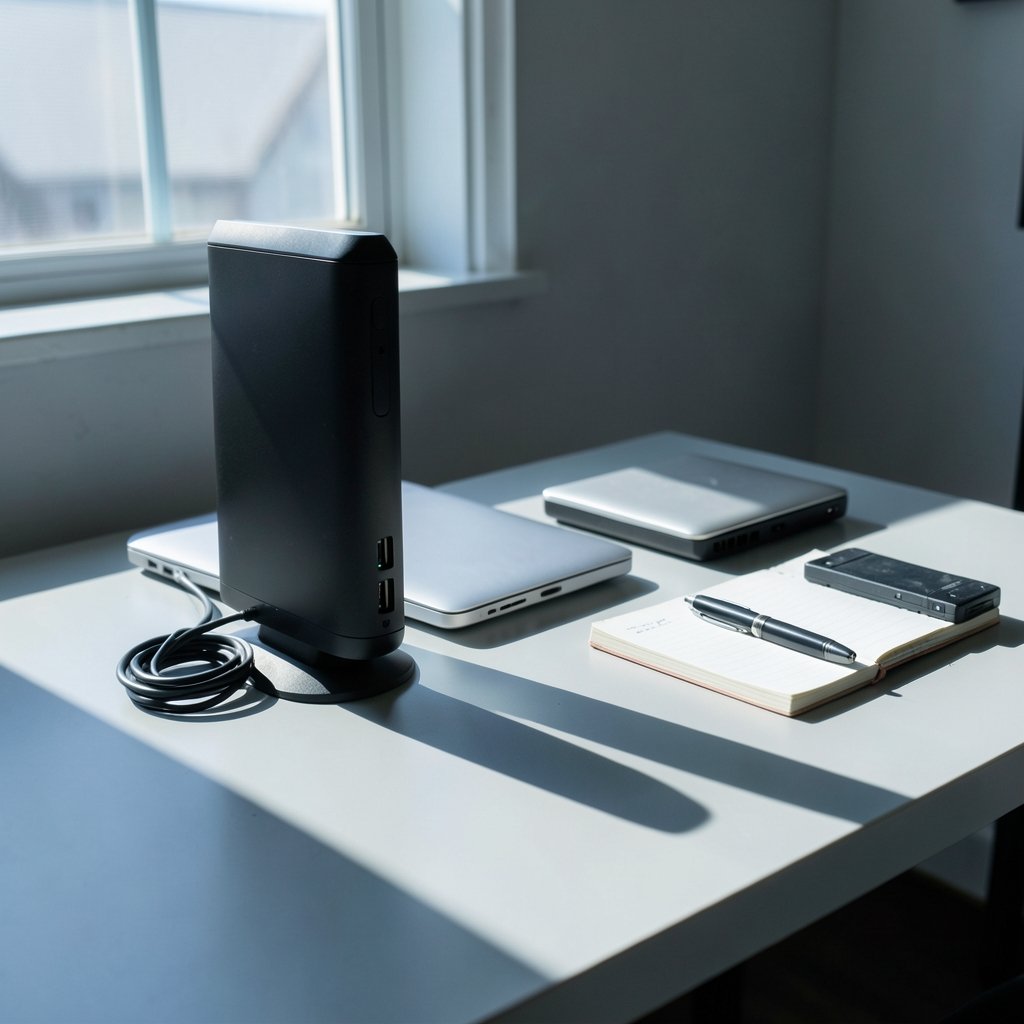
Roughly one in ten computers will suffer a data loss event in any given year, and the leading cause is not hackers or disasters. It is a failed drive. That single number explains why the humble external hard drive remains the most practical insurance policy most people can buy. It is cheap, it is simple, and when configured properly, it works quietly in the background for years.
But “buy an external drive” is easier said than done. The market is crowded with drives that look identical but behave very differently under sustained use. This guide cuts through the spec-sheet noise and explains which drives suit which jobs, where the common traps are, and how to build a backup setup that survives the day your main drive does not.
Why External Hard Drives Still Win for Backup
Cloud storage is convenient, but it has two structural weaknesses: recurring cost and upload speed. A 4 TB cloud backup plan costs more per year than a 4 TB desktop drive costs once, and restoring a terabyte over a home connection can take days. An external drive restores in hours.
The 3-2-1 rule remains the standard advice: three copies of your data, on two different types of media, with one copy kept offsite. External drives fit neatly into that framework. One drive sits on the desk, one lives at a relative’s house or in a locker, and the cloud handles the offsite leg if you prefer. For a deeper look at matching drives to specific jobs, see this roundup of the best external hard drives for backup. (NIST Cybersecurity Framework)
There is also a reliability argument. Spinning platters are a mature technology. A quality 3.5-inch drive left in a ventilated enclosure and written to once a day will typically last many years. The failure modes are well understood, which is more than can be said for some exotic storage formats.
Hard Drive vs SSD: An Honest Comparison
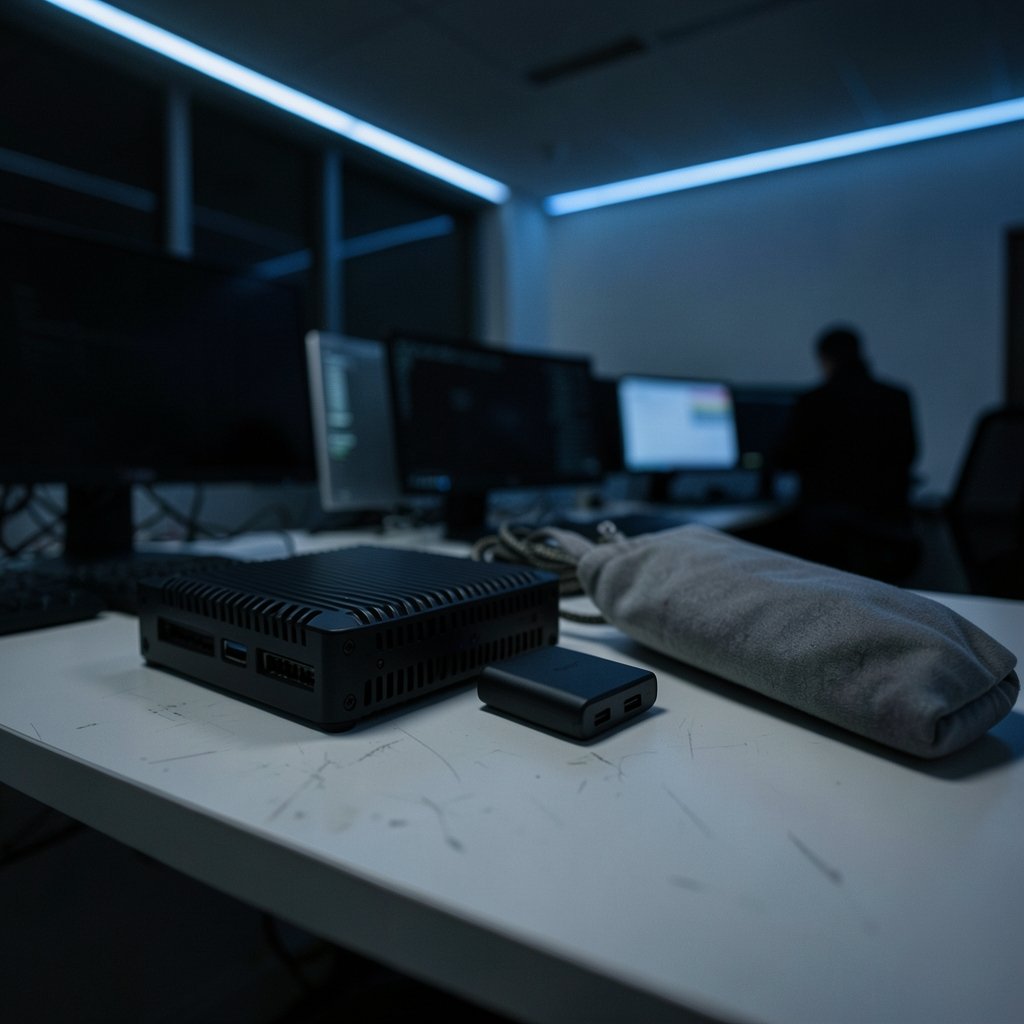
The single most common question is whether to buy a spinning drive or a solid-state one. The answer depends almost entirely on volume and budget.
| Factor | External HDD | External SSD |
|---|---|---|
| Cost per terabyte | Low | Three to five times higher |
| Sustained write speed | Roughly 100–250 MB/s | Several hundred MB/s to over 1,000 MB/s |
| Shock resistance | Poor when powered on | Excellent |
| Capacity ceiling | Up to 20 TB+ in desktop models | Commonly 1–4 TB |
| Best use | Full-system and photo archives | Working drives, travel, quick transfers |
For a full backup of a laptop plus years of photos, a spinning drive is the rational choice. If the drive travels in a bag every week, an SSD’s lack of moving parts matters more than its price premium. Many people settle on both: a large desktop HDD for the archive and a small SSD for the current project. A separate guide to the best external SSD covers the portable side of that equation.
The Specs That Actually Matter
Capacity: Buy More Than You Need
A backup drive should hold at least twice your current data volume. Backups grow, and a drive that is 90 percent full slows down and becomes awkward to manage. For most households, 4 TB is the sensible floor; 8 TB gives comfortable headroom for photo and video libraries.
Interface: USB Is Fine, Thunderbolt Is Rarely Necessary
USB 3.2 Gen 1 (5 Gbps) is the common baseline and is faster than any spinning drive can saturate. USB 3.2 Gen 2 (10 Gbps) helps SSDs but does nothing for an HDD. Paying extra for Thunderbolt on a mechanical drive is money wasted, because the platters, not the cable, are the bottleneck. The USB Implementers Forum publishes the official naming conventions, which are worth checking because marketing labels are frequently loose.
Recording Technology: Watch for SMR
Some high-capacity consumer drives use shingled magnetic recording (SMR), which overlaps data tracks to increase density. SMR drives are fine for write-once archives but can slow dramatically during large sustained writes. Manufacturers have not always labeled this clearly, and the practice drew heavy criticism after Western Digital shipped SMR drives in its desktop line without disclosure in 2020. If you plan to write hundreds of gigabytes in one session, check whether a model uses CMR before buying.
Power: Portable vs Desktop
Bus-powered 2.5-inch portables need no power brick and top out around 5 TB. Externally powered 3.5-inch desktop drives reach 20 TB and often run cooler and faster, but they need a wall socket and are less pleasant to move. Desktop drives are the better backup anchor; portables are the better travel companion.
Practical Setup Advice That Saves Data
Buying the drive is the easy part. What separates a real backup from a false sense of security is configuration. A few habits matter more than any spec sheet.
First, format the drive correctly on day one. If you only use Windows, NTFS is fine. If you might ever plug the drive into a Mac, exFAT is the safer choice, though it lacks journaling. Mac-only users should use APFS.
Second, never keep the only backup next to the computer. A drive sitting beside a laptop is lost in the same burglary or fire. Rotate two drives, keeping one elsewhere. For households with large photo libraries, dedicated photo backup solutions add versioning that plain file copies lack.
Third, verify the backup actually restores. A backup you have never tested is a hope, not a plan. Once a quarter, pull a random folder off the drive and open the files. This five-minute check catches more disasters than any monitoring tool.
Fourth, use versioned backup software, not drag-and-drop. Manual copying means a corrupted file overwrites a good one. Tools that keep multiple versions let you roll back to last Tuesday.
A common mistake is buying a single enormous drive and calling it done. Drive failures cluster around power events and physical shocks, and one drive is still one point of failure. Two mid-size drives beat one giant one almost every time.
When to Replace a Drive
Drives do not fail politely. They give warnings, and those warnings are easy to ignore. Watch for these signals:
- Clicking, ticking, or grinding noises during operation.
- Sudden slowdowns in transfer speed that persist across reboots.
- Files that open slowly or report read errors.
- SMART health warnings from monitoring tools.
- A drive that has run continuously for more than five years.
Any one of these is a reason to copy the data elsewhere immediately and retire the drive. Replacement is cheap; recovery is not. Professional data recovery routinely costs several hundred to several thousand dollars, which is why the best external hard drives for backup are evaluated on reliability first and speed second.
Encryption: Useful, With Caveats
Hardware encryption built into external drives sounds ideal: set a password, and the data is unreadable if the drive is lost. The reality is more complicated. Several USB bridge chips used in consumer enclosures have been shown to have weaknesses, and vendor-supplied encryption tools vary widely in quality.
The safer approach for most people is software encryption using a well-audited tool, applied to a backup folder or a container file. Store the recovery key somewhere other than the drive itself. Encryption is genuinely valuable for laptops that travel, but it is only as strong as the key management behind it.
Matching the Drive to the Job
Different backup jobs have genuinely different requirements, and buying one drive for everything usually means compromising.
| Job | Priority | Sensible choice |
|---|---|---|
| Full system image | Capacity, sustained writes | 8–16 TB desktop HDD, CMR |
| Photo library archive | Capacity, versioning | 4–8 TB desktop HDD plus cloud copy |
| Laptop travel backup | Portability, shock resistance | 1–2 TB portable SSD |
| Media server expansion | Capacity, cooling | Multi-bay enclosure or large desktop HDD |
| Quick file shuttling | Speed | Small portable SSD |
For anyone planning a system migration at the same time, the workflow in this guide to clone hard drive to SSD 2026 pairs well with a dedicated backup drive: clone first, then keep the original as an archived copy. (Hard disk drive)
Conclusion
The best external hard drive for backup is not the fastest or the largest. It is the one that holds two copies of everything you cannot afford to lose, sits somewhere other than your desk, and gets tested before you need it. A modest 4 TB desktop drive used consistently beats a 20 TB drive that stays in a drawer.
Buy for capacity with headroom, check whether the model uses SMR before committing to large writes, skip Thunderbolt on mechanical drives, and treat encryption as a key-management problem rather than a checkbox. Then set a calendar reminder to verify a restore once a quarter. That routine, more than any purchase decision, is what keeps data alive.
Frequently Asked Questions
How much storage do I need for a backup drive?
At least twice your current data volume. A typical household with photos, documents, and some video is well served by 4 TB, while photo and video libraries justify 8 TB or more. Leaving 30 to 50 percent free space keeps write speeds healthy and leaves room for growth.
Is an SSD better than a hard drive for backups?
It depends on the job. SSDs are faster, silent, and shock-resistant, which suits portable use and frequent transfers. Hard drives cost far less per terabyte and reach much higher capacities, which suits large archives and full-system images. Many people use an HDD as the archive and an SSD as the working drive.
How long do external hard drives last?
Most quality drives last three to five years in regular use, and many exceed that. Heat, physical shocks, and power interruptions shorten life more than age alone. Because failure is unpredictable, the practical rule is to replace any drive that has run continuously for five years, regardless of how healthy it seems.
Should I encrypt my backup drive?
For a drive that leaves the house, encryption is worth the effort. Use a well-audited software encryption tool rather than relying solely on vendor hardware encryption, and store the recovery key somewhere separate from the drive. For a desktop drive that never moves, encryption is optional but still sensible.
Can I use a backup drive with both Windows and Mac?
Yes, if you format it as exFAT, which both operating systems read and write. The tradeoff is that exFAT lacks journaling and is more vulnerable to corruption if the drive is unplugged mid-write. Always eject the drive properly before disconnecting it.
How often should I back up my data?
Daily for files that change often, such as work documents, and weekly for photo libraries and media. Automated scheduled backups are far more reliable than manual ones because they remove the human memory problem. Whatever the schedule, test a restore once a quarter to confirm the backup is actually usable.
That quarterly restore check is also the moment to revisit whether the drive still matches your needs. Data volumes grow quietly, and a drive that was 50 percent full last year may be 85 percent full now. If it is approaching that threshold, plan the next purchase before you need it rather than after a warning appears. Keep the old drive in service as a secondary copy once it is replaced, provided it passes a health check. Finally, write down the plan: which drive holds what, where the off-site copy lives, and when the last restore test happened. A short note stored with the recovery keys turns a good intention into a routine someone else could follow. That is the quiet difference between owning a backup drive and actually having a backup.



