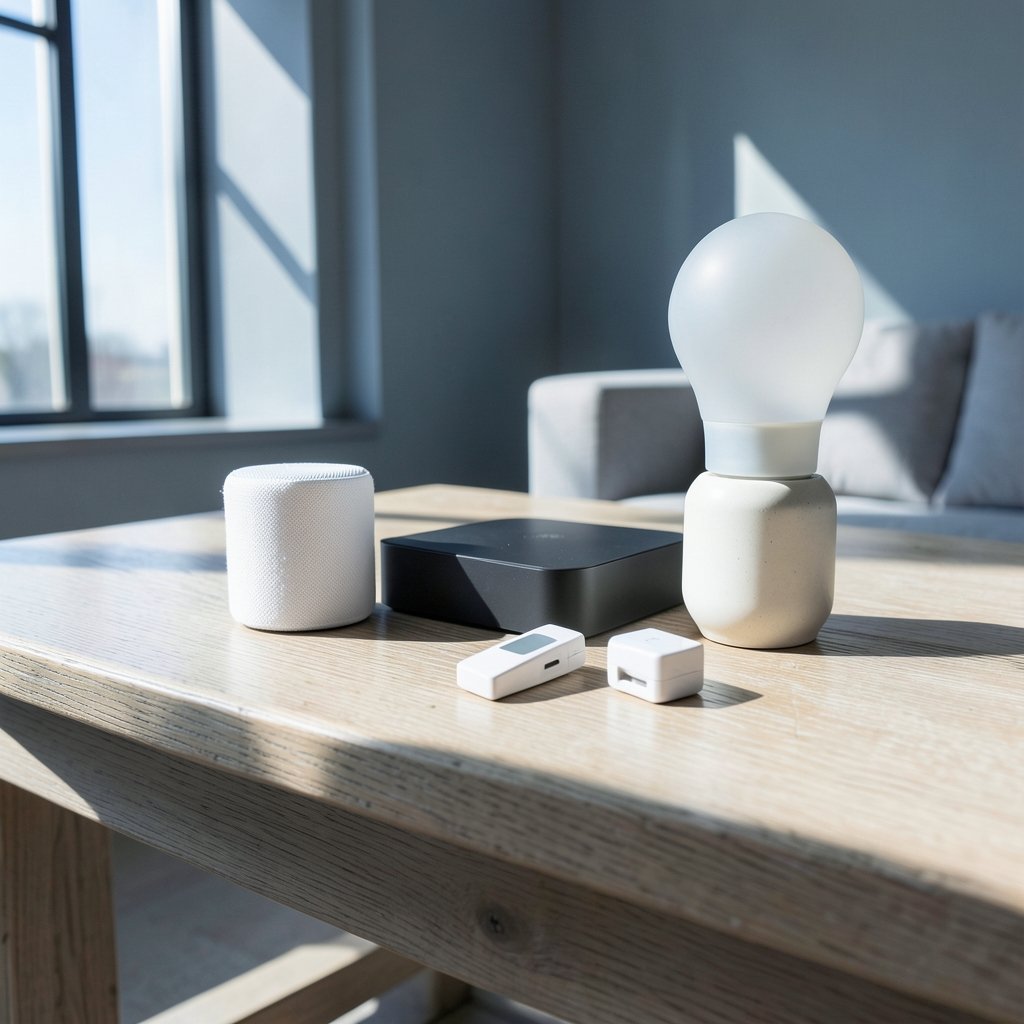
When Apple introduced HomeKit with iOS 8 back in September 2014, the pitch was simple: one app, one voice assistant, and a single standard that would make smart home gadgets talk to each other. More than a decade later, that promise has mostly arrived, but the path to a reliable setup is still littered with accessories that look great on a spec sheet and fall apart in daily use. The real trick isn’t buying the most expensive gear. It’s choosing devices that respond instantly, survive router reboots, and keep working when the internet goes down. (Apple Home app overview)
This guide walks through the categories that matter most, the specific qualities that separate good HomeKit hardware from frustrating hardware, and the mistakes that trip up first-time buyers. Apple’s HomeKit line now leans heavily on Matter and Thread, which changes which devices are worth your money. Understanding that shift is the difference between a setup that feels magical and one you quietly stop using.
Why HomeKit Still Matters in a Matter World
Apple’s Home app was rebuilt in iOS 16, and Matter support arrived in iOS 16.1 in October 2022. Since then, Apple has nudged users toward cross-platform accessories that work with HomeKit, Amazon Alexa, and Google Home simultaneously. That’s genuinely good news for buyers, because you’re no longer locked into a single platform when you pick a smart plug.
But HomeKit certification still means something. Devices that carry the Works with Apple Home badge have passed Apple’s pairing and security requirements, and they integrate with Siri, automations, and scenes without workarounds. The practical benefit shows up in small moments: asking Siri to dim the lights while your hands are full, or having a door lock trigger a hallway light at night.
The catch is that older HomeKit-only accessories are slowly being deprecated in favor of Matter. Before buying anything, check whether the model supports Matter over Thread or Matter over Wi-Fi. A device that only speaks the legacy HomeKit protocol may still work, but it won’t benefit from the newer, faster local control that Thread enables. (HomeKit)
If you’re building a broader smart home and want context on where to start, a look at the best smart home devices for beginners helps frame the categories before you commit to a platform.
Hubs First: Apple TV and HomePod
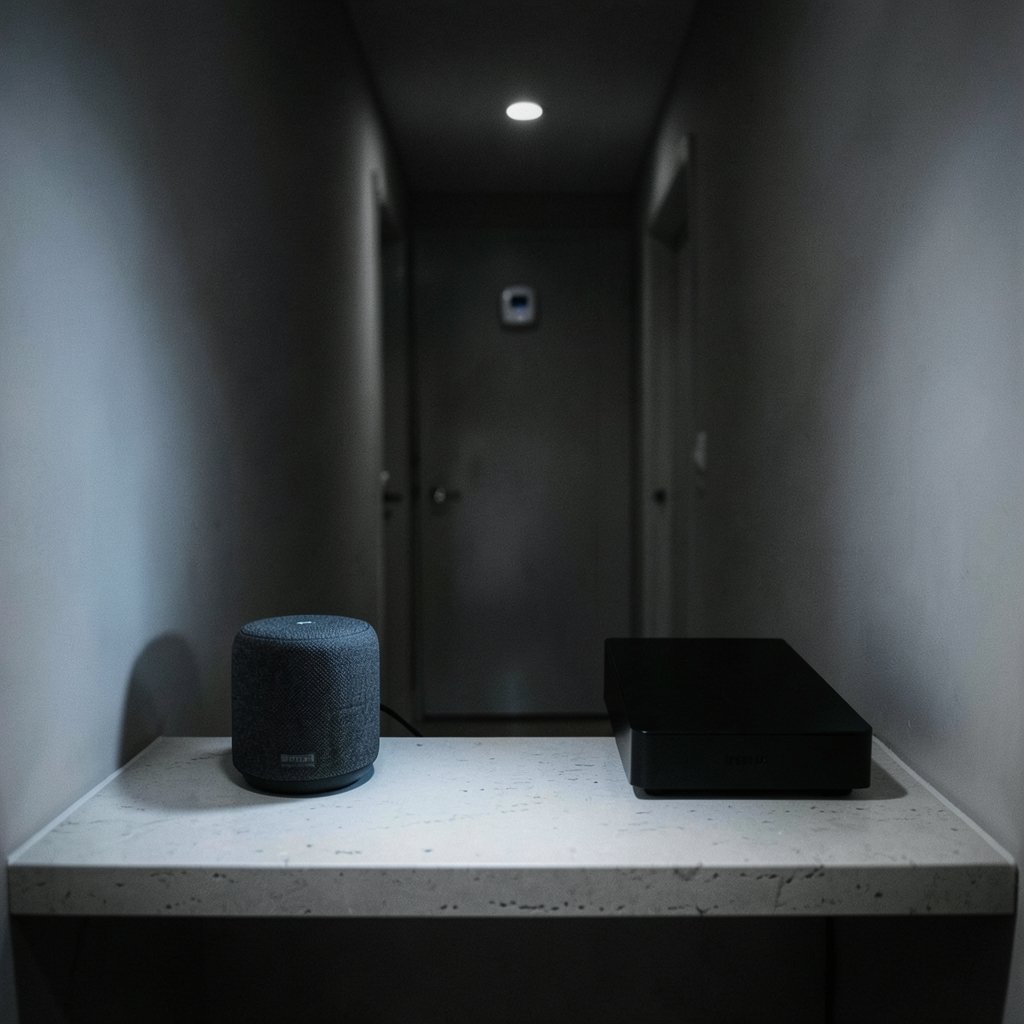
Every HomeKit setup needs a home hub for remote access and automations. The current options are the Apple TV 4K and the HomePod or HomePod mini. The HomePod mini, launched in November 2020, remains the cheapest entry point and doubles as a Thread border router, which matters enormously if you plan to buy Thread sensors or locks.
What actually works in practice: put the hub centrally. A HomePod mini tucked behind a television in a far corner will drop Thread devices at the edge of the house. People routinely blame the sensor when the real problem is hub placement. One hub covers a typical apartment fine; a two-story house usually benefits from two, since Thread builds a mesh and each border router strengthens it.
A common mistake is buying a hub last. Buy it first, then add accessories one at a time so you can isolate problems when something misbehaves.
Smart Plugs and Switches: The Quiet Workhorses
Smart plugs are the least glamorous purchase and the one most people use every single day. The best ones share three traits: they respond in under a second, they remember their state after a power cut, and they don’t require a cloud account to function locally.
| Feature | What to Look For | Why It Matters |
|---|---|---|
| Protocol | Matter over Thread or Wi-Fi | Local control, no cloud dependency |
| Power monitoring | Energy reporting | Useful for tracking always-on devices |
| Physical button | Manual override | Works when the network is down |
| Size | Compact, side-by-side friendly | Fits two in a standard outlet |
| Firmware updates | Automatic via Home app | Security patches without hassle |
Eve’s Thread-based plugs have earned a strong reputation for local reliability, while Meross and Wemo offer cheaper Wi-Fi options that are easier to find on sale. The trade-off is real: Wi-Fi plugs crowd your router, and a house with fifteen of them will notice. Thread plugs form their own low-power mesh and don’t compete for Wi-Fi bandwidth.
For wall switches, the Eve Light Switch and similar Thread models let you keep physical control while adding automations. Never install a smart switch without confirming your home has a neutral wire, a detail that surprises a lot of DIY installers halfway through the job.
Lighting: Where HomeKit Shines Brightest
Lighting is the category where HomeKit feels most impressive, largely because scenes and adaptive lighting work so smoothly. Philips Hue, with its bridge, remains the gold standard for color accuracy and reliability. Nanoleaf covers the creative, decorative end of the market with Thread-native panels and bulbs that pair directly to the Home app without a bridge.
The practical advice here is boring but important: don’t mix too many lighting brands in one room. Each brand has its own app, its own firmware cadence, and its own quirks. Pick one for a space and let HomeKit unify control through scenes.
Adaptive lighting, which shifts color temperature from cool in the morning to warm at night, is one of the most underrated HomeKit features. It requires compatible bulbs, and it quietly improves sleep quality for people who spend evenings under harsh white light. Set it once and forget it.
Sensors: Small, Cheap, and Genuinely Useful
Temperature, humidity, and motion sensors are the cheapest way to make a home feel intelligent. Eve’s Room and Weather sensors run on Thread and report locally, which means automations fire even when the internet is out. Aqara’s hub-based sensors are cheaper per unit but require the Aqara hub, adding another device to manage.
Automations worth building:
- Turn on hallway lights when motion is detected after sunset.
- Start a bathroom fan when humidity crosses 65 percent.
- Send a notification if the basement temperature drops below 55°F.
- Pause the heating when a window contact sensor opens.
The mistake people make is buying sensors before deciding what they want them to do. A motion sensor in a room nobody uses is just a battery to replace.
Cameras and Doorbells: The Trickiest Category
HomeKit Secure Video is genuinely excellent on privacy. Footage is encrypted and processed through your hub, and clips don’t count against your iCloud storage in the same way as photos. The catch is that HomeKit Secure Video requires a paid iCloud+ plan and a limited list of compatible cameras.
Logitech’s Circle View and Netatmo’s indoor and outdoor cameras are the names that come up most often. Both support HomeKit Secure Video natively. Eufy offers HomeKit-compatible models, though support varies by generation, so verify the exact model number before buying.
The practical warning: camera performance depends heavily on Wi-Fi upload speed. A 2K camera on a weak signal will drop frames and miss motion events. Wired Ethernet or a mesh node near the camera solves more problems than any firmware update. If you’re worried about securing these devices, the basics in this guide to malware protection and how to protect your devices apply to cameras as much as to laptops.
Locks and Thermostats: Buy Once, Cry Once
Smart locks are the category where cheaping out hurts most. The Schlage Encode Plus and Level Lock both support HomeKit and Matter, and both offer keyless entry via iPhone or Apple Watch. The Encode Plus includes a keypad, which matters for guests and contractors who don’t have access to your phone.
Thermostats are simpler. Ecobee has supported HomeKit for years and pairs well with its remote sensors, which solve the classic problem of a thermostat located in a hallway that’s always two degrees off from the bedroom. Eve’s Thermo radiator valves suit European heating systems better than North American forced-air setups.
A detail that catches people out: some locks need a Thread border router nearby for remote access. Your HomePod mini counts, but only if it’s within range. Test the remote function before you rely on it.
The Money Question
Apple’s stock has been a popular topic among investors watching the company’s services revenue grow, and the smart home segment is part of that story. For buyers, though, the relevant math is simpler: a full HomeKit setup for a two-bedroom apartment typically runs a few hundred dollars if you focus on plugs, sensors, and bulbs, and climbs past a thousand once cameras and locks enter the picture.
If you’re curious how Apple’s broader business affects the platform’s direction, tracking the Apple stock price gives a rough sense of investor confidence in services growth. Regulatory pressure is another factor shaping the platform, including the ongoing debate over the Apple EU App Store fees for game developers in 2026, which shows how Apple’s control over its platform is being tested on multiple fronts.
Common Mistakes That Wreck a HomeKit Setup
Even good hardware fails when the foundation is weak. These are the errors that show up again and again:
Skipping the 2.4 GHz network check. Many HomeKit accessories only connect to 2.4 GHz Wi-Fi. If your router merges 2.4 and 5 GHz into one network name, pairing can fail repeatedly. Splitting the bands solves it.
Adding everything at once. Pair one device, test it, then move on. Bulk-pairing makes troubleshooting a nightmare.
Ignoring firmware updates. Thread devices improve dramatically with updates, and early firmware often has pairing bugs that later versions fix.
Over-automating. A house that turns lights on and off in every room quickly feels haunted. Start with three or four automations and live with them for a week.
Forgetting the guest problem. Visitors can’t control your lights. Keep physical switches functional and consider a shared guest network for Wi-Fi accessories.
Conclusion
The best Apple HomeKit devices aren’t the flashiest ones. They’re the ones that respond instantly, keep working offline, and don’t demand a subscription or a second app to function. Start with a HomePod mini as your hub, add Thread-based plugs and sensors, pick one lighting brand per room, and only then move to cameras and locks. That order keeps costs predictable and problems isolated.
The shift toward Matter and Thread has made the HomeKit system more forgiving than it was in the early HomeKit years, but it hasn’t removed the need for a little planning. Buy for local control, verify Matter support before you check out, and place your hub where the mesh can actually reach. Do those three things and the setup will quietly do its job for years, which is exactly what a smart home should do.
Frequently Asked Questions
Do I need an Apple TV or HomePod to use HomeKit?
Yes, for remote access and automations. A HomePod mini, HomePod, or Apple TV 4K acts as the home hub. Without one, you can control accessories on your local network but can’t automate them or access them away from home.
What’s the difference between HomeKit and Matter?
HomeKit is Apple’s own smart home framework. Matter is an open standard that lets one device work across Apple, Amazon, and Google ecosystems. Most new accessories support both, and Matter devices are generally the safer long-term buy.
Are Thread devices better than Wi-Fi devices?
For most homes, yes. Thread creates a low-power mesh that doesn’t compete for Wi-Fi bandwidth and responds faster. Wi-Fi accessories are cheaper and easier to find, but a large number of them can strain a home router.
Does HomeKit Secure Video require a subscription?
It requires an iCloud+ plan, which starts at a modest monthly tier. Footage is encrypted end-to-end and processed through your home hub rather than the cloud, which is the main privacy advantage over rival camera services.
Can I mix HomeKit devices from different brands?
Absolutely, and that’s the point of the Home app. The caveat is that each brand keeps its own app for firmware updates and advanced settings, so you’ll still juggle a few apps even though daily control happens in one place.
Why do my HomeKit devices keep showing “No Response”?
The usual culprits are hub placement, a crowded 2.4 GHz network, or outdated firmware. Move the hub closer, split your Wi-Fi bands, and check for updates before assuming the accessory is broken.