

Quick Answer: How do i update playstation 5 safely without losing data?
To update a PlayStation 5 safely, install the firmware through Settings > System > System Software > Update, let the console finish completely, and keep it powered until it restarts. Sony’s system software updates are designed to leave saved games and installed titles untouched, because saves live separately from the operating system.
There are two main paths: an online download straight to the console, or an offline update using a USB drive when the console cannot reach the internet. Both are official methods, and both preserve user data when followed correctly.
Before starting, check your available storage space, your internet connection stability, whether your saves are backed up to PlayStation Plus or a USB drive, and the console’s power supply, since an interrupted update is the real risk, not deletion.
In November 2020, Sony launched the PlayStation 5 with a promise that felt almost too good: your games and saves would carry forward from the PS4 era, and routine system updates would never put them at risk. More than 75 million consoles later, that promise has mostly held up. Yet the question “will I lose my data?” still dominates forums every time a firmware patch drops. The short answer is reassuring, but the details matter, and a few practical habits separate a smooth update from a stressful one.
Why PS5 Updates Rarely Touch Your Save Data
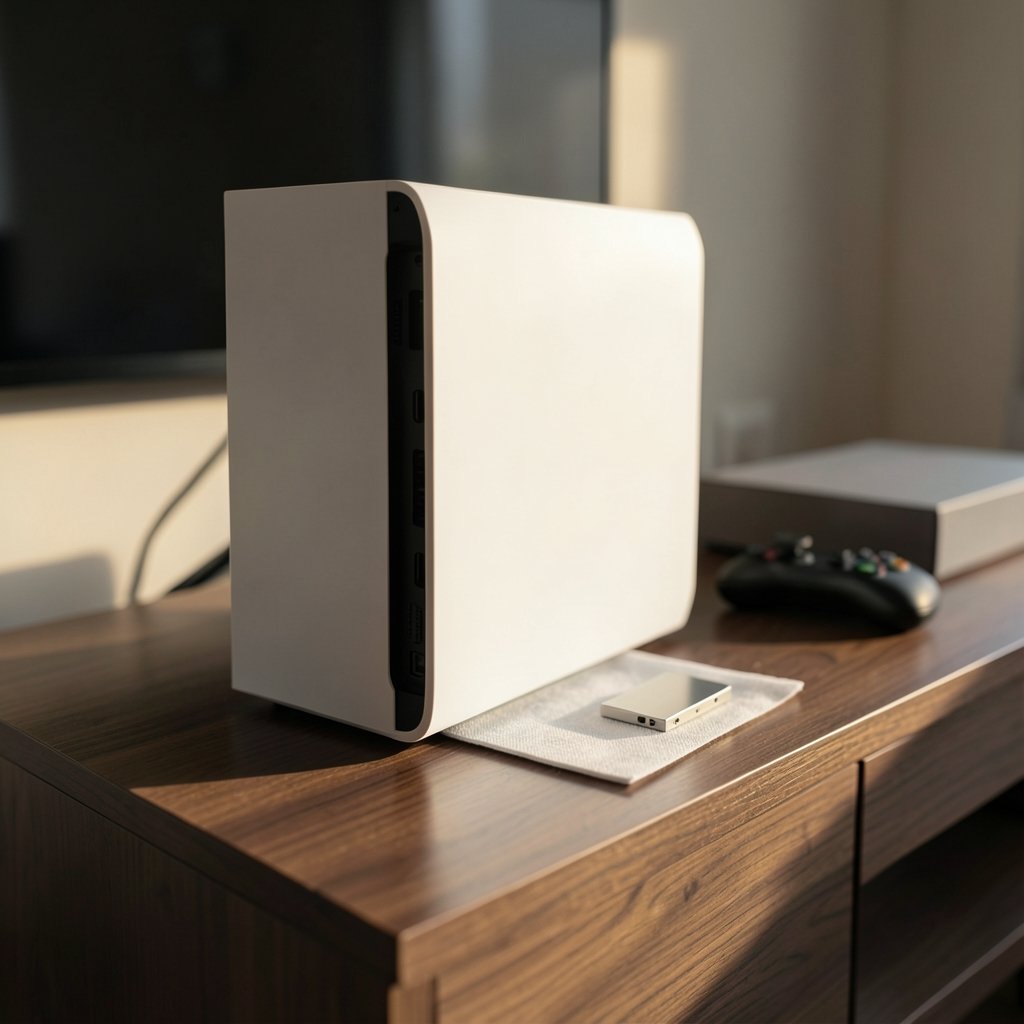
The PS5’s architecture keeps system software and user data in separate spaces. Firmware lives in its own partition, while saved games sit on the internal SSD and, if you subscribe, sync to cloud storage. When the console downloads a patch, it is replacing the operating system, not rummaging through your Cyberpunk 2077 save file.
That separation is the reason Sony can push frequent updates without warnings about data loss. It also explains why the official guidance focuses on not interrupting power rather than on backing up first. The realistic failure mode is a corrupted update caused by a power cut or a pulled plug, not a patch that quietly deletes your progress.
Still, “rarely” is not “never.” Storage corruption, a failing SSD, or a botched recovery can all cost you data, and none of those events announce themselves in advance. Treat backups as insurance rather than paranoia.
The Standard Update Method, Step by Step
Most players should use the built-in online update. It is the fastest route and the one Sony supports most directly.
- Save your game and close any running application.
- Go to Settings > System > System Software > Update.
- Select Update System Software and choose to download from the internet.
- Let the download and install run without switching off the console.
- Allow the console to restart on its own when prompted.
The whole process usually takes between five and twenty minutes depending on file size and connection speed. A wired connection is worth the effort for large patches; Wi-Fi drops mid-download are a common cause of failed installs. If the console reports an error, simply retry before reaching for more drastic options.
One habit that genuinely helps: check your free storage before updating. A nearly full SSD can cause an update to stall, and players often mistake that stall for a crash. Clearing a game you no longer play is cheaper than a repair.
Turning On Automatic Updates the Right Way
Sony lets the console handle updates while it sleeps, which removes most of the hassle. In Settings > System > System Software > Update, enable Auto-Download and pair it with Install While in Rest Mode. The PS5 will then fetch and apply firmware overnight.
The catch is timing. If a patch lands while you are mid-game, the console may prompt you to restart at an awkward moment. Setting updates to run during hours you rarely play avoids that friction. It also means the console is drawing power unattended, so make sure it sits somewhere with airflow and is plugged into a stable outlet rather than a switched power strip that someone might flip off.
This is the same logic that applies to any always-on device in a household, and it is why rest mode updates are best combined with a surge protector and a little patience.
Backing Up Saves Before You Update
Backups are optional for routine patches but essential before major firmware jumps or any troubleshooting. There are two routes, and they serve different purposes.
| Backup Method | What It Covers | Requires |
|---|---|---|
| PlayStation Plus cloud storage | Saved data for most games, synced automatically | An active subscription |
| USB drive | Saved data copied manually per game | A USB drive formatted for the console |
Cloud sync is the low-effort option. If you already pay for a subscription, check the tier structure, since the cost of PlayStation Plus varies by plan and region, and cloud saves are tied to it. Players weighing tiers often compare the PlayStation Plus Premium price against what they actually use.
For a manual safety net, plug in a USB drive, go to Settings > Saved Data and Game/App Settings > Saved Data (PS5) > Console to USB, and copy your files. It takes a few minutes and covers you even if the subscription lapses.
What to Do If an Update Fails or the Console Won’t Boot
A failed update is not the same as lost data. The console usually offers to retry, and if it refuses, Safe Mode is the next step. Hold the power button for about seven seconds until you hear a second beep, then connect a controller by cable.
From the Safe Mode menu, Update System Software re-downloads the firmware, and Rebuild Database refreshes the file index without touching saves. Both are non-destructive. Options like Reset PS5 and Initialize PS5 are not; they wipe the console, which is exactly why a backup beforehand matters.
A common mistake is jumping straight to a full reset when a rebuild would have fixed the problem. Try the gentler options first, in order, and only escalate if the console still fails.
Offline Updates When the Internet Won’t Cooperate
Sometimes the console simply cannot reach Sony’s servers, whether because of a router issue, a regional outage, or a connection too unstable for a large file. In that case, the official workaround is a USB update.
Download the update file on a computer, place it in the correct folder structure on a USB drive, and insert it into the console. The PS5 detects it during startup or through the update menu and installs from local storage. The method is slower to set up but immune to Wi-Fi drops, which makes it a favorite among players with unreliable connections.
The same patience applies here: do not remove the drive or cut power mid-install. If the console rejects the file, the usual culprit is an incorrectly named folder or a drive formatted in the wrong file system.
Practical Habits That Prevent Data Loss
Experience across support forums points to a handful of habits that separate calm updates from panicked ones.
Keep the console ventilated. Overheating during a long install can trigger a shutdown at the worst moment. A console crammed into a media cabinet is asking for trouble.
Use a stable power source. A surge protector is fine; a power strip that gets switched off by a housemate is not. The single most common cause of corrupted updates is power loss mid-install.
Update when you have time. Starting a firmware install five minutes before you need to leave is how people end up pulling plugs.
Check storage first. A full drive causes stalls that look like failures.
Back up before big jumps. Routine patches are low risk; a major version change deserves a fresh cloud or USB backup.
These habits cost almost nothing and remove most of the scenarios where data actually goes missing.
How PS5 Updates Compare With Other Console Maintenance
Firmware updates are only one part of keeping a console healthy, and players often confuse update risks with hardware purchase decisions. If you are deciding whether to upgrade hardware, the differences between the PlayStation 5 vs PlayStation 5 Pro matter far more to your experience than patch frequency does. Likewise, price movements such as the PlayStation 5 price increase shape buying decisions in ways a firmware patch never will. (PlayStation 5)
The broader market context helps too. Console pricing strategies shift constantly, and comparisons like Xbox vs PlayStation price show how subscription and hardware costs stack up. None of that changes how you update a PS5, but it explains why players ask about data safety in the first place: they are protecting an investment. (Protecting Personal Information: A Guide for Business)
Looking ahead, rumors about a PlayStation 6 release date in 2027 suggest backward compatibility and data migration will matter again. The habits built now, especially regular backups, tend to carry forward.
When Updates and Games Interact
Sometimes the anxiety is not about firmware at all. A major game patch can change save compatibility, and players wonder whether updating the console will break their progress. In practice, game updates are managed separately from system software, and titles like Cyberpunk 2077 have shipped patches that altered systems without erasing saves. If you are tracking a specific title, checking when the new Cyberpunk update comes out is more useful than worrying about the console firmware.
The same principle applies to creative tools and AI features arriving on consoles. New capabilities, such as an AI image generator without a prompt, arrive through app updates rather than firmware, and they do not touch your saved games.
Conclusion
Updating a PlayStation 5 safely comes down to a simple routine: use the official Settings menu, keep the console powered and ventilated, and back up your saves before anything unusual. Sony’s design keeps firmware and user data apart, so routine patches are about as risky as charging your phone. The genuine dangers are interruptions, full drives, and rushed decisions, and every one of those is preventable with a few minutes of preparation. Do the backup, pick a quiet moment, and let the console finish what it started.
Frequently Asked Questions
Does updating the PS5 delete my saved games?
No. System software updates are designed to leave saved data and installed games intact. Saves live in a separate storage area from the firmware, so a standard update does not touch them. Data loss, when it happens, is almost always linked to hardware failure or an interrupted install rather than the patch itself.
How long does a PS5 system update take?
Most updates finish in five to twenty minutes, depending on file size and connection speed. Large feature updates take longer than small security patches. A wired connection shortens the download phase noticeably, and installing from a USB drive can be faster than a slow Wi-Fi download.
Can I turn off my PS5 during an update?
No. Cutting power mid-install is the leading cause of corrupted firmware and failed boots. If the console appears frozen, wait several minutes before acting. If it truly will not respond, a forced restart through Safe Mode is safer than pulling the plug, though even that should be a last resort.
What happens if my PS5 update fails?
The console usually prompts a retry. If that fails, boot into Safe Mode and choose Update System Software to re-download the firmware, or Rebuild Database to refresh the file index. Both preserve your data. Only reset or initialize options wipe the console, and those should come after a backup.
Do I need PlayStation Plus to back up saves?
Not strictly. Cloud storage requires an active subscription, but you can copy saved data to a USB drive for free through the Saved Data settings menu. Many players use both: cloud sync for convenience and a periodic USB copy as an offline safety net.
Is it safe to update a PS5 in rest mode?
Yes, provided the console has stable power and airflow. Automatic downloads and installs in rest mode are an official feature. The risk comes from power strips being switched off or the console overheating in an enclosed space, so check the setup before relying on overnight updates.



