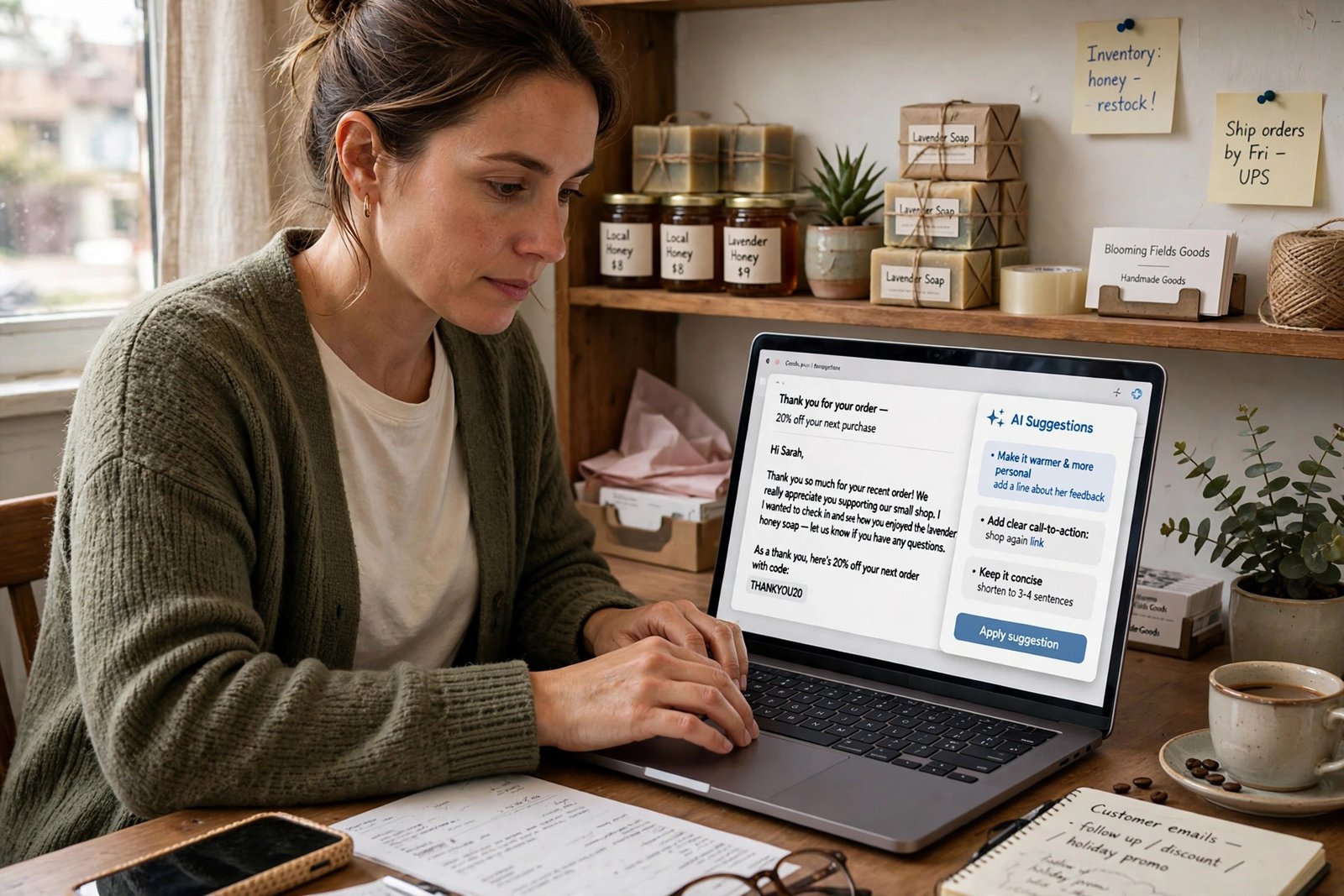
AI email writing prompts for small business owners solve a familiar problem: the email matters, the words will not come, and the inbox keeps growing. AI email writing prompts for small business owners work when they give the tool a clear job, a real fact and a limit — and here are 25 of them, ready to copy.
The question behind every prompt is simple: how do you get a draft that sounds like you, says something true and asks for one clear next step? Give the tool six things: who you are, what the email must achieve, who it is for, the facts, the tone and the length.
Key takeaways
- A good prompt names the goal, the recipient, the facts, the tone and the length.
- Use [BRACKETS] for names, dates, prices and links.
- Never let AI invent prices, dates or guarantees.
- Use Gemini in Gmail or Copilot in Outlook for replies, and ChatGPT or Claude for longer drafts.
- Ask for one clear call to action per email.
The prompt formula behind all 25 prompts
Every prompt below follows the same shape: role and context, goal, recipient, key facts, tone, and format. A weak prompt is: “Write a follow-up email to a client.” A strong version is: “I run a small bookkeeping business. Follow up with Sam, a café owner. I sent a proposal for monthly bookkeeping last Tuesday, no reply yet. Goal: a reply, ideally a short call. Tone: friendly, brief, no pressure. Under 120 words. Offer Thursday 10am or Friday 2pm.” The strong version takes longer to write and far less time to fix.
Teach the tool your voice once: paste two or three emails you sent and ask it to describe your style in five bullets, then tell it to use that style. Add this guardrail to sensitive prompts: “Use only the facts I gave you. Mark anything missing as [CHECK]. Never invent prices, dates or guarantees.”
Where to run these prompts
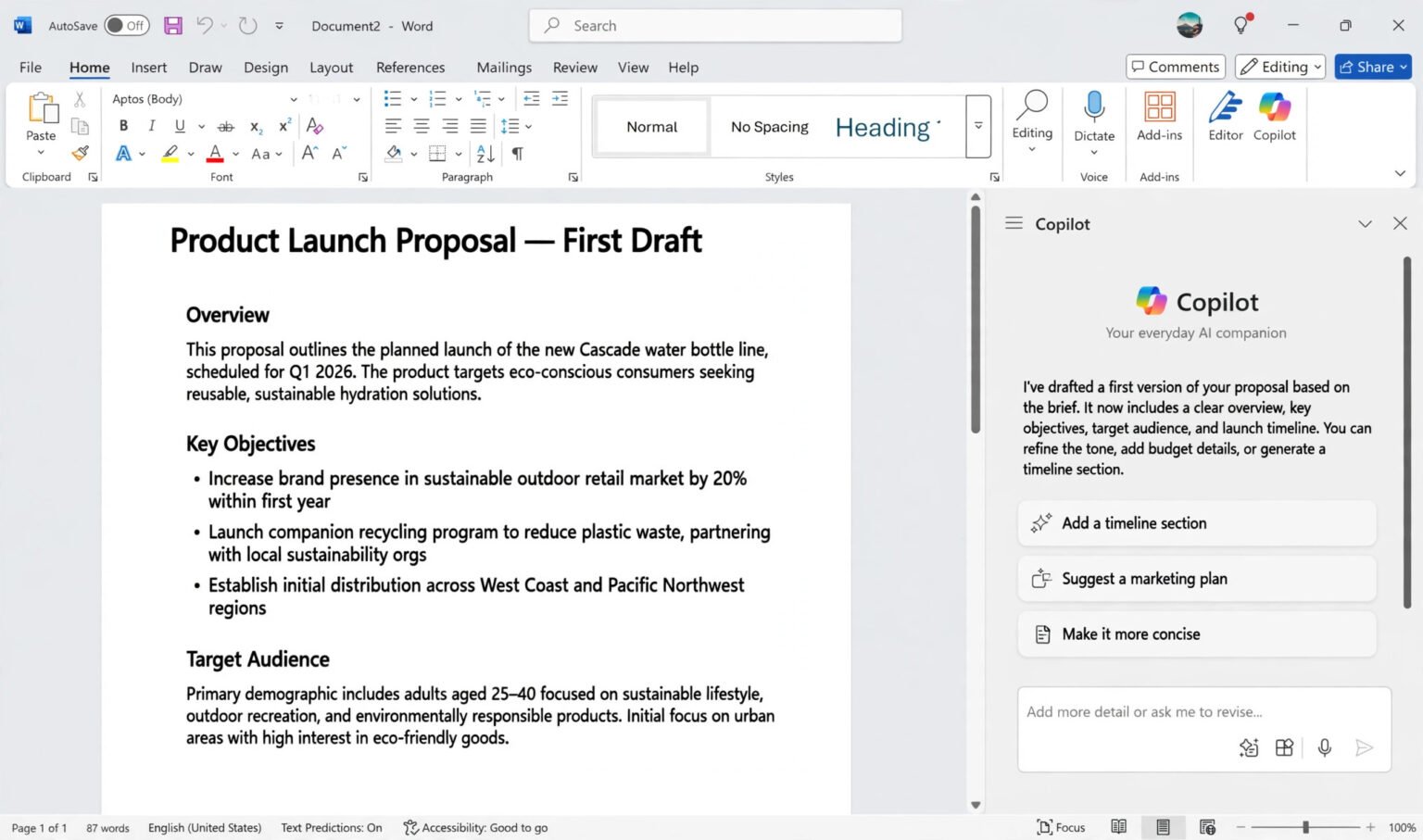
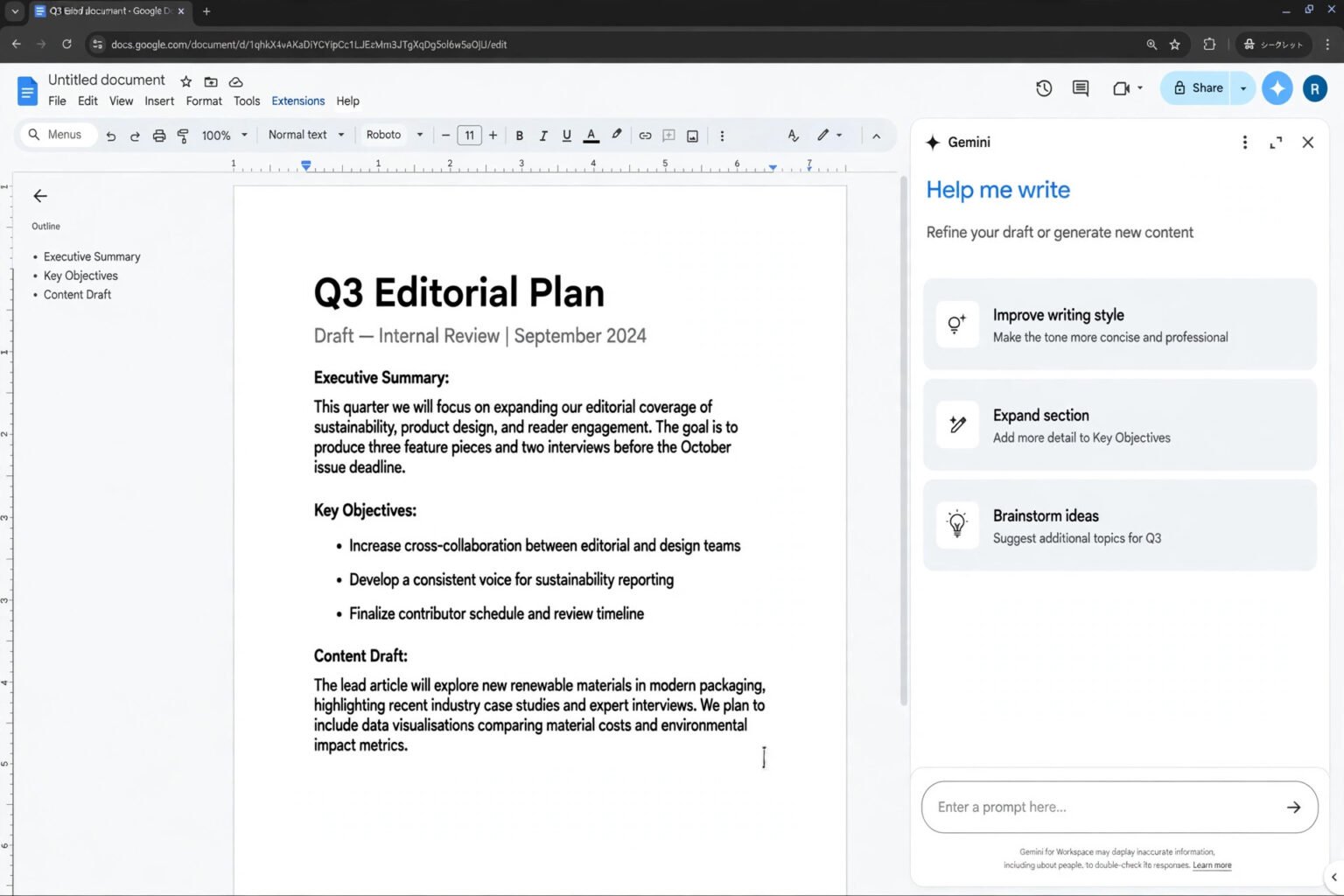
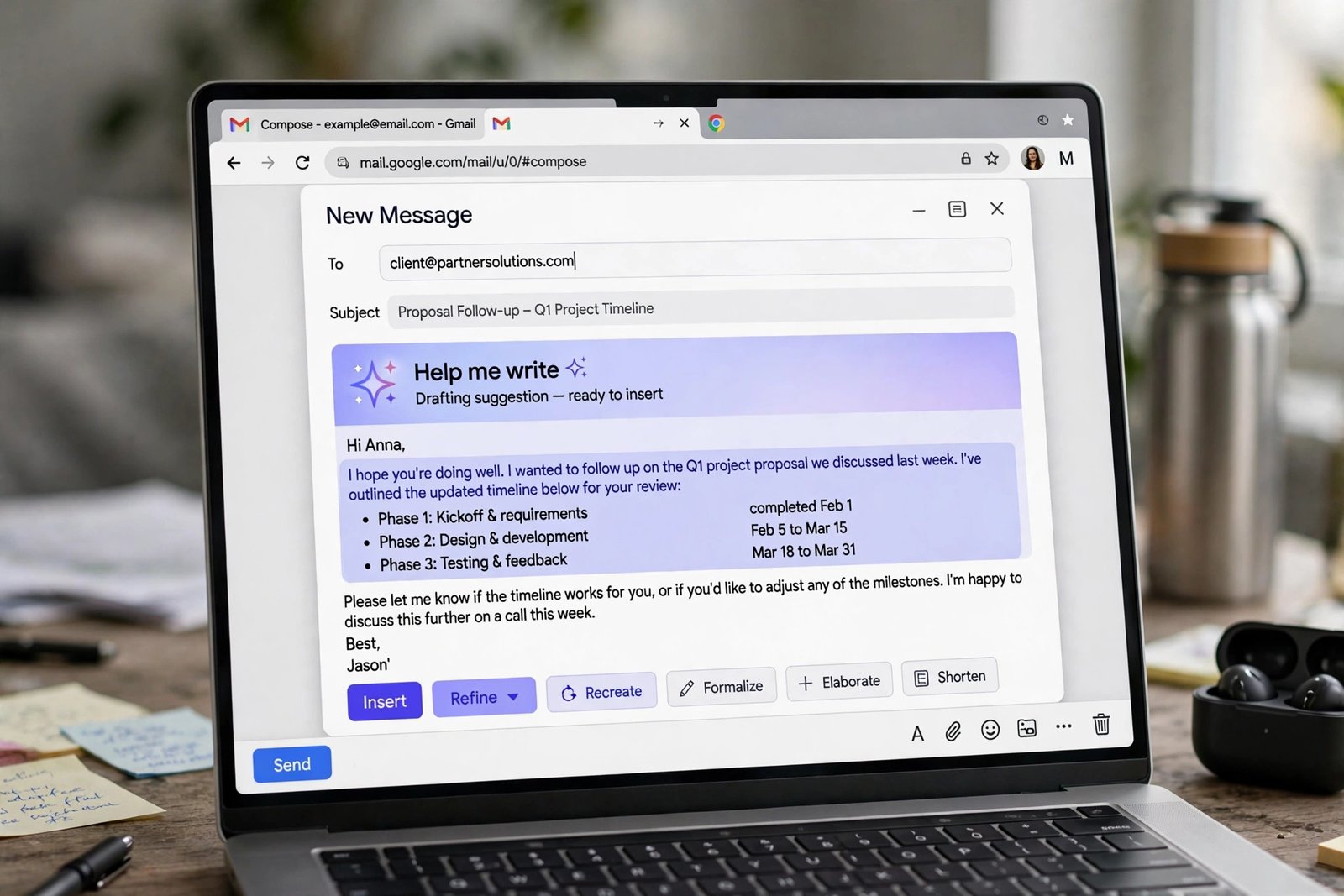
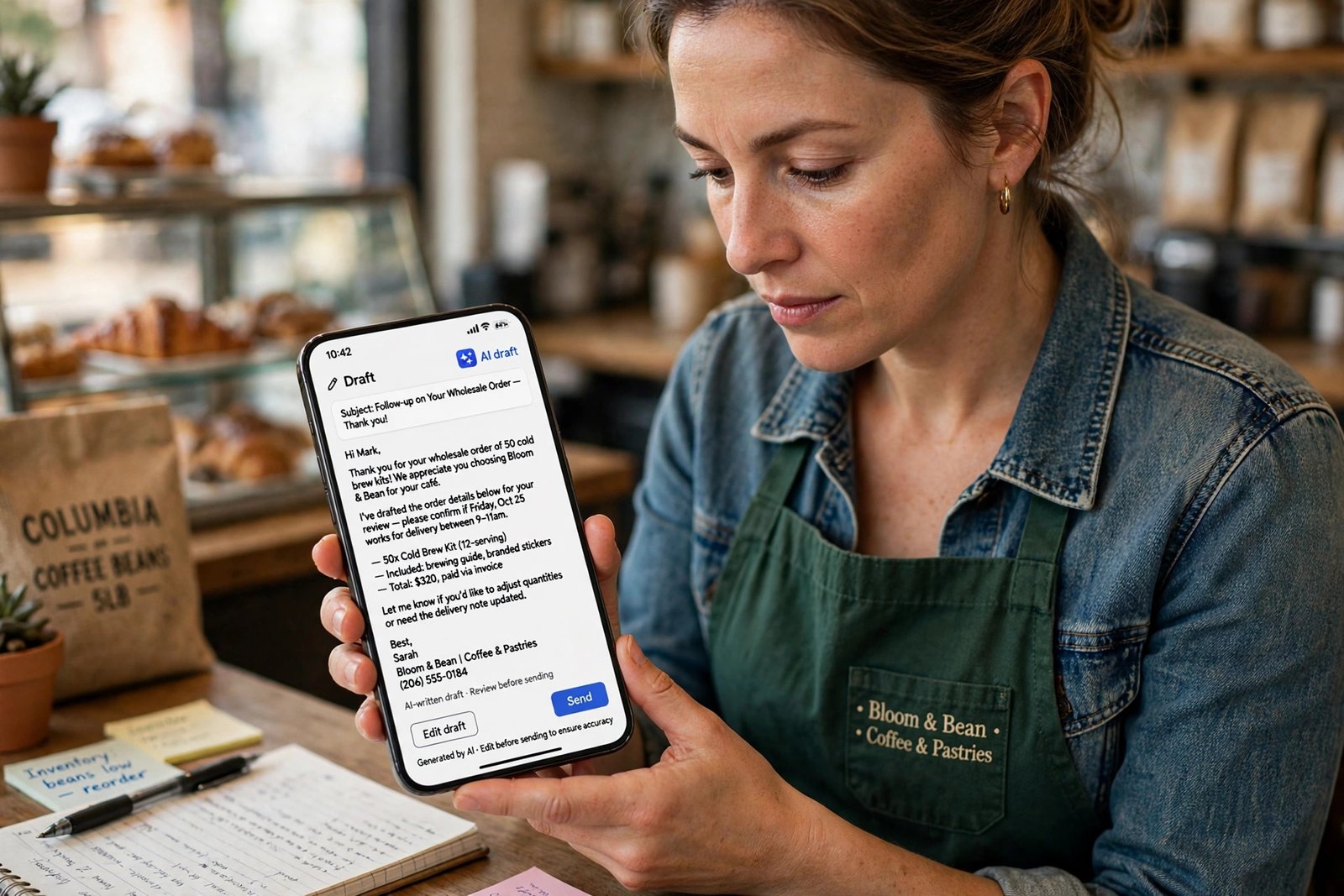
Gmail’s “Help me write”, powered by Gemini, drafts or refines text from a simple prompt; Google expanded it to more Google Workspace users in November 2026. Outlook’s “Draft with Copilot” does the same, with tone and length controls. Use a standalone chatbot for long, delicate or strategic emails.
| Tool | Best for | What to watch |
|---|---|---|
| ChatGPT | Longer drafts, proposals, tricky replies | Paste only redacted text; check facts |
| Claude | Careful editing, long threads, calm service replies | Verify any figure it repeats back |
| Gemini in Gmail (“Help me write”) | Quick replies and first drafts in Gmail | Availability varies by plan and rollout |
| Copilot in Outlook (“Draft with Copilot”) | Drafts in Outlook, tone and length controls | Needs an eligible work or Microsoft account |
Sales, quotes and new enquiries (Prompts 1–5)
These emails win or lose work. Keep them short and confident, and specific about the next step.
- Reply to a new enquiry: “Reply to: [PASTE EMAIL]. Thank them, answer using only [FACTS]. Ask one question: [TIMELINE OR ADDRESS]. End with a clear next step. Under 120 words.”
- Answer “how much does it cost?”: “My pricing is [PRICE OR RANGE]. Reply to: [PASTE EMAIL]. Give the range, say what affects the final price in one sentence, and invite them to [BOOK A CALL / SEND DETAILS]. No invented discounts.”
- Send a quote: “Send a quote to [NAME] for [JOB]. Total: [AMOUNT]. Included: [LIST]. Not included: [LIST]. Valid until [DATE]. Ask them to reply to approve. Plain, confident, no hard sell.”
- Introduce your business after a referral: “Introduce me to [NAME], referred by [REFERRER]. I run [BUSINESS], which does [SERVICE]. Explain in two sentences how I can help, and suggest a 15-minute call on [TWO TIMES]. Under 120 words.”
- Turn a quote into a proposal cover note: “Cover email for a proposal to [NAME] at [COMPANY] for [SERVICE]. Investment: [PRICE]. Three benefits of working with us. Invite them to discuss next steps. Under 200 words.” If proposals are a regular part of your week, see how freelancers can use AI to write client proposals faster for a full workflow.
Follow-ups that get replies (Prompts 6–9)
Follow-ups fail when they sound like nagging. They work when they make replying easy: one question, one choice.
- Follow up when they have gone quiet: “I sent [NAME] a quote for [JOB] on [DATE], no reply yet. Short, low-pressure follow-up: easy to answer yes, no, or with a question. Under 70 words.”
- The final follow-up: “Final polite follow-up to [NAME] about [JOB]. Say I will close the file if I hear nothing, and they are welcome any time. Under 60 words.”
- Follow up after a meeting or call: “Follow up with [NAME] after our call on [DATE]. Agreed: [DECISIONS]. Next steps: [STEPS WITH OWNER AND DATE]. Ask them to correct anything wrong. Under 150 words.”
- Re-engage a past customer: “Write to [NAME], a customer from [LAST CONTACT]. We now offer [NEW SERVICE OR OFFER]. Ask if it would help, and offer [NEXT STEP]. Warm, brief, no pressure. Under 100 words.”
Customer service replies (Prompts 10–14)
Service emails are where AI earns its keep — and where it can do the most damage.
- Reply to a complaint: “Complaint: [PASTE EMAIL]. Acknowledge the problem in their words, apologise once, explain what I will do: [ACTION], and give a date: [DATE]. Calm and human. Under 150 words.”
- Say sorry and offer a fix: “Apologise to [NAME] about [PROBLEM]. Offer [FIX OR COMPENSATION]. No blame, no excuses. Warm, brief, specific about what happens next. Under 120 words.”
- Confirm a booking or appointment: “Confirm a booking for [NAME]: [SERVICE] on [DATE] at [TIME], [LOCATION]. What to bring: [ITEMS]. How to reschedule: [LINK OR NUMBER]. Friendly and clear. Under 100 words.”
- Reschedule an appointment: “Move our appointment for [NAME] from [OLD TIME] to one of: [OPTIONS]. Apologise briefly, do not over-explain, ask them to pick one. Under 80 words.”
- Thank a customer after the job: “Thank [NAME] after completing [JOB] on [DATE]. Mention one specific detail, ask for a review at [LINK], offer [NEXT SERVICE] if needed. Warm and genuine. Under 100 words.” For more on handling service mail at scale, read how small businesses can use AI for customer service.
Newsletters and marketing emails (Prompts 15–18)
Newsletter prompts need a point of view. Without one, AI writes the same cheerful update every business sends.
- Write a monthly newsletter: “Newsletter for [BUSINESS] customers. News: [NEWS]. One useful tip: [TIP]. One offer: [OFFER, EXPIRY DATE]. Friendly and plain. Three short sections with headings. Under 300 words.”
- Announce a new service or product: “Announce [NEW SERVICE]. It helps [WHO] with [PROBLEM]. Launch offer: [OFFER]. One call to action: [BOOK / BUY LINK]. Confident, not hypey. Under 150 words.”
- Write a seasonal offer email: “[SEASON] offer email to past customers of [BUSINESS]. Offer: [OFFER]. Valid until [DATE]. Terms: [TERMS]. Deadline and next step obvious. Under 120 words.”
- Ask for a review or referral: “Ask [NAME] for a Google review after [JOB]. Link: [LINK]. Two minutes, helps a small business. Add one line: know anyone who needs [SERVICE]? Under 90 words.”
Cold outreach (Prompts 19–21)
Cold email works when it is short, specific and about the recipient, not about you.
- Cold outreach to a local business: “Cold email to [NAME] at [BUSINESS]. I noticed [SPECIFIC OBSERVATION]. I run [BUSINESS], helping businesses like theirs with [SERVICE]. One free useful idea. Ask for a 10-minute call on [TWO TIMES]. Under 100 words.”
- Pitch a partnership: “Pitch a partnership to [NAME] at [COMPANY]. We both serve [AUDIENCE]. Suggest [PARTNERSHIP IDEA], explain the benefit to their customers in two sentences. Ask for a short call. Under 130 words.”
- Follow up a cold email once: “Follow up once on my cold email to [NAME] on [DATE] about [TOPIC]. Add one new useful point: [POINT]. Say I will not follow up again if this is not a fit. Under 60 words.”
Admin, money and operations (Prompts 22–25)
These are the emails owners put off longest: payment reminders, price rises, scope changes.
- Chase a late payment: “Invoice [NUMBER] for [AMOUNT] was due [DATE], unpaid. Polite reminder with payment link [LINK]. Assume an oversight. Under 80 words.”
- Chase a late payment, firmly: “Invoice [NUMBER] for [AMOUNT] is [DAYS] overdue. Ask firmly but professionally for payment by [DATE]. State what happens next: [NEXT STEP]. No threats. Under 100 words.”
- Announce a price rise: “Announce a price rise for [SERVICE] from [OLD PRICE] to [NEW PRICE] from [DATE]. Why, briefly: [REASON]. Existing bookings unaffected. Calm and honest. Under 150 words.”
- Confirm scope before starting work: “Confirm scope of [JOB] for [NAME] before we begin: [INCLUDED], [TIMELINE], [PRICE]. Ask them to reply confirming agreement. Clear and professional. Under 150 words.”
Before you send: a five-point checklist
Run this check on every AI draft before it leaves your inbox.
- Facts: Is every name, date, price and link correct? AI repeats a wrong figure confidently.
- Promises: Does it promise anything you did not authorise — a discount, a date, a guarantee, a refund?
- Voice: Does it sound like you? Read it aloud and rewrite any sentence you would never say.
- One action: Is there one clear next step, with a link, a time or a reply requested?
- Privacy: Did you paste customer details into a personal AI account? Remove identifiers first, or use a work account.
If a draft fails any point, fix the prompt, not just the draft. The prompt is the reusable asset; the draft is disposable.
Frequently asked questions
Do AI email prompts work in Gmail and Outlook?
Yes. Gmail’s “Help me write” and Outlook’s “Draft with Copilot” accept short plain-language prompts and suit replies inside a thread. Draft longer emails in ChatGPT or Claude first.
Will AI emails sound robotic?
They will if the prompt is generic. Give the tool two or three of your own sent emails, ask it to match your style, and add tone and length to every prompt.
Is it safe to paste customer emails into AI?
Do not paste full customer records, financial details or anything confidential into a personal AI account. Redact names, addresses and account numbers first, or use a work account.
How long should an AI-written business email be?
Most business emails work best under 150 words, and follow-ups under 80. Tell the prompt the word limit every time.
Can I use the same prompt for every customer?
Use the same structure, not the same text. Keep the prompt as a template with [BRACKETS], and fill in the name, facts and next step each time.
The bottom line
The inbox will not get quieter, and the emails that matter — the quote, the follow-up, the apology, the payment reminder — will not write themselves. What changes is the starting point: instead of a blank compose window, you have a draft that already knows the goal, the facts and the tone. Start small. Pick the three prompts you will use most this week — a follow-up, a quote and a thank-you are a good set — save them in a document with your business details filled in, and use them as they are. Edit every draft once, check the facts, and send it. For more guides in the same series, browse the AI Atlas.