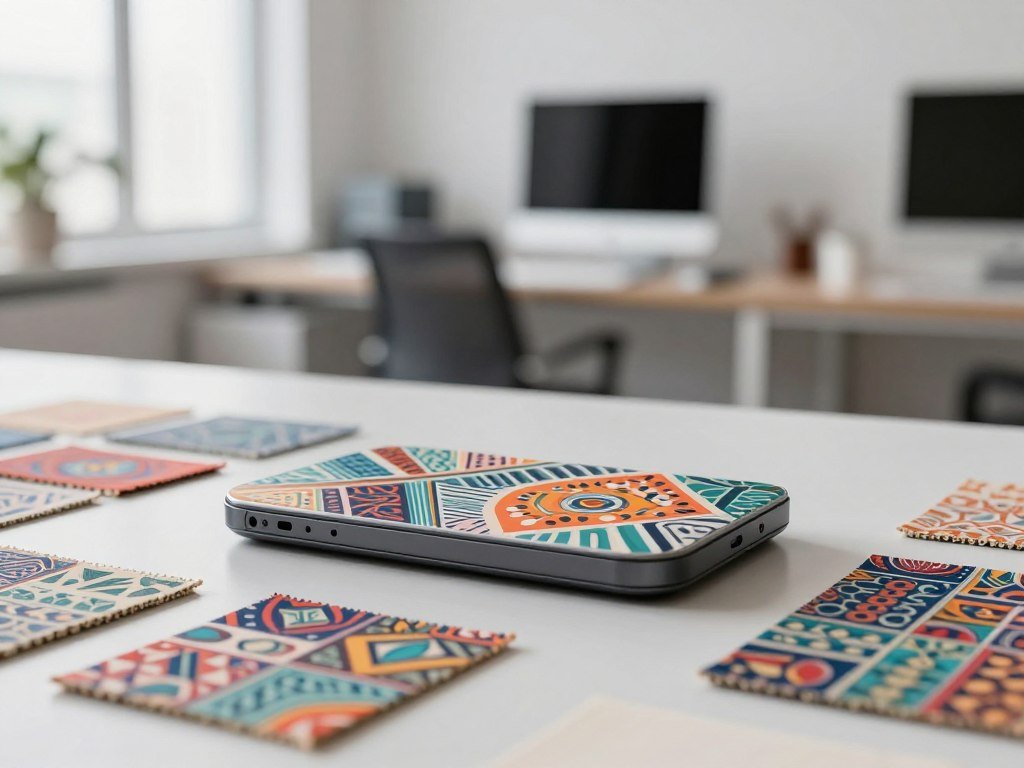
A useful AI Pattern Generator for Textures and Backgrounds should fit how you plan to use the finished design. Your prompt may create a quick background, a brand visual, or artwork for a product, but those jobs need different checks.
This page compares pattern-making workflows, subscription costs, usage limits, and production options. The best fit depends on whether you need fast background art, repeatable product designs, or files ready for print. Keep the final destination in mind, because a social background and a textile print have different file needs.
Key Takeaways
- Match the generator to the finished project.
- Compare allowance types as well as subscription prices.
- Check repeat edges before polishing colors.
- Separate privacy settings from commercial-use terms.
- Pick a file format that suits the next production step.
- Test a small design in the intended application.
What can a pattern generator make for real projects?
A repeating background for a website can be simple, while fabric or wallpaper needs a repeat that holds together across tile edges. A seamless repeat is a tileable design whose opposite edges connect, so the design continues without a visible break when repeated.
Choose the destination before judging whether a pattern works. Digital backgrounds may need a calm texture, while packaging may need clear motifs that still read at small sizes.
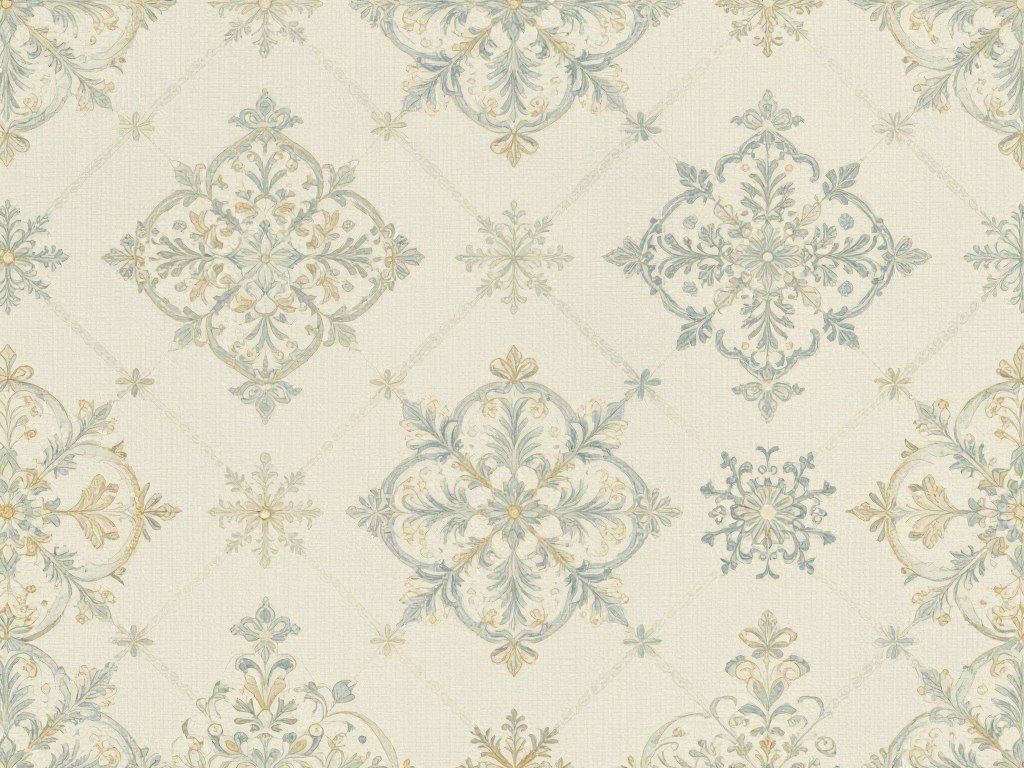
Choose the destination before the visual style
A seamless pattern can serve as a website background, fabric print, wallpaper, packaging, or a product mockup. Each use changes how you judge the image, its scale, and the amount of detail.
Fabric needs a repeat that looks balanced across several tiles. A phone background may need only one image, while wallpaper often covers a large area.
Packaging designs need to support labels and product names. A busy pattern can compete with text, even when its colors look good alone.
Canva’s PatternedAI app generates repeating designs from text, then lets you edit them in Canva. That suits work that moves directly into a layout or social graphic.
Adobe Illustrator Text to Pattern makes editable vector patterns. You can recolor them and save them to a swatch library for later design work.
PatternedAI can begin with a prompt or picture. Its tools include editing, recoloring, remixing, seam repair, upscaling, and vectorization.
A beginner guide to creating AI images can help you plan visuals and check details. Apply the same care when a pattern will appear on a real product.
Test the tile at its edges
Look at each side of the tile before fine-tuning colors or adding it to a brand project. A gap or abrupt motif can become obvious when several tiles sit together.
Repeat the tile in a grid to see how motifs connect across horizontal and vertical edges. A single tile can hide a seam that stands out in a larger layout.
Check the design at the size it will appear on fabric, packaging, or a screen. Fine details may disappear when reduced, while large motifs can feel crowded.
Check the tile edges before spending time on color polish. A larger image cannot repair a repeat that does not connect.
Preview the design at the scale it will appear in the finished project, not only as a zoomed-in tile.
What does an AI Pattern Generator for Textures and Backgrounds cost?
Entry plans range from free access to paid subscriptions, but each platform measures usage differently. Compare the allowance as well as the price, since credits, tokens, GPU time, and AI uses do not measure the same work.
In 2026, entry prices range from $0 to $12 per month among these plans. Annual billing can lower the monthly equivalent, but may require payment for a full year.
These entry plans show how a similar monthly price can include very different usage units. The allowance column names each platform’s own measure.
| Platform | Named entry plan and price | Annual price or billing condition | Monthly allowance |
|---|---|---|---|
| Patternaly | Basic, $12/mo | $144/year | 150 credits |
| Patternful.ai | Starter, $10.50/month | Billed annually, $126 yearly | 200 credits |
| Adobe Firefly | Standard, $9.99/mo | Monthly price | 2,000 generative credits |
| Midjourney | Basic, $10/mo | Annual plan costs $96 upfront | 200 Fast GPU minutes |
| Canva | Free, $0 | No charge | Up to 20 Standard or Premium AI uses; no Ultra AI |
Patternaly’s Basic plan costs $12 per month or $144 per year, with 150 credits each month. Patternful.ai Starter costs $10.50 monthly when billed annually, or $126 for the year, and includes 200 monthly credits.
Patternful.ai Standard costs $25.50 per month billed annually, or $306 yearly, with 500 credits per month. Its Pro plan costs $66.75 monthly billed annually, or $801 yearly, with 1,300 credits per month.
Adobe Firefly Standard includes 2,000 generative credits per month. In 2026, Adobe Firefly Pro costs $19.99 monthly with 4,000 credits, Adobe Express Premium, and Photoshop on web and mobile.
Adobe Firefly Pro Plus costs $49.99 per month and includes 10,000 generative credits. Adobe Firefly Premium costs $199.99 monthly and includes 50,000 credits plus unlimited Firefly Video Model generations.
Midjourney Standard costs $30 monthly with 15 Fast GPU hours per month. Pro costs $60 monthly with 30 hours, while Mega costs $120 monthly with 60 hours.
In 2026, Midjourney annual plans cost $96 for Basic, $288 for Standard, $576 for Pro, and $1,152 for Mega. Each amount is paid upfront for the year.
Canva Pro costs $144 per year for one person and includes up to 200 Premium AI uses or 20 Ultra AI uses monthly. Canva Business costs $250 per year per person and includes up to 400 Premium or 40 Ultra AI uses monthly.
Kittl Pro costs $15 monthly, or $10 per month billed annually, with 1,000 AI tokens each month. Kittl Expert costs $30 monthly, or $24 per month billed annually, with 12,000 tokens.
A comparison of free AI image tools can help put Canva’s free allowance beside other platforms’ access limits. A generator’s usage unit does not tell you how many finished files you will get.
Credit, token, GPU-time, and AI-use allowances are not interchangeable. Compare the billing period and the type of allowance together before treating two prices as equivalent.
How do Patternaly credits and paid features work?
A Patternaly output can use more than one credit when the job includes an upscale or a mockup. Plan by action, because a standard generation, larger export, and mockup each have separate costs.
In 2026, standard generation costs one credit, while an HD upscale or mockup costs two credits. Paid-plan credits reset at the start of each billing cycle and do not roll over.
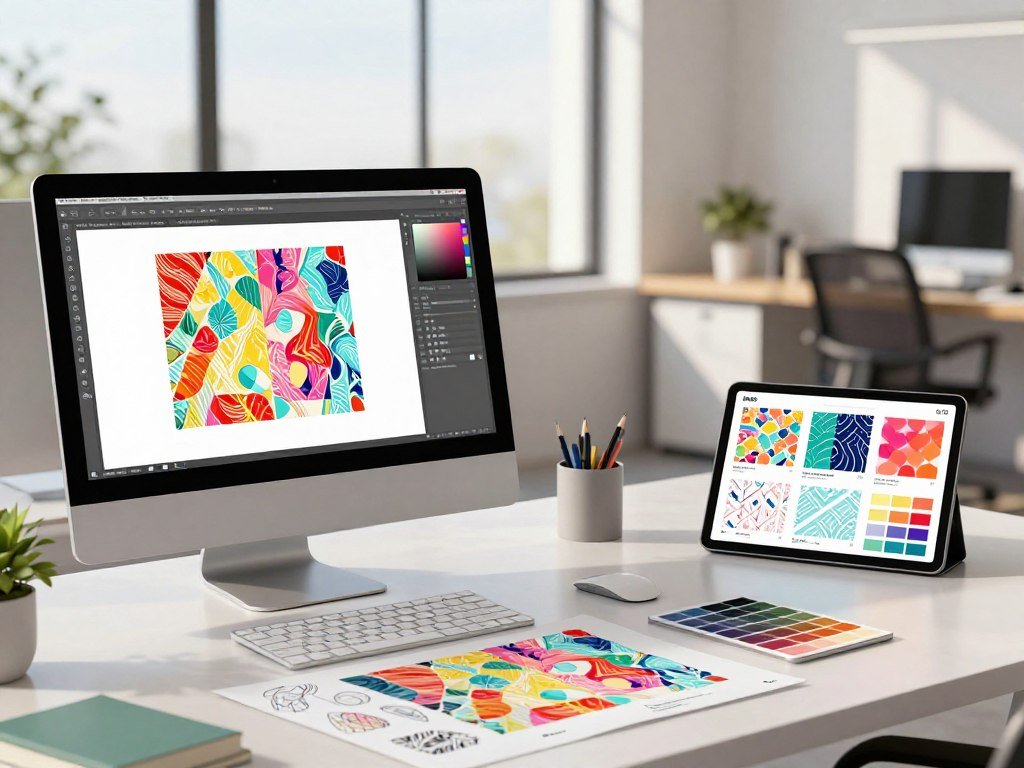
Budget credits by output
Estimate the number of standard generations you expect to make. Add the planned exports and mockups after that, rather than treating every finished design as one credit.
- Estimate standard generations at one credit each.
- Reserve two credits for every HD upscale or mockup.
- Use remaining credits before the billing-cycle reset.
Patternaly first generates standard PNG tiles. Paid plans can upscale them to 4096×4096 pixels for larger, print-ready exports.
The upscale changes the tile’s resolution, not the way its edges meet. Make sure the repeat itself works before spending credits on a larger file.
Patternaly’s paid upscale option reaches 4096×4096 pixels. This can help when a production file needs more pixels than the standard PNG tile provides.
Separate privacy from commercial permission
Paid plans include a commercial license for generated patterns. Paid users can also switch generations between Public and Private modes.
Those settings answer different questions. The license covers commercial use, while Public or Private controls whether a generation appears publicly.
Privacy mode matters when you are developing unreleased artwork or a new brand look. Choose the mode before the generation starts, not after sharing a result.
A larger export can help preserve detail in a print workflow, but the receiving process still matters. Check the finished file at its intended size before using it.
Choose Private mode before generating work that should not appear publicly.
Which PatternedAI plan fits your pattern workflow?
Choose by the work you need to do after the first generation, because the plans add different editing and production capabilities. Standard suits text-led work, while higher plans add more ways to revise or prepare files.
Standard and Pro include 300 DPI PNG files, while Business adds separated production files. The right option depends on whether you need a prompt result, hands-on edits, or more control over print output.
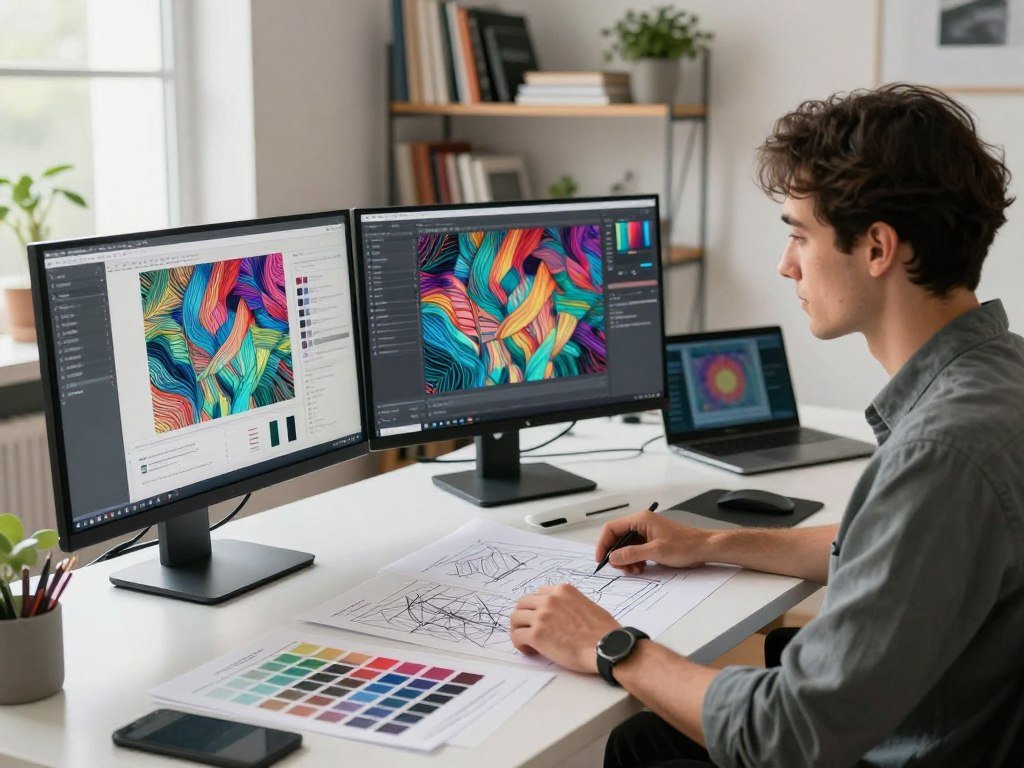
Standard for prompt-led designs
PatternedAI Standard includes 2,000 credits per month. It supports text-based pattern creation, automatic recoloring, mockup previews, and seamlessness checks.
You can download patterns from the gallery and free drops. Standard also includes high-resolution 300 DPI PNG files for digital work and direct-to-print production.
Text-generated patterns may appear in the public gallery on Standard. That matters if you want to keep early concepts or brand artwork private.
PatternedAI patterns are royalty-free for use on unlimited commercial products. Check the plan’s visibility setting separately, since commercial rights do not make a pattern private.
Pro for hands-on revisions
PatternedAI Pro includes 4,000 credits per month. It adds image- or element-based creation for work that starts from a reference or a selected visual part.
Pro also supports editing, custom recoloring, restyling, and remixing two patterns. Seam fixing can help repair a repeat before you use it in a layout.
Vectorization to SVG adds another option for editing. Pro patterns remain private, and the plan includes high-resolution 300 DPI PNG files.
This plan may suit a product designer who needs several rounds of changes. It gives you more control after the initial prompt than a text-led setup.
Business for separated production files
PatternedAI Business includes 20,000 credits per month. It adds upscale options up to 16x and production files for workflows that need separated colors.
Business includes layered SVG and Adobe Illustrator files with color-separated layers. It also provides individual color TIFF files in a zipped folder.
Those formats can help when a printer or production team needs layers or separate colors. Confirm that the receiving workflow can use the files before relying on them.
Business patterns are private, and the plan includes vectorization to layered Adobe Illustrator files. Its extra production options are useful only when your next steps need them.
Commercial use covers unlimited products across PatternedAI plans. The distinction is in editing, visibility, and output needs, not a limit on the number of products.
Confirm that the required file type is included before committing to a production workflow.
Which alternatives fit image and design workflows?
The right alternative depends on whether you need a pattern specialist, a broader image workspace, or controls for a particular commercial project. Match the tool to the task, then check the usage terms for the feature or model you plan to use.
Adobe Firefly fits users already working across Adobe tools, while Midjourney offers useful controls for image generation. Canva and Kittl bring image work into design workflows, and OpenArt supports basic-model testing.
The table highlights workflow details and terms that can change a buying decision. These tools offer more than pattern generation, so their allowance types differ.
| Platform | Useful workflow | Usage or privacy detail | Commercial-use condition |
|---|---|---|---|
| Adobe Firefly | Image work across Adobe tools | Paid plans include unlimited standard image features; credits cover premium features | Non-beta Firefly outputs may be used commercially; users handle partner-model content |
| Midjourney | Image generation with Relax or Stealth controls | Standard has unlimited Relax image generation; Pro and Mega include Stealth Mode | Businesses over $1,000,000 annual gross revenue need Pro or Mega for commercial use |
| Canva | Patterns placed in original layouts | Free and Pro content may be used in original designs for sale | Canva stock content cannot be resold on its own |
| Kittl | Design work with token-based image edits | Image generation uses 2 tokens; background removal and upscaling use 1 each | Kittl Pro includes a commercial license |
| OpenArt | Free basic-model experimentation | Unlimited image generation on 4 basic models; 50 trial credits for premium features | OpenArt images need attribution and a backlink; Stable Diffusion platform images may be used commercially |
Adobe Firefly paid plans include unlimited standard image features such as Generative Fill. Credits apply to premium features, including video, audio, and partner models.
Adobe generative credits reset monthly on the billing date and do not roll over. Adobe says non-beta Firefly outputs can be used commercially, but users are responsible for content made with partner models.
Midjourney Standard includes unlimited image generation in Relax mode, while Basic has no Relax mode. Pro includes Stealth Mode and 30 Fast GPU hours monthly; Mega includes Stealth Mode and 60 hours.
In 2026, a business with more than $1,000,000 in annual gross revenue needs Midjourney Pro or Mega to use images commercially. Check that rule against the size and use of your business.
Canva says Free and Pro content can appear in original designs for sale. Canva stock content cannot be resold by itself, so place it within a design rather than selling the raw asset.
Kittl uses two tokens for one AI image generation. Background removal and image upscaling each use one token, and Kittl Pro includes a commercial license.
OpenArt allows unlimited image generation on four basic models and offers 50 trial credits for premium features. OpenArt-created images need attribution and a backlink for commercial use, while platform images generated by Stable Diffusion may be used commercially.
Patternful.ai’s Pattern Studio creates patterns from a prompt or picture and offers 121 themes. It is another option when you want a pattern-focused workflow rather than a general image workspace.
A free text-to-image tool comparison can help you weigh access limits and editing features. For wider image workflows, see this AI image generator comparison for tool choices across creative tasks.
Commercial terms do not settle every copyright question. The U.S. Copyright Office’s AI initiative covers copyrightability and other legal issues around AI-made work.
Check the license for the specific model and content you use, not only the platform’s general terms.
How do you get a cleaner seamless repeat from a prompt?
A prompt is easier to refine when it names the motifs, palette, arrangement, and background instead of relying on a broad style label. Specific details give the generator clearer choices and make each result easier to compare.
Change one setting at a time so you can tell what improved the repeat. A reference image can guide color, subject, style, or composition when the tool supports image input.
Write a prompt with motif, palette, and scale
Describe what should repeat and how large the motifs should feel. A short, clear prompt can guide a pattern better than a long string of style terms.
- Motif: name the objects or shapes to repeat.
- Arrangement: say whether elements should be scattered, lined up, or grouped.
- Palette: name the main colors and any accent color.
- Background color: state whether it should be light, dark, or transparent.
- Intended visual scale: say whether motifs should appear small, medium, or large.
For example, describe small leaf motifs in a loose arrangement, with a cream background and two green colors. Add the intended scale so the design does not fill the tile with oversized leaves.
Patternaly accepts prompts in any language. It also accepts square PNG or JPG uploads, which can help you use a sketch or color reference as a starting point.
Where a tool accepts a reference image, use one that shows the parts you want to guide. The image may inform color or composition, but the prompt should still name the pattern elements.
Canva’s PatternedAI app offers 20 free credits, and one credit generates one pattern. That app allowance is separate from the AI-use allowance tied to a Canva subscription.
In Canva, describe the elements, colors, and mood, then choose how many image choices to generate. You can edit the result before downloading or sharing it.
A repeatable prompt-writing method can help you set clear image goals. For pattern work, add the repeat and tile details that a general image prompt may not cover.
Change one variable at a time
Generate an initial version, then review the tile edges. If a motif breaks at one side, focus the next prompt on its placement rather than changing every color and style term.
Keep the palette fixed while you test a different arrangement. Once the repeat connects, try a new background or motif size in a separate generation.
Compare the new tile with the earlier one at the same scale. This makes it easier to see whether the changed setting fixed the issue or introduced another one.
Save the prompt and settings that produced the strongest repeat so you can recreate related colorways consistently.
Which file format suits print, web, and editing?
Pick the export format by the next tool or production step, since a file that looks right on screen may not be easiest to edit or print. PNG and JPG suit many image uses, while vector, web, code, and print workflows may need other formats.
Choose the file type your receiving application or printer can use. A file that opens cleanly in your design software is easier to hand off than one that needs conversion.
Match the file to the production method
PNG and JPG are raster images made from pixels. They work for web graphics, mockups, and many image-based projects, but scaling them up can reduce detail.
SVG is a vector format that can scale without the same pixel limits. Adobe Illustrator Text to Pattern creates editable vector patterns that can be scaled and recolored.
MagicPattern exports JPG, PNG, WebP, and SVG. It also supports custom color palettes and uploaded brand elements, which can help you match an existing visual system.
WebP is an image format for web use. MagicPattern can also provide a CSS snippet, which lets you embed a graphic as a code-based background.
TIFF files can support print workflows that need color separations. PatternedAI Business provides individual color TIFF files in a zipped folder, along with layered SVG and Adobe Illustrator files.
Adobe Illustrator Text to Pattern supports more than 100 languages. Its editable vector output can help when a pattern needs later recoloring or scale changes.
A free generator comparison can help you consider how image tools fit into a design workflow. Match the output to the application that will handle the artwork after generation.
Check the handoff before ordering samples
Use this short preflight list before sending artwork to a printer or placing a sample order.
- Confirm the file dimensions match the intended use.
- Verify how the receiving workflow handles color.
- Check that the repeat edges meet without a visible break.
- Open the file in the receiving application.
Color settings can change how a digital preview appears in print. A sample can reveal issues that are hard to spot on a screen.
Do not judge a production file only by its preview. Open it in the tool that will receive it, then check the artwork at its working size.
Open the exported file in the application that will receive it before placing a sample order.
Conclusion
A good fit is the tool that takes your design from first idea to the file your project actually needs. Pick around the intended output, then confirm that the plan’s commercial terms and file options suit the work.
Start with a small repeat rather than building a full workflow around an untested result. Check it in the application you plan to use, where scale, color, and editing needs become easier to judge.
Your next step is simple: try one small repeat in your intended workflow, then choose the plan that supports the next step.
FAQ
Can I use AI-made patterns on products I sell?
Yes, some platforms allow commercial use, but the terms depend on the platform, plan, and model. PatternedAI says its patterns are royalty-free for unlimited commercial products, while Adobe’s terms distinguish standard Firefly features from partner models. OpenArt commercial use can require attribution and a backlink. Review the exact terms for the image and model you use before selling products.
Does a larger upscale fix a visible seam?
No, an upscale increases image size but does not repair a repeat that fails at its edges. Correct or repair the repeat first, then upscale the finished tile. Otherwise, the same gap or broken motif will remain visible when the larger image repeats across fabric, wallpaper, or another surface.
Can I turn a raster pattern into a vector file?
Yes, some tools offer vectorization that converts raster artwork into editable paths. PatternedAI offers vectorization, and other tools create vector patterns directly. Before production, inspect the paths and any color separations in the receiving application. A file ending in SVG or AI may still need edits before a printer can use it.
Can I start a pattern from a photo or sketch?
Yes, some pattern tools accept an image reference as a starting point. PatternedAI accepts square PNG or JPG uploads, while Patternful.ai Pattern Studio can create patterns from a prompt or picture. A reference can guide colors, style, or composition, but describe the motifs and repeat in your prompt too.
What is the difference between a credit and a GPU hour?
A credit tracks actions under one platform’s rules, while a GPU hour measures processing time. Patternaly charges credits for actions such as standard generations, upscales, and mockups. Midjourney measures Fast usage in GPU time. The numbers cannot be compared directly, so compare each allowance with the tasks it covers.
Do I need a vector file for every fabric print?
No, the right file depends on the printing method, editing needs, and required color separations. A raster file may suit a workflow that accepts image-based artwork, while vector files help with scaling and edits. Some print jobs need separated colors, so ask the receiving production team which file types its process accepts.



