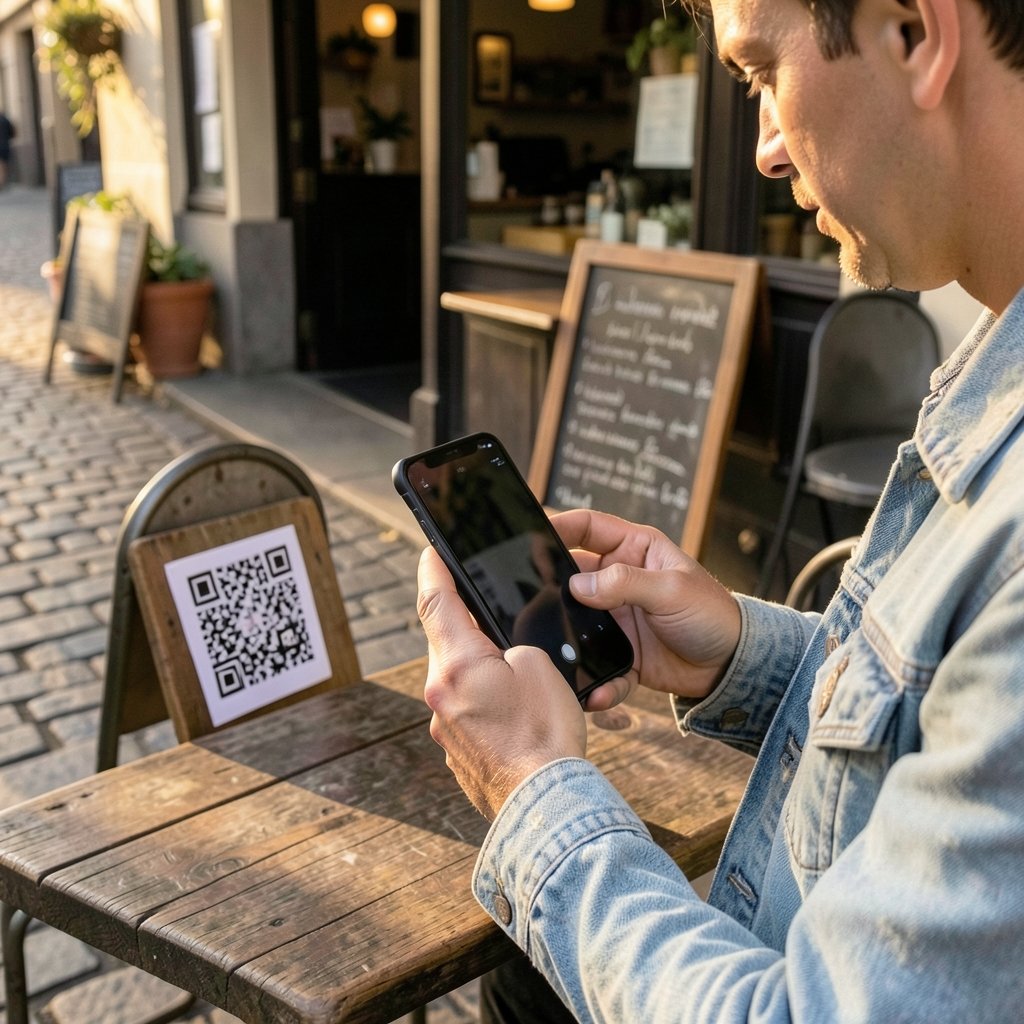
What if the password you forgot this morning was the last one you ever needed to remember? That is no longer a futuristic pitch. Banks, phone makers, and workplace IT teams have already moved millions of people onto logins that use a fingerprint, a face, or a device-bound key instead of a typed secret. The shift is quiet but enormous; it affects laptop logins and sign-ins to government portals.
This guide walks through concrete passwordless authentication examples, explains how each one actually works in practice, and flags the mistakes that trip up both users and IT teams. It also covers where the technology still struggles, because passwordless is not a magic wand.
What Passwordless Authentication Actually Means
Passwordless authentication is any login method that verifies identity without asking the user to type a shared secret. Instead of a password, the system relies on something the user has (a phone, a hardware key), something the user is (a fingerprint, a face), or a cryptographic key stored on a device.
The key distinction is between passwordless and multi-factor. Traditional MFA often stacks a password plus a one-time code. True passwordless removes the password entirely. If you want the broader groundwork, the explanation of what multi factor authentication is covers how these layers fit together. (Passwordless authentication)
The strongest form is phishing-resistant authentication, where the credential is cryptographically bound to the website’s real domain. A fake login page simply cannot use it. That property is why governments and security agencies keep pushing organizations toward it.
The Main Categories of Passwordless Login

Before diving into specific examples, it helps to sort the landscape. Most passwordless methods fall into four buckets.
| Category | What the user does | Typical example |
|---|---|---|
| Passkeys / synced credentials | Signs in with phone biometrics | Google account sign-in |
| Hardware security keys | Taps or inserts a USB/NFC key | Corporate VPN login |
| Biometric authentication | Scans fingerprint or face | Banking app sign-in |
| Magic links and codes | Clicks emailed link or enters code | Newsletter-style app logins |
Each category has different security properties. Magic links are convenient but weaker, because anyone with access to the email inbox can use them. Passkeys and hardware keys are far stronger. (Identity and Access Management)
Example 1: Passkeys on Consumer Accounts
Passkeys are the most visible passwordless example today. A passkey is a cryptographic key pair. The private half stays on your device, protected by your fingerprint, face, or device PIN. The public half sits with the service.
When you sign in, the device proves it holds the private key. Nothing secret ever crosses the network, so there is no password to phish or leak.
In practice, passkeys work like this:
- You enable a passkey in your account security settings.
- The device creates a key pair and stores the private key in a secure enclave.
- Next time you log in, you approve a prompt with your fingerprint or face.
- The service verifies the signature and lets you in.
Google, Microsoft, and Apple accounts all support passkeys, and major platforms have steadily expanded support since the standard matured. The underlying specification, WebAuthn, became a W3C Recommendation in 2019, which is what made cross-vendor passkeys possible.
The practical tip: enable a passkey on your primary account and keep a recovery method. Syncing passkeys across devices through a platform keychain is convenient, but losing access to that keychain without a backup is the single most common user mistake.
Example 2: Hardware Security Keys at Work
Corporate environments provide some of the clearest passwordless authentication examples. A hardware security key is a small USB or NFC device that holds credentials in tamper-resistant hardware.
The login flow is refreshingly short. The employee enters a username, then taps the key and enters a PIN. There is no password to steal, and the key refuses to authenticate to lookalike domains. That domain-binding is the core defense against phishing.
IT teams often pair hardware keys with a policy that removes passwords entirely for high-risk roles, such as administrators and finance staff. The common mistake here is buying keys but leaving password login enabled as a fallback. Attackers simply target the fallback. Real protection requires disabling the weaker path instead of merely adding a stronger one.
Example 3: Biometric Authentication in Banking and Mobile Apps
Biometric authentication uses a physical trait, most often a fingerprint or facial scan, to access a stored credential. The biometric data itself usually never leaves the device. Instead, the phone’s secure hardware compares the scan locally and then releases a key.
This is why your banking app can ask for a fingerprint without the bank ever storing your fingerprint. The bank trusts the device’s secure enclave to confirm the match.
A deeper look at what biometric authentication is explains the difference between local matching and server-side matching, which matters for privacy. Local matching is the norm on modern phones and is generally the safer design.
The practical caveat: biometrics are excellent for convenience and strong for device-bound security, but they are not secrets. You cannot change your fingerprint the way you change a password. That is why biometrics work best as part of a layered system, not as the only factor.
Example 4: Magic Links and One-Time Codes
Not every passwordless method is high-security. Magic links send a unique login link to your email. Click it, and you are in. One-time codes sent by email or SMS work similarly.
These methods are popular with consumer apps because they are simple to build and easy for users to understand. They are also the weakest passwordless option, for a simple reason: the security collapses to the security of the email inbox.
If an attacker compromises the email account, they can request a magic link and walk straight in. SMS codes have an additional weakness, since phone numbers can be hijacked through SIM-swap attacks.
That does not make magic links useless. They are reasonable for low-risk accounts such as newsletters or trial signups. They are a poor fit for banking, healthcare, or anything holding sensitive data. A sensible rule: match the strength of the login method to the value of what it protects.
Example 5: Government and Enterprise Identity Platforms
Some of the most instructive passwordless authentication examples come from public sector and enterprise identity systems.
Government digital identity programs in several countries have moved toward app-based and passkey-based login for citizen services. The appeal is obvious: fewer password reset calls, fewer credential-stuffing breaches, and better accessibility for people who struggle with complex passwords.
On the enterprise side, identity providers such as Okta, Auth0, and Microsoft Entra support WebAuthn-based sign-in. Organizations can enforce passwordless policies per group, so a marketing team might use passkeys while administrators must use hardware keys.
The pattern that works in practice is phased rollout. Start with a pilot group, measure support tickets, then expand. The pattern that fails is a big-bang switch with no help desk preparation. Passwordless reduces long-term support load, but the transition itself generates questions.
What About AI Agents and Automated Logins?
A newer wrinkle is automated systems that need to authenticate. As organizations deploy software that acts on their behalf, the question of how a non-human identity logs in becomes urgent. The overview of what is an ai agent examples and applications is useful context here, because agent-based workflows often need scoped, revocable credentials rather than shared passwords.
The emerging answer is short-lived tokens and machine credentials issued by an identity platform. A human approves the agent once, and the agent receives a credential that expires quickly and can be revoked instantly. This is passwordless in spirit: no long-lived shared secret sits around waiting to leak.
Common Mistakes People Make With Passwordless Rollouts
Even good technology fails with bad deployment. These are the traps that show up again and again.
Keeping passwords as a fallback forever. If a weaker path stays open, attackers use it. Set a deadline for retiring password login on high-value accounts.
Skipping recovery planning. Users lose phones. Without a documented recovery path, they get locked out and blame the new system. Plan recovery before launch, not after the first lockout wave.
Assuming biometrics equal security. A fingerprint sign-in on a shared device is not the same as a device-bound passkey with a PIN. Understand what is actually being verified.
Ignoring accessibility. Not every user has a modern phone or can use a fingerprint sensor. Offer alternatives, including hardware keys, and test with real users.
Forgetting the help desk. Train support staff on the new flows. Most rollout pain is procedural, not technical.
If you are setting this up yourself, the walkthrough on how to enable two factor authentication is a useful stepping stone before going fully passwordless.
Passwordless vs Traditional Passwords: A Practical Comparison
| Factor | Passwords | Passwordless (passkeys/keys) |
|---|---|---|
| Phishing resistance | Weak | Strong (domain-bound) |
| User memory burden | High | None |
| Breach exposure | High (reused secrets) | Minimal |
| Recovery complexity | Moderate | Higher if planned poorly |
| Setup effort for IT | Low | Moderate to high |
| Best fit | Legacy systems | Consumer and enterprise accounts |
The trade-off is clear. Passwordless costs more upfront in planning and user education, but it removes an entire class of breaches. Credential stuffing, password spraying, and phishing kits all depend on secrets that can be typed into the wrong place. Remove the secret, and those attacks lose their target.
How to Choose the Right Method
A simple decision framework helps.
For personal accounts, start with passkeys on your email and primary cloud account, since those are the master keys to everything else. Keep a hardware key or printed recovery code in a safe place.
For small teams, enable passkeys for all staff and require hardware keys for anyone with admin access. Disable password login for those admin roles within a set window.
For regulated organizations, follow the phishing-resistant guidance from standards bodies and treat magic links as acceptable only for low-risk systems.
For consumer apps, offer multiple passwordless options and let users pick. Forcing one method creates friction; offering three creates confusion. Two well-supported options is usually the sweet spot.
Conclusion
Passwordless authentication is no longer a thought experiment. Passkeys on consumer accounts, hardware keys in corporate IT, biometric logins in banking apps, and magic links in lightweight apps all show the same pattern: the login experience gets faster while the attack surface shrinks. The technology is ready. The hard part is the human side, which means recovery planning, phased rollouts, help desk training, and the discipline to actually retire the password fallback instead of leaving it open forever. Get those pieces right, and the forgotten-password problem starts to fade into history.
Frequently Asked Questions
What is the most common passwordless authentication example?
Passkeys on consumer accounts are the most common example today. Users sign in to Google, Microsoft, or Apple accounts by approving a prompt with a fingerprint or face scan, and no password is typed at any point.
Are passkeys safer than passwords?
Yes, in most realistic threat models. Passkeys are cryptographically bound to the real website domain, so they cannot be phished the way passwords can. They also eliminate reuse and credential-stuffing risks, since there is no shared secret to steal.
Can passwordless authentication be hacked?
No system is unhackable, but the attack surface shrinks dramatically. The main risks shift to device theft, account recovery abuse, and poorly designed fallback paths. If a password login stays enabled as a backup, attackers will target that instead.
Is biometric authentication the same as passwordless?
Not exactly. Biometrics are one way to access a passwordless credential, but they are a component rather than the whole system. The actual authentication relies on a cryptographic key stored in secure hardware, which the biometric scan releases.
Do magic links count as passwordless authentication?
Yes, technically. Magic links remove the password, but they are the weakest form because security depends entirely on the email inbox. They suit low-risk accounts and are a poor choice for banking or sensitive workplace systems.
What happens if I lose my phone with my passkeys on it?
Recovery depends on your setup. Synced passkeys stored in a platform keychain can often be restored on a new device. For hardware keys or device-bound credentials, you need a backup key or recovery code registered in advance. Set up recovery before you need it.