
A surprising number of players blame their own reflexes for missed shots and dropped races when the real culprit sits in their hands. Controller input is only half the story: polling rate, connection type, firmware, deadzones, and display settings all stack on top of each other. Get one of those wrong and even a premium pad feels sluggish. Get them all right and a mid-range controller can feel almost telepathic.
Quick Answer: How do i set up gaming controller for the best performance?
Setting up a gaming controller for best performance means matching the connection type, firmware, and in-game settings to your platform, then calibrating deadzones and sensitivity so the sticks respond predictably. Most players can do this through the console’s system settings, the manufacturer’s official app, or Steam Input on PC.
Wired USB is the usual starting point for the lowest, most consistent latency, while wireless is fine for casual play if you accept some added variability. The work splits into two layers: hardware-level steps like firmware updates and cable choice, and software-level steps like deadzone tuning and sensitivity curves.
Before changing anything, note your controller model, platform, connection method, firmware version, and the specific games where input feels off, since each one changes which settings matter most.
Why Controller Setup Deserves More Attention Than Most Players Give It
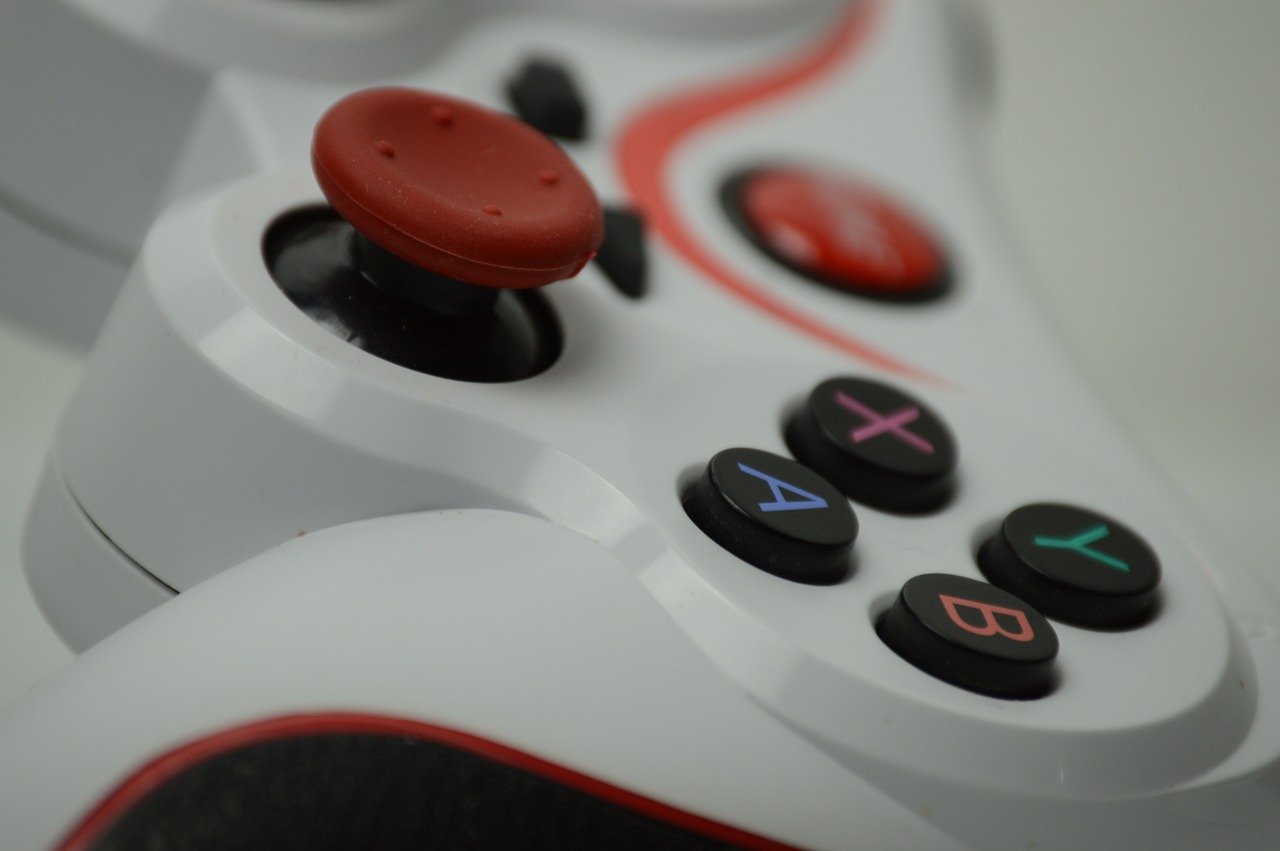
Input latency is the delay between pressing a button and seeing the result on screen. It rarely comes from one source. The controller’s polling rate, the connection type, the display’s response time, and background system load all add small delays that stack into a noticeable lag. A stick that reports its position 125 times per second simply cannot compete with one reporting 1,000 times per second, even if the hardware inside is identical.
The good news is that most of this is fixable in an afternoon. The bad news is that manufacturers rarely explain it in one place, so players end up tweaking random settings and hoping something sticks. The goal is not to chase every millisecond, but to remove the obvious bottlenecks so your own skill is the limiting factor.
Start With the Connection: Wired vs. Wireless
The first decision is how the controller talks to your system.
| Connection | Latency profile | Best for | Trade-offs |
|---|---|---|---|
| Wired USB | Lowest and most consistent | Competitive shooters, fighting games, racing | Cable drag, port wear |
| Bluetooth | Higher, more variable | Casual and couch play | Interference from Wi-Fi and USB 3.0 devices |
| Proprietary wireless (2.4 GHz dongle) | Close to wired in many cases | Living-room setups | Dongle can be lost; still subject to interference |
A practical tip: if a wireless controller feels inconsistent rather than simply slow, move the receiver away from USB 3.0 ports and metal surfaces. Interference is a common and underdiagnosed cause of “random” input drops. For players building a full competitive setup, the network side matters too, and guides on the best internet for gaming cover the connection basics that keep online matches stable.
Update Firmware Before You Touch Anything Else
Firmware updates fix latency bugs, connection dropouts, and compatibility issues, yet many players never install them. Each platform handles this differently:
- Xbox controllers on Windows or Xbox can be updated through the Xbox Accessories app.
- PlayStation controllers receive firmware through the PS5 system software or a PC utility provided by the manufacturer.
- Nintendo controllers update through the console’s system settings menu.
- Third-party PC controllers usually have their own configuration utility, often downloadable from the maker’s support page.
Check the manufacturer’s official support page for your exact model rather than relying on forum instructions, because menus and utilities change over time. A five-minute update is the cheapest performance upgrade available.
Tune Polling Rate and Sensitivity With Purpose
Polling rate describes how often the controller reports its state to the system. Higher rates reduce average input delay, but returns diminish quickly and CPU load rises. Most players will not notice a difference beyond a certain point, and a stable connection matters more than a headline number.
Sensitivity is where personal preference legitimately wins. Two players with identical hardware often need different settings because their grip, thumb reach, and reaction style differ. A sensible process:
- Pick a sensitivity that lets you complete a full 180-degree turn comfortably.
- Play several matches without changing anything.
- Adjust in small increments only when a specific action feels unreachable.
Changing five settings at once teaches you nothing, because you cannot tell which change helped. This is one of the most common mistakes in controller tuning.
Fix Deadzones and Stick Drift
Deadzone is the small area around the stick’s center where movement is ignored. Too small and the camera drifts on its own; too large and fine aim becomes mushy. Most games expose a deadzone slider, and platform-level calibration tools can help on top of that.
If a stick drifts, increase the in-game deadzone slightly before assuming the hardware is broken. If drift persists across multiple games, the stick module itself may be worn. Cleaning around the stick base and recalibrating through the official tool is the standard first step.
Use the Right Software Layer for Your Platform
Platform tools do a lot of quiet work:
- Steam Input on PC offers per-game remapping, deadzone control, and gyro configuration for almost any controller.
- Console system settings handle button remapping and controller vibration intensity.
- Manufacturer apps manage profiles, trigger sensitivity, and paddle mapping on premium pads.
On PC, controller performance also depends on the machine itself. A stable frame rate reduces perceived input lag more than most controller tweaks, so it is worth checking that your hardware is not the bottleneck. Resources on choosing the best motherboard for gaming explain how chipset and port layout affect peripheral stability, and a guide to the best gaming PC under 1000 shows what a balanced budget build looks like.
Do Not Ignore the Display and System Settings
A perfectly tuned controller still feels slow on a laggy display. Enable the TV’s game mode, disable motion smoothing and extra processing, and turn off background capture or overlay software that competes for resources. These steps often produce a bigger perceived improvement than any controller setting, which surprises most players. (Game controller)
Match the Controller to the Game
Different genres reward different setups. Fighting game players often prefer a fight stick or a pad with a precise D-pad, while racing players want trigger travel and force feedback. Simulation fans may want a wheel entirely. The table below is a rough starting point.
| Genre | Priority settings | Typical controller choice |
|---|---|---|
| First-person shooters | Low deadzone, high polling rate, wired | Symmetrical or offset pad with back paddles |
| Fighting games | D-pad precision, minimal latency | Fight stick or six-button pad |
| Racing | Trigger sensitivity, vibration | Wheel or trigger-heavy pad |
| Platformers | Comfortable analog sticks | Standard console pad |
If you are shopping for a new pad, comparisons of the best xbox controller break down which features actually affect input feel, and a look at the best wireless gaming headsets 2026 helps if you want audio cues to arrive in sync with your inputs.
Common Mistakes That Quietly Hurt Performance
Several habits undermine otherwise good setups:
- Leaving the controller in Bluetooth mode for competitive play when a wired option exists.
- Stacking deadzones by setting them in both the game and a third-party tool, which makes aiming feel heavy.
- Ignoring battery level on wireless pads, since low charge can affect signal behavior.
- Using worn cables that cause intermittent disconnects mid-match.
- Skipping firmware updates because the controller “works fine.”
Each of these is easy to fix once you know to look for it.
When to Replace Rather Than Reconfigure
Reconfiguration has limits. Persistent stick drift after calibration, buttons that need excessive force, or triggers that register inconsistently usually signal worn hardware. Replacement is the sensible call at that point, and buying from a line with better repairability saves money later.
Conclusion
Setting up a gaming controller for the best performance is less about secret settings and more about removing bottlenecks in a sensible order. Update the firmware, choose the right connection, calibrate deadzones, tune sensitivity in small steps, and make sure the display and system are not adding lag of their own. None of these steps is difficult, and together they usually deliver a bigger improvement than buying new hardware. Start with the free fixes first, change one variable at a time, and let your own results decide what stays.
Frequently Asked Questions
Is wired always better than wireless for controller latency?
Wired USB usually delivers the lowest and most consistent latency, but modern proprietary wireless connections close much of the gap. Bluetooth is the weakest option for competitive play because it is more prone to interference. The practical rule is to use wired when the game rewards precision and wireless when comfort matters more. (How-To Geek)
How often should I update controller firmware?
Check for updates every few months and whenever you notice new connection problems, dropped inputs, or compatibility issues after a system update. Manufacturers release fixes irregularly, so there is no fixed schedule. A quick check of the official support page for your model takes only a minute.
What is a good deadzone setting?
There is no universal number, because deadzone depends on the stick’s condition and the game’s aim system. Start with the game’s default, then reduce it until the camera drifts on its own, and nudge it back up slightly. Avoid setting deadzones in both the game and a separate tool at the same time.
Does a higher polling rate really improve performance?
It reduces average input delay, but the benefit shrinks as rates climb and it adds some CPU load. Most players notice stability and consistency far more than a headline polling figure. A reliable connection and a smooth frame rate matter more than chasing the highest number.
Why does my controller feel laggy only in certain games?
Game-specific factors such as aim smoothing, deadzone defaults, frame pacing, and display settings can all add perceived lag. Test the same controller across several titles before blaming the hardware. If only one game feels slow, its own settings are the likely cause.
Can I use one controller setup across PC and console?
Partially. Button layouts and profiles often transfer through the controller’s onboard memory or the manufacturer’s app, but deadzone, sensitivity, and remapping settings usually live per game and per platform. Expect to redo the fine-tuning on each system, even with the same physical pad.
Beyond the settings themselves, ergonomics quietly shape performance over long sessions. Grip style, hand size, and thumbstick caps all affect how consistently you can repeat precise inputs, and fatigue mimics lag when it sets in late in a match. If your hands cramp after an hour, the fix may be a different grip or a lighter pad rather than a lower sensitivity. Finally, treat your setup as a work in progress: note what you changed, play a few sessions, and keep only what measurably helps. A controller tuned this way becomes an extension of your hands, and the settings fade into the background where they belong. With firmware current, the connection stable, deadzones clean, and the display out of the way, you have addressed everything that genuinely matters. The rest is practice.



