Passwords are a terrible security model. They get reused, phished, leaked in breaches, and forgotten at the worst moment. That’s why Apple, Google, and Microsoft jointly backed a replacement through the FIDO Alliance in 2022. The result is the passkey: a sign-in credential that lives on your device, unlocks with Face ID or Touch ID, and simply cannot be typed into a fake website. If you own an iPhone running iOS 16 or later, you already have the hardware to use them. What most people lack is a clear picture of how the whole system actually behaves in daily life.
This guide walks through creating, using, managing, and recovering passkeys on iPhone, with the practical snags that trip people up.
What a Passkey Actually Is
A passkey is a cryptographic key pair. The private half stays locked inside your device’s secure hardware. The public half goes to the website or app you’re signing up for. When you log in, your iPhone proves it holds the private key by asking for Face ID, Touch ID, or your device passcode. No secret ever crosses the network, so there’s nothing for a server breach to expose.
The underlying standard is WebAuthn, maintained by the W3C Web Authentication working group. Because the credential is mathematically tied to a specific domain, it won’t work on a lookalike site. That property, called phishing resistance, is the single biggest reason security teams push passkeys. A convincing fake login page is useless if the browser refuses to offer the credential.
Apple’s implementation stores passkeys in iCloud Keychain, end-to-end encrypted and synced across every Apple device signed into the same Apple Account. Create one on your iPhone and it appears on your iPad and Mac automatically.
Before You Start: What You Need

| Requirement | Detail |
|---|---|
| iPhone model | Any model that supports iOS 16 or later |
| Software | iOS 16 minimum; iOS 17+ for sharing and cross-platform QR sign-in |
| Authentication | Face ID, Touch ID, or device passcode set up |
| Apple Account | Signed in with two-factor authentication enabled |
| iCloud Keychain | Turned on in Settings |
Two settings deserve a check before anything else. First, confirm iCloud Keychain is active under Settings > [your name] > iCloud > Passwords and Keychain. Second, make sure your Apple Account has two-factor authentication on. Without it, synced passkeys are far more fragile if you ever lose a device.
One common mistake: people disable iCloud Keychain for privacy reasons and then wonder why passkeys don’t sync. They’ll still work on the single device that created them, but that’s a thin safety net.
How to Create a Passkey on iPhone
The flow is nearly identical across sites and apps, though wording varies.
- Sign in to the website or app with your existing password.
- Open the account’s security or privacy settings.
- Look for an option labeled “Add passkey,” “Create a passkey,” or “Set up passkey.”
- Tap it. iOS prompts for Face ID or Touch ID.
- Confirm, and the passkey is saved to iCloud Keychain.
Some services ask you to create a passkey during sign-up instead. If the option appears, take it. Starting fresh with a passkey is cleaner than bolting one onto an account later. (Passkey (authentication)))
A practical note: not every service supports passkeys yet, and support varies by region and platform. If you don’t see the option, the site probably hasn’t shipped it. Bookmark the account page and check back in a few months.
Creating a Passkey Inside an App
Apps built with Apple’s AuthenticationServices framework can offer passkeys natively. The prompt looks the same as in Safari, and the credential is stored in the same place. Developers can find implementation details in Apple’s developer documentation for AuthenticationServices.
How to Sign In With a Passkey
Once a passkey exists, signing in gets dramatically shorter.
- Open the site or app and tap the username field.
- iOS suggests the saved account above the keyboard.
- Tap the suggestion.
- Authenticate with Face ID or Touch ID.
That’s it. No password to recall, no code to copy from a message. On many sites the passkey prompt appears automatically, and you simply confirm with your face.
If the site offers both password and passkey, choose the passkey. Some services let you remove the password entirely afterward. Doing so is worth it. A password left active is a fallback an attacker can still target.
Signing In on a Device That Isn’t Yours
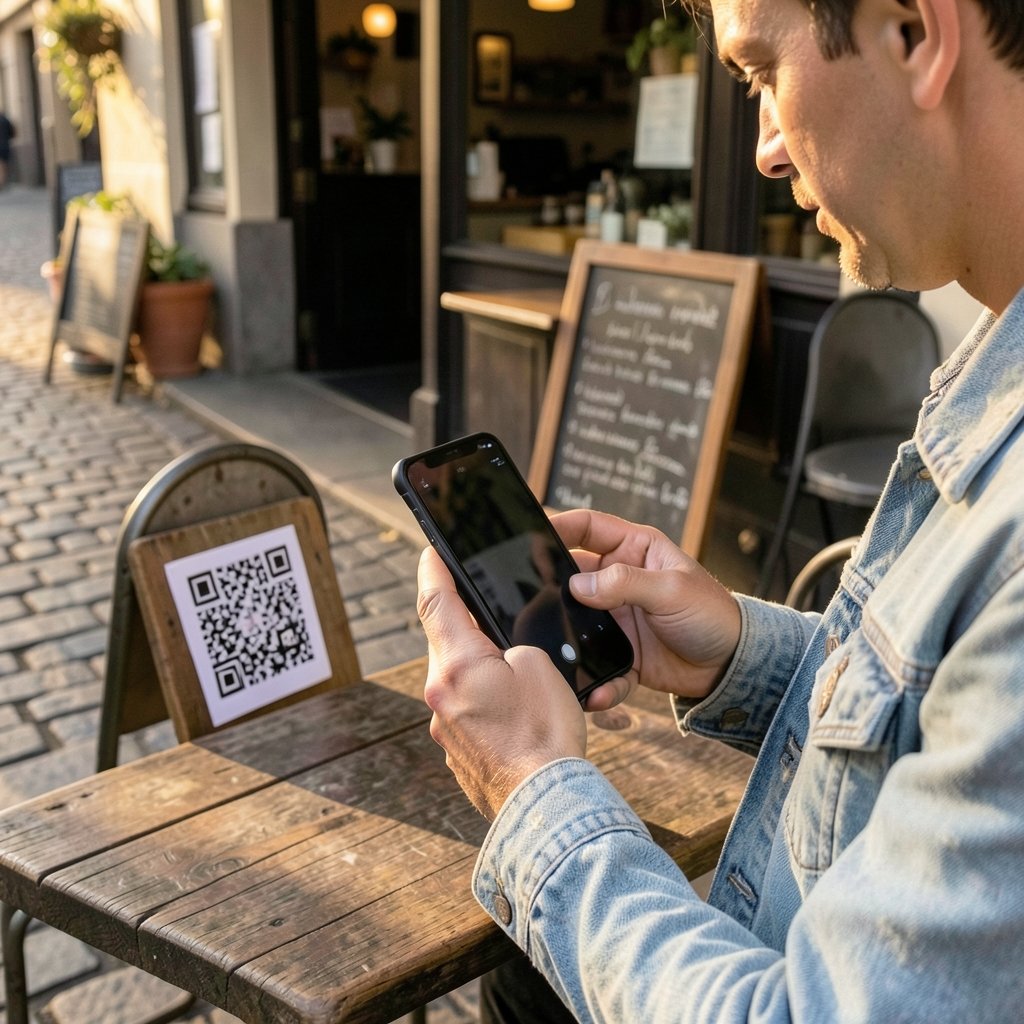
Since iOS 17, you can use a passkey stored on your iPhone to sign in on another device, including a Windows PC or an Android phone. The other device shows a QR code, you scan it with your iPhone’s camera, and you authenticate with Face ID. The passkey never leaves your phone; the QR code just brokers a secure handshake.
This is genuinely useful when borrowing a colleague’s laptop or signing in on a shared computer. It’s also the feature most people don’t know exists.
Managing Your Passkeys
Passkeys are managed in the Passwords area of Settings. In iOS 18, Apple split this out into a standalone Passwords app, which makes the list easier to browse. Either way, the structure is the same: a list of accounts, each showing whether it has a password, a passkey, or both.
From there you can:
- Review which accounts have passkeys and which are still password-only.
- Delete a passkey you no longer want. Do this only after confirming the service has another way for you to get in, or you’ll lock yourself out.
- Share a passkey with a family member or trusted contact via AirDrop, a feature added in iOS 17.
Sharing deserves a caution. A shared passkey means shared access. Use it for a household streaming account, not a bank.
Passkeys for Your Apple Account
Apple added passkey support for Apple Accounts in iOS 17. That means you can sign in to iCloud, the App Store, and Apple’s web services using Face ID instead of your Apple Account password. Given how much a compromised Apple Account can expose, this is one of the highest-value passkeys to set up.
The Practical Snags Nobody Warns You About
Most passkey guides stop at “tap the button.” Real life is messier.
The ecosystem lock-in problem. Passkeys sync beautifully between Apple devices. They sync less beautifully to Android or Windows. Cross-platform sign-in via QR code solves the borrowing-a-device case, but it isn’t the same as native sync. If you regularly switch between iPhone and Android, plan for friction.
Losing your only device. Synced passkeys live in iCloud Keychain. If you lose your iPhone and don’t have another Apple device, recovery depends on your Apple Account recovery setup. Set up account recovery contacts before you need them, not after.
Old accounts with no passkey option. Financial institutions and government portals are often slow adopters. Expect a mixed environment for years. A password manager remains a sensible bridge.
Confusing passkeys with passwordless magic. Some services still require a password as a backup. That’s not a failure of the technology, just an incomplete rollout. Check each account individually rather than assuming.
Skipping the device passcode. Face ID alone isn’t enough. iOS falls back to the passcode in some situations, and a weak six-digit code undermines the whole chain. Use a longer alphanumeric passcode if you can tolerate the extra second.
If you’re weighing a hardware upgrade to get the smoothest passkey and biometric experience, it helps to compare current models and pricing before committing. The iPhone Philippines price breakdown is a useful reference for regional buyers, and a best iPhone to buy comparison helps narrow the field by budget and feature set. If you’re specifically eyeing the newest hardware, check how much does the iPhone 17 cost before deciding whether the upgrade is worth it for biometric sign-in alone. It usually isn’t; any iOS 16-capable phone handles passkeys fine.
Passkeys vs. Passwords: A Straight Comparison
| Factor | Passkeys | Passwords |
|---|---|---|
| Phishing risk | Effectively zero (domain-bound) | High |
| Reuse risk | None (unique per site) | Very high |
| Breach exposure | Public key only; useless to attackers | Credentials sold in bulk |
| Sign-in speed | Face ID, one tap | Typing or autofill |
| Cross-platform portability | Improving, still uneven | Universal |
| Recovery if device lost | Depends on cloud account | Depends on reset flow |
| Setup effort | One-time, per account | Continuous |
The pattern is clear: passkeys win on security and convenience, and lose only on portability and legacy support. Both gaps are closing.
Security Habits That Make Passkeys Work
Passkeys reduce risk, but they don’t eliminate the need for good hygiene.
- Keep iOS updated. Passkey features and fixes ship with OS releases. Running an old version means missing both.
- Enable two-factor authentication on your Apple Account. This is the master key to your synced passkeys.
- Set recovery contacts now. Apple’s account recovery process is deliberate and slow. That’s a feature, but it’s painful if you’re unprepared.
- Audit quarterly. Open the Passwords app, scan for accounts still using weak or reused passwords, and upgrade them.
- Don’t share passkeys casually. AirDrop sharing is convenient and permanent until revoked.
Security researchers have long argued that credential theft is the dominant breach vector, which is why the FIDO Alliance’s passkey specifications have drawn such broad industry backing. When Apple, Google, and Microsoft agree on something, it tends to stick.
For anyone building a broader mobile security routine, pairing passkeys with sensible app choices matters too. Curated lists of the best iPhone games and the best free music app for iPhone are worth a look, since app-store quality varies wildly and sideloaded software is a common weak point. Protecting the new iPhone 17 Pro with one of the best iPhone 17 Pro cases is a small thing, but a cracked screen and a lost device are exactly the scenarios passkey recovery is designed to survive. A reliable wireless charger for iPhone and Android keeps the device powered through long authentication sessions, and staying current on stories like the iPhone Duo Crackgate evidence audit helps you judge which hardware claims are worth trusting. (About passkeys on iPhone)
Conclusion
Passkeys on iPhone are one of the rare security upgrades that make life easier rather than more tedious. Setup takes under a minute per account. Sign-in becomes a glance. The phishing vector that compromises millions of credentials every year simply stops working against you.
The practical path is straightforward. Confirm iOS 16 or later and iCloud Keychain. Turn on two-factor authentication and set recovery contacts. Then work through your most important accounts one at a time, starting with your Apple Account, email, and anything financial. Leave the stragglers for later; the ecosystem will catch up.
The technology is ready. The only remaining question is whether your accounts are.
Frequently Asked Questions
Do passkeys work on all iPhones?
Passkeys require iOS 16 or later, released in September 2022. Any iPhone that can run iOS 16 or newer supports them, including older models like the iPhone 8 and later. The bigger limitation isn’t the phone; it’s whether the website or app you’re signing into has implemented passkey support yet.
What happens if I lose my iPhone?
Because passkeys sync through iCloud Keychain, they remain available on any other Apple device signed into the same Apple Account. If you have no second device, recovery depends on your Apple Account recovery setup, which is why setting recovery contacts in advance matters. A lost phone with no backup device and no recovery plan is the worst-case scenario.
Are passkeys more secure than passwords?
Yes, substantially. Passkeys are bound to a specific domain, so they cannot be entered into a phishing site. The private key never leaves your device, so a server breach exposes nothing usable. There’s also no password to reuse across accounts, which removes the single most common cause of account compromise.
Can I use a passkey on a Windows PC or Android phone?
Yes, with a caveat. Since iOS 17, you can scan a QR code on the other device and authenticate with your iPhone, which works across platforms. However, native syncing of passkeys between Apple and non-Apple ecosystems is still uneven. Expect the QR flow rather than seamless sync.
How do I delete a passkey?
Open the Passwords app or Settings > Passwords, select the account, and remove the passkey. Do this only after confirming the service offers another way to sign in, such as a password or recovery code. Deleting your only credential for an account can lock you out permanently.
Do passkeys replace my password manager?
Not entirely, at least not yet. Passkeys cover a growing share of accounts, but plenty of services still rely on passwords. Most people will run both for several years: passkeys for supported accounts, a password manager for the rest. Over time, the password manager’s role shrinks.