
Apple ships roughly 230 million iPhones a year, and every one of those buyers faces the same quiet moment of panic: the box is open, the new phone is glowing, and somewhere in the back of your mind is the question of whether your photos, messages, and saved passwords will survive the move. The good news is that Apple has spent years making this process almost boring. The bad news is that “almost” leaves room for mistakes, and a few of them can cost you data.
This guide walks through the transfer methods that actually work, the ones that quietly fail, and the small decisions that determine whether you end up with a perfect clone of your old phone or a frustrating half-migrated device.
Pick Your Method Before You Touch the New Phone
There are three main routes for moving data to a new iPhone, and choosing the right one up front saves hours of backtracking.
| Method | Best For | Speed | Requires |
|---|---|---|---|
| Quick Start (device-to-device) | Most people upgrading in person | Fast | Both phones, Wi-Fi, charger |
| iCloud backup restore | Buyers whose old phone is gone or broken | Slow to moderate | Enough iCloud storage |
| Encrypted computer backup | Users who want the most complete copy | Moderate | Mac or PC, cable |
The single most common mistake is starting setup on the new phone before deciding which method to use. Once you’ve tapped through the initial screens, you can still restart, but it wastes time. Decide first, then power on.
Quick Start: The Default for a Reason
Quick Start uses proximity and a temporary wireless connection to copy your data directly from the old iPhone. You hold the new phone near the old one, confirm a pattern on the old screen, and the transfer begins. Apple’s own support documentation describes it as the recommended path for most upgrades, and in practice it is the fastest route for anyone with both devices in hand.
A few practical notes from experience:
- Plug both phones in. A large transfer can run for an hour or more, and battery drain during the process is real.
- Keep them close and awake. Walking away with the old phone pauses the transfer.
- Don’t skip the Apple ID step. If you sign in with a different Apple ID than the one on the old phone, you’ll get a fresh device, not a copy.
Quick Start is also where most people first encounter the iOS version mismatch problem. If the new iPhone ships with a newer version of iOS than the old one, the old phone may need an update before the transfer can proceed. It’s an annoying delay, but it’s normal.
iCloud Restore: The Safety Net
If the old phone is lost, sold, or simply refuses to cooperate, an iCloud backup is your fallback. The old device needs a recent backup made while signed into iCloud, and the new device restores from it during setup. (Wikipedia: iCloud)
The catch is storage. Free iCloud accounts come with a small amount of space, and a full iPhone backup of photos and videos can easily exceed it. Before relying on this method, check the backup size on the old phone and compare it to your plan. Apple has long offered paid tiers for exactly this reason, and upgrading for a month is cheaper than losing a decade of photos.
One nuance worth knowing: if iCloud Photos and Messages in iCloud are turned on, those libraries already live in the cloud and sync independently of the device backup. That means they may not need to be part of the transfer at all, which can shrink backup size considerably.
Encrypted Computer Backup: The Completeness Play
A local backup made through Finder on a modern Mac, or iTunes on older systems and Windows, can be encrypted. That checkbox matters more than most people realize. An encrypted local backup preserves data that an unencrypted one does not, including saved passwords and health information.
The exact list of items preserved only in encrypted backups has shifted across versions of Apple’s software, so treat any specific claim with mild suspicion and verify against Apple’s current backup documentation. What has held steady is the principle: if you want the most complete copy of your phone, encrypt the local backup.
The tradeoff is friction. You need a cable, a computer, and enough free disk space. For most casual users, Quick Start is simpler. For anyone with sensitive data or a large photo library, the cable is worth it.
What Actually Transfers, and What Doesn’t
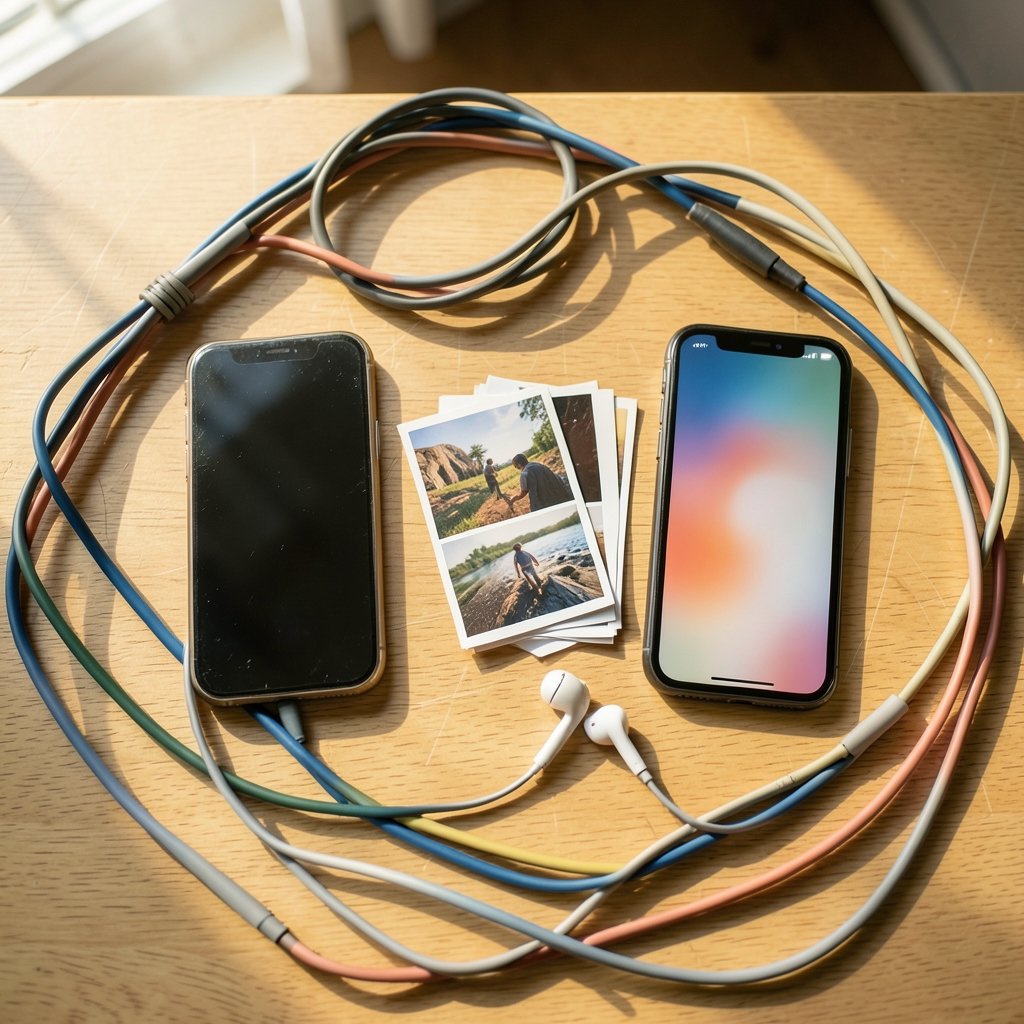
Here’s where expectations and reality tend to diverge. Most things move. A handful don’t, and knowing which is which prevents the “wait, where did that go?” moment.
Transfers reliably:
- Photos and videos (unless already in iCloud Photos)
- Messages and call history
- Contacts, calendars, and reminders
- App data included in the backup or synced through the app’s own cloud service
- Home screen layout and most settings
Usually needs re-setup:
- Apple Pay cards, which require re-verification with your bank
- Some banking and authenticator app tokens, which are deliberately device-bound for security
- Certain Bluetooth pairings, particularly for accessories with their own pairing logic
- eSIM, which can transfer between devices on recent iPhones but depends heavily on carrier and region support
That eSIM point deserves emphasis. eSIM transfer availability changes frequently and varies by carrier, so don’t assume it will just work. If your new phone needs to be reachable immediately, confirm your carrier’s process before you wipe the old device.
Apps themselves re-download from the App Store rather than transferring as files. Their data comes along only if it was captured in the backup or lives in the developer’s own cloud. This is why some apps open perfectly on a new phone and others ask you to log in again.
The Order of Operations That Prevents Disaster
The sequence matters more than the method. Follow this order and you avoid the two failures that actually hurt: wiping the old phone too early, and discovering the backup was incomplete.
- Back up the old phone twice. Once to iCloud, once locally if you can. Redundancy is cheap.
- Confirm the backup completed. A backup that says “in progress” when you hand over the phone is not a backup.
- Sign out of nothing yet. Keep the old device fully functional until the new one is verified.
- Run the transfer using your chosen method.
- Check the essentials on the new phone: photos, messages, contacts, banking apps, two-factor codes.
- Only then erase the old device and sign out of Apple ID, Find My, and any activation locks.
Step 6 is where people get burned. Erasing the old iPhone before confirming the new one works leaves you with two useless devices and a support call. Patience here is not paranoia; it’s basic risk management.
A related tip: keep the old phone on Wi-Fi and powered for at least a week after the switch. Some apps and services send verification codes to the old device, and having it nearby turns a locked account into a two-minute fix.
Timing, Storage, and the Details People Overlook
Transfer time scales with data volume, and the estimates are optimistic. A phone with 200 GB of photos can take hours over Quick Start and considerably longer through a cloud restore. Start in the evening, plug in, and let it run.
Three practical habits that save grief:
- Clear out junk first. Delete duplicate screenshots, old voice memos, and apps you never open. Smaller transfers fail less often.
- Use a strong Wi-Fi network. Cellular transfers are slow and can burn through a data cap.
- Watch for storage warnings. If the new iPhone has less capacity than the old one, a full restore may not fit. This is the moment to consider offloading photos to a cloud service before migrating.
If you’re still deciding which model to move to, it’s worth checking what the current lineup costs in your market before committing, since storage tiers drive both price and transfer strategy. Buyers comparing regional pricing often find the storage jump is where the real money goes, and a quick look at iPhone Philippines price listings shows how much that step costs in practice. For anyone weighing models, a rundown of the best iPhone to buy helps match capacity to actual usage rather than guesswork, and if you’re eyeing the newest release, it’s worth knowing upfront how much does the iPhone 17 cost before you plan a transfer around its storage. (Apple Support: Transfer data from your previous iPhone to your new iPhone)
Common Failures and How to Fix Them
Even a careful transfer can stumble. These are the ones that come up most.
The transfer stalls at “estimating time remaining.” Usually a Wi-Fi hiccup or a phone that went to sleep. Keep both devices awake and on the same network. If it hangs past 30 minutes, restart both and try again.
Apps show as grey icons. The data transferred but the apps are still downloading. Connect to Wi-Fi and leave the phone plugged in; this resolves itself.
Photos are missing. Check whether iCloud Photos is enabled and still syncing. Sometimes the library is there but thumbnails haven’t regenerated yet.
Two-factor codes don’t arrive. Authenticator apps tied to the old device may need re-enrollment. Set these up before wiping anything.
The new phone feels slower. Indexing after a restore can take a day or two. Give it time before assuming something is wrong.
For anyone who has followed the recent kerfuffle around durability claims on the newest hardware, there’s a useful parallel: verification beats assumption. The iPhone duo crackgate evidence audit six hours 2026 story is a reminder that checking primary evidence, rather than trusting a confident summary, is the right instinct. The same applies to your backup: verify it restored, don’t assume it did.
Making the New Phone Feel Like Yours Again
A restored iPhone is technically complete but emotionally foreign. The home screen is close but not identical, notification settings drift, and muscle memory takes a hit for a few days.
A few things worth doing in the first week:
- Re-add Apple Pay cards and test one small purchase.
- Re-pair Bluetooth accessories you use daily, especially car systems.
- Check notification permissions for messaging and calendar apps; these often reset silently.
- Re-download offline media for apps you use on flights or commutes.
- Verify two-factor authentication on every account that matters.
If you’re rebuilding your app library anyway, it’s a good moment to be deliberate about what earns a spot. Music apps, for instance, are worth choosing carefully rather than restoring by default; a look at the best free music app for iPhone options can save you from reinstalling something you never liked. Gamers rebuilding their home screen might enjoy a browse through the best iPhone games to find something new. And since a fresh phone deserves protection, a shortlist of the best iPhone 17 Pro cases is worth a glance before the first drop happens. If wireless charging is part of your routine, comparing the best wireless chargers for iPhone and Android helps you avoid a pad that throttles or overheats.
Conclusion
Transferring data to a new iPhone is a solved problem in most cases, and the failures that do happen are almost always procedural rather than technical. Back up twice, verify the backup, transfer, check the essentials, and only then erase the old device. Choose Quick Start when both phones are in hand, iCloud when they aren’t, and an encrypted local backup when completeness matters more than convenience. The process rewards a little patience at exactly the moment most people want to rush, and the payoff is a new phone that feels like a continuation rather than a fresh start.
How long does it take to transfer data to a new iPhone?
It depends almost entirely on data volume and method. A phone with modest storage and a cloud backup can restore in 30 to 60 minutes. A device packed with photos and videos can take several hours over Quick Start and longer through iCloud. Plan an evening, plug both devices in, and don’t schedule anything urgent.
Do I need to back up my old iPhone before transferring?
Yes, even when using Quick Start. The direct transfer usually works, but a backup is your only recovery path if something interrupts the process. Make one to iCloud and, if possible, one to a computer. A backup that hasn’t finished is not a backup.
What data does not transfer to a new iPhone?
Apple Pay cards, many banking and authenticator app tokens, some Bluetooth pairings, and eSIM profiles typically require re-setup. Apps re-download from the App Store, and their data comes only if it was in the backup or synced through the developer’s own cloud service. Expect a handful of logins in the first week.
Is Quick Start better than restoring from iCloud?
Quick Start is faster and generally more complete for device-to-device moves when both phones are present. iCloud restore is the better choice when the old phone is unavailable or you want a cloud copy as a permanent fallback. Many people use both: Quick Start for the transfer, iCloud as insurance.
Can I transfer an eSIM to my new iPhone?
Recent iPhones support eSIM transfer between devices, but availability depends on your carrier and region, and it changes often. Don’t assume it will work automatically. Confirm the process with your carrier before erasing the old phone, especially if you need to be reachable immediately.
What should I check before erasing my old iPhone?
Confirm photos, messages, contacts, banking apps, and two-factor codes all work on the new device. Test Apple Pay with a small purchase. Then sign out of Apple ID and Find My, and disable activation lock. Keep the old phone powered on Wi-Fi for at least a week in case verification codes arrive there.



