Roughly half of all PC gamers on Steam now run Windows 11, yet many of them leave free performance sitting on the table. The culprit is rarely the hardware. It is the pile of default settings Microsoft designed for battery life, background services, and general office work rather than frame rates. The good news: a focused tuning session of 30 to 45 minutes can smooth out stutters, cut input lag, and squeeze extra frames out of the same machine.
This guide walks through the changes that matter, the ones that are overhyped, and the traps that make things worse. It assumes a reasonably modern PC and a wired or stable connection. If your network is the weak link, no amount of tweaking will fix that, so start with the best internet for gaming you can realistically get.
Start With the Basics Before Touching Settings
Before diving into menus, confirm the fundamentals. A gaming PC is a system, and a single weak component drags everything down. Check that the GPU driver is current (download directly from NVIDIA, AMD, or Intel rather than relying solely on Windows Update), that the game is installed on an SSD, and that the monitor is actually running at its rated refresh rate. A shocking number of players run a 144Hz panel at 60Hz for months without noticing.
It also helps to know your baseline. Run a benchmark or use the game’s built-in performance overlay before changing anything, then compare afterward. Without a baseline, “optimization” becomes guesswork, and placebo effects are strong. Write down average FPS and 1% low FPS in one or two games you play often. The 1% lows matter more than the average for perceived smoothness.
One more practical tip: create a system restore point before you start. Most tweaks are reversible, but a few registry edits are not obvious to undo, and a restore point costs nothing.
Turn On Game Mode (and Understand What It Does)
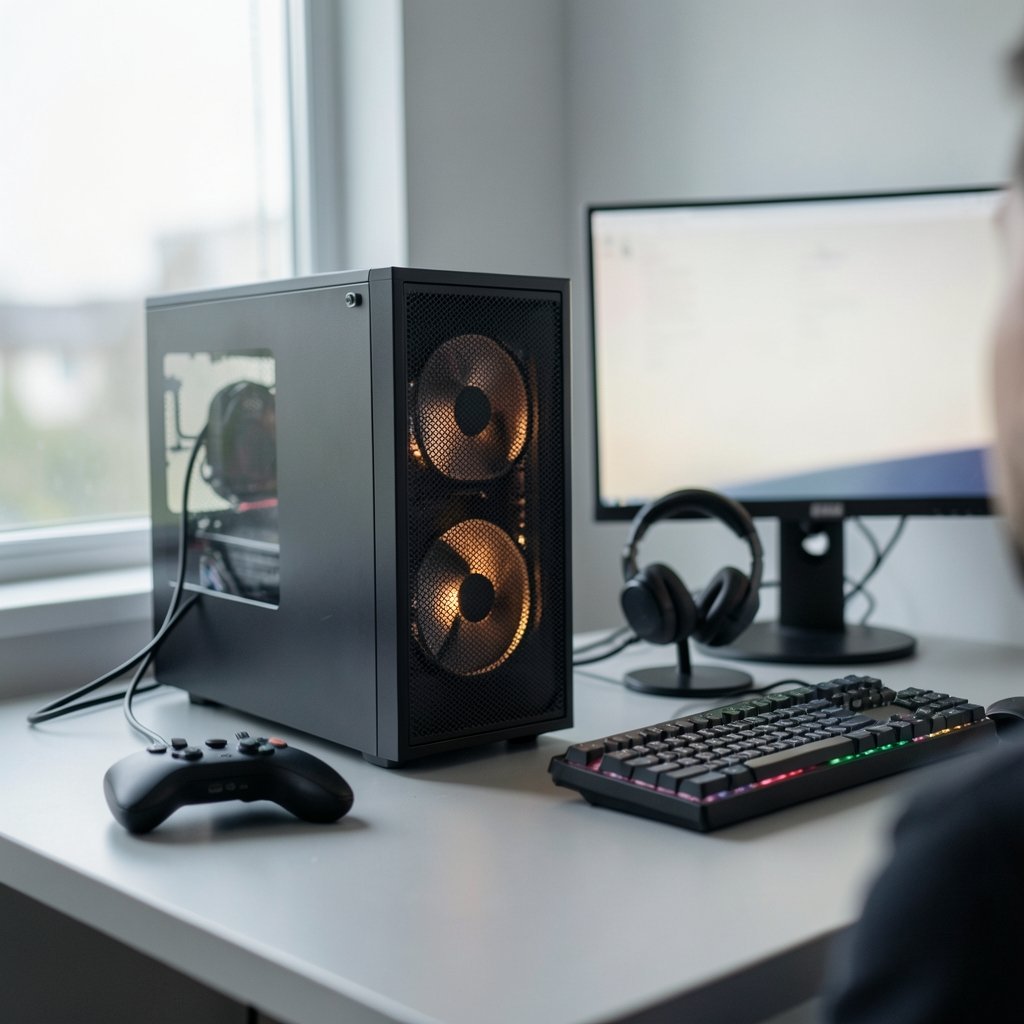
Game Mode lives under Settings > Gaming > Game Mode. When enabled, Windows prioritizes CPU and GPU resources for the foreground game and suppresses some background activity, including certain notifications and driver updates during play. It has existed since Windows 10 and continues in Windows 11.
Does it help? It depends. On clean, well-maintained systems the gain is often small, but it rarely hurts, and it prevents Windows Update from interrupting a match. Leave it on. The related Game Bar is optional; if you never use its overlay or capture features, disabling it under Settings > Gaming > Game Bar removes a small amount of overhead.
Enable Hardware-Accelerated GPU Scheduling and Variable Refresh Rate
Two toggles under Settings > System > Display > Graphics > Change default graphics settings deserve attention:
- Hardware-accelerated GPU scheduling (HAGS) hands memory management to the GPU. It arrived in the Windows 10 May 2020 Update and carried into Windows 11. Results vary by GPU and driver: some systems gain a few frames and lower latency, others see no change or occasional stutter. Test it on your own hardware rather than trusting blanket advice.
- Variable refresh rate (VRR) lets a compatible display match its refresh rate to the game’s frame output, which reduces tearing and stutter without the input lag of traditional V-Sync. It requires a VRR-capable monitor and GPU. If you have the hardware, turn it on.
The honest takeaway: HAGS is workload-dependent. Benchmark with it on and off in your main game and keep whichever is smoother. That five-minute test beats any forum opinion.
Set Per-App Graphics Preferences
Windows 11 lets you assign a GPU preference per application under Settings > System > Display > Graphics. Find your game’s executable (or add it manually), then choose High performance. On laptops with dual GPUs this ensures the discrete chip handles the game instead of the integrated one. On desktops it prevents Windows from making odd default choices.
While you are there, enable Optimizations for windowed games if you play in borderless windowed mode. It allows features like VRR and Auto HDR to work in windowed titles, which older Windows versions handled poorly.
Fix Your Power Plan
On a desktop, open Control Panel > Power Options and choose High performance, or choose the highest-performance plan if Windows lists it. On a laptop, plug in and set the plan to High performance when gaming. Balanced mode parks cores and lowers clocks to save power, which works against consistent frame times.
A common mistake: players switch to the highest-performance plan but forget that Windows may change plans automatically on some laptops. Check the plan again after a reboot. Also turn off “USB selective suspend” in the advanced power settings if you use a wired mouse or keyboard and see occasional input dropouts.
Trim Background Load Without Breaking Windows
This is where enthusiasm often goes too far. The goal is to reduce competition for CPU, RAM, and disk, not to strip Windows down to a skeleton.
Safe, effective steps:
- Open Settings > Apps > Startup and disable launch entries you do not need (chat apps, launchers, cloud sync clients).
- Close browser tabs and overlays before playing. Discord overlay, browser hardware acceleration, and RGB software all consume resources.
- Use Task Manager to spot processes with high disk or CPU use during idle. Fix or remove the offender rather than disabling system services.
- Keep at least 10–15% of your SSD free. Full drives slow down and can cause stutter when games stream assets.
What to avoid: third-party “debloat” scripts and guides that tell you to disable dozens of services. They are popular in enthusiast circles but are not endorsed by Microsoft, and they can break Windows Update, security features, or future game installs. The performance gain is usually marginal, and the risk of a broken system is real. If something feels off after tweaking, run a proper scan using reliable free virus removal tools for Windows before blaming the tweaks.
Update Drivers and Keep Windows Current
GPU drivers matter more than most settings. NVIDIA, AMD, and Intel each ship frequent updates with game-specific optimizations. Install them from the vendor’s official tool and choose a “clean install” option when you hit odd bugs. Windows Update still matters for security patches and platform fixes, so do not disable it entirely; just schedule updates outside your gaming hours.
For storage-heavy games, keep an eye on DirectStorage, Microsoft’s API that lets NVMe drives feed the GPU directly. It shipped in games from 2023 onward and cuts load times noticeably on supported hardware. It is not a setting you toggle, but it is a reason to keep games on fast NVMe storage.
Tune In-Game Settings Before Chasing Registry Hacks
Here is a truth many guides skip: the biggest FPS gains come from in-game settings, not Windows. Dropping shadows from ultra to high, disabling motion blur, and lowering volumetric effects often yields more frames than every Windows tweak combined. Resolution scaling and upscaling technologies (DLSS, FSR, XeSS) can double frame rates on supported titles with minimal visual cost.
Use the game’s own benchmark or a short repeatable route to compare. Change one setting at a time. If you change five things at once and performance drops, you will not know which one caused it.
Keep the Machine Healthy
Optimization is not a one-time event. Dust accumulates, thermal paste dries out, and background software creeps back in. A quarterly check keeps performance stable:
| Task | Frequency | Why it matters |
|---|---|---|
| Clean dust filters and fans | Every 3 months | Prevents thermal throttling |
| Update GPU driver | Monthly | Game fixes and stability |
| Review startup apps | Quarterly | Stops background bloat |
| Check drive free space | Monthly | Avoids stutter from full SSDs |
| Run a malware scan | Monthly | Catches resource-hogging infections |
If you suspect something is slowing the PC down, learn how to check for viruses on a Windows PC properly rather than guessing. Malware and unwanted software are a surprisingly common cause of unexplained frame drops.
Hardware Upgrades That Actually Pay Off
If software tuning has hit its limit, spend money where it counts. In most games, the GPU is the bottleneck. After that, a fast CPU helps in simulation and strategy titles, and more RAM helps with heavy multitasking. A quality motherboard with stable power delivery supports overclocking and future upgrades; if you are building or rebuilding, this guide to the best motherboard for gaming covers what to look for.
Peripherals matter for the experience too. A low-latency wireless headset or a high-refresh monitor changes how a game feels more than a 3% FPS bump. For audio, the best wireless gaming headsets in 2026 roundup is a reasonable starting point. And if you are shopping for a full system rather than upgrading, a well-chosen gaming PC under 1000 can outperform a badly balanced custom build. (GeForce Experience)
Small Habits That Add Up
A few habits cost nothing and help consistently. Learn the Windows keyboard shortcuts everyone should know so you can switch profiles and close overlays fast. Memorize the undo shortcut key for Windows and Mac for when you accidentally change a setting. Keep a written log of every tweak you make, including the date and the result. When a game starts misbehaving months later, that log saves hours of confusion. (Windows 11)
Also resist the urge to chase every new “optimization” video. Many popular tweaks are outdated, apply only to specific hardware, or were never more than placebo. Test, measure, and keep what works on your machine.
Conclusion
Optimizing Windows 11 for gaming is less about secret registry hacks and more about removing friction. Enable Game Mode, test hardware-accelerated GPU scheduling and VRR on your own hardware, set per-app graphics preferences, use a high-performance power plan, and trim startup apps without gutting Windows. Keep drivers current, leave breathing room on your SSD, and remember that in-game settings deliver the biggest gains of all.
The players who get the most out of their systems are not the ones who apply the most tweaks. They are the ones who measure before and after, keep a log, and know when to stop. Do that, and your PC will run cooler, smoother, and faster than it did out of the box.
FAQ
Does Game Mode actually improve FPS in Windows 11?
It can help slightly by prioritizing the foreground game and limiting background interruptions, but the gain is usually small on a clean system. Its bigger benefit is preventing driver updates and notifications from disrupting play. Leave it on; it rarely hurts.
Is hardware-accelerated GPU scheduling worth enabling?
It depends on your GPU, driver, and the games you play. Some systems see lower latency and a few extra frames; others see no change or occasional stutter. Benchmark with it on and off in your main game and keep whichever feels smoother.
Should I disable Windows services to boost gaming performance?
Generally no. Debloat scripts and service-disabling guides are popular but not endorsed by Microsoft, and they can break updates, security features, or game installs. The performance gain is usually marginal. Focus on startup apps, overlays, and in-game settings instead.
How much RAM do I need for gaming on Windows 11?
16GB is the practical sweet spot for most modern games. 32GB helps with heavy multitasking, streaming, and some simulation titles. Beyond that, the money is usually better spent on a faster GPU.
Does Windows 11 perform worse than Windows 10 for gaming?
For most users the difference is negligible, and Windows 11 has gained features like Auto HDR and windowed-game optimizations. Driver maturity and hardware matter far more than the OS version.
What is the single most effective change I can make?
Lower in-game graphics settings and enable upscaling where supported. That typically delivers more frames than every Windows tweak combined. Pair it with a current GPU driver and a high-performance power plan for the best results.