
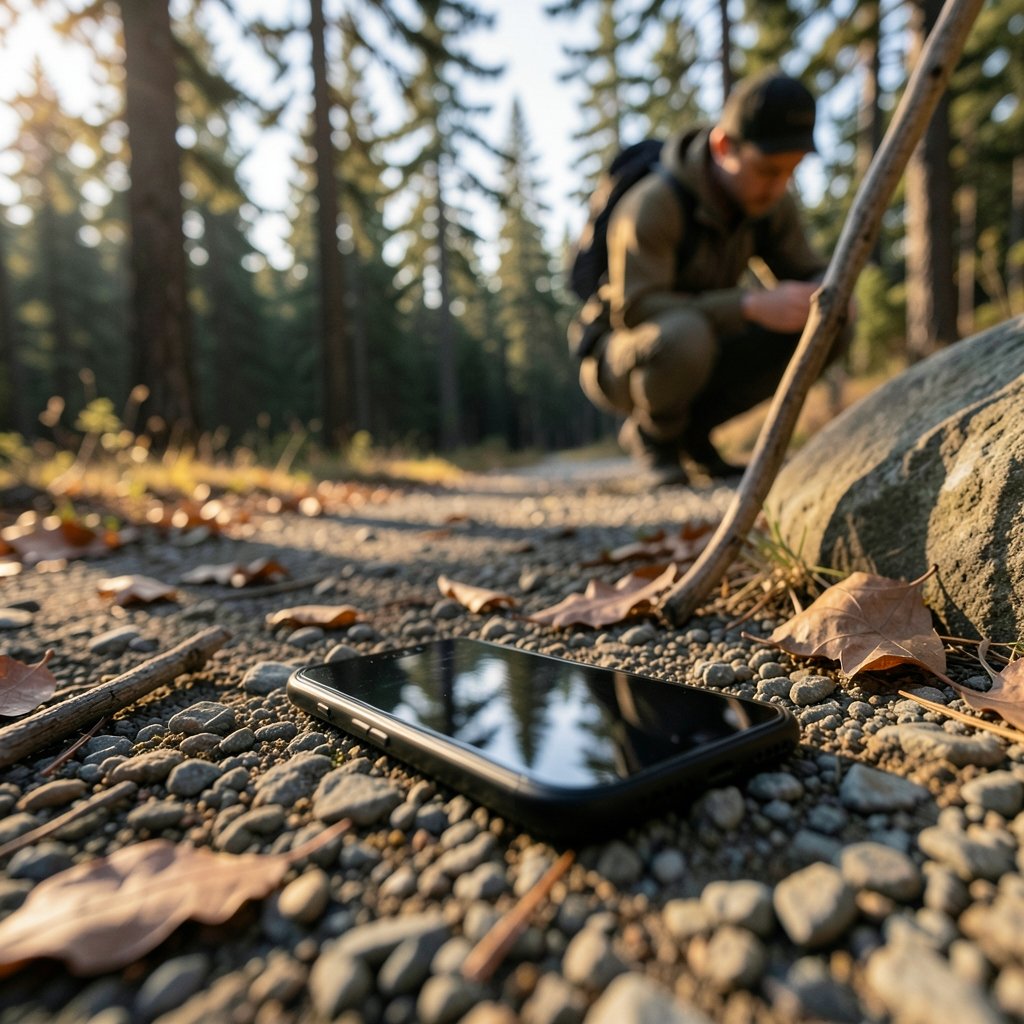
Roughly 70 million smartphones are lost every year worldwide, according to security firm Lookout — and iPhones make up a hefty share of that pile. The good news: Apple has spent more than a decade building tools that can locate, lock, and even erase a missing phone from any browser on earth. The bad news: most people never set those tools up until it’s too late.
This guide walks through the exact steps that work, the mistakes that quietly sabotage recovery attempts, and what to do when the map shows nothing but gray.
Before You Lose It: The Two-Minute Setup That Saves Everything
Every recovery method below depends on one setting: Find My iPhone, which launched alongside iCloud in October 2011 and was renamed simply “Find My” with iOS 13 in 2019. If it isn’t enabled, no map, no ping, no lock screen message. Nothing.
To check, open Settings, tap your name at the top, then Find My, then Find My iPhone, and confirm Find My iPhone and Find My network are both green. The second toggle matters more than people realize. Since iOS 15 (September 2021), it lets an offline phone broadcast its location through nearby Apple devices — a stranger’s iPhone walking past your lost device can quietly relay its position back to you. (iCloud Find Devices)
Two more habits worth locking in now:
- Set a passcode and enable Activation Lock. Introduced with iOS 7 in 2013, Activation Lock ties the device to your Apple Account, so a thief can’t wipe and resell it. It’s the single best theft deterrent Apple offers.
- Write down your IMEI. Dial *#06# and save the number somewhere outside the phone. Carriers may use it to block a stolen device on their network, though policies vary by country.
A common mistake: people enable Find My but skip Send Last Location, which uploads the phone’s final coordinates before the battery dies. It’s a checkbox inside Find My iPhone settings, and it takes one tap.
Step 1: Get to a Map, Fast

You have two routes to the Find My map, and neither requires the missing phone.
Route A — another Apple device. Open the Find My app on a friend’s iPhone, an iPad, or a Mac. Sign in with your Apple Account, tap Devices, and pick your phone from the list.
Route B — any browser. Go to iCloud.com/find and sign in. This works from a Windows laptop, a library computer, or an Android phone borrowed from a stranger. If you’re stuck without credentials, that’s a bigger problem than the lost phone — which is why password managers earn their keep.
Once you’re in, the map shows one of three states:
| Map status | What it means | What to do |
|---|---|---|
| Green dot, “Now” | Phone is online and reporting live | Play a sound or navigate to it |
| Gray dot, timestamp | Offline; showing last known location | Head there quickly; enable Notify When Found |
| “No location found” | Offline with no recent ping | Rely on Lost Mode and the Find My network |
If the phone is somewhere in your house — couch cushions, car console, fridge shelf (it happens) — tap Play Sound. The phone rings at full volume even if it’s on silent, which is precisely the point.
Step 2: Turn On Lost Mode Before You Panic-Dial Anyone
Lost Mode is the workhorse feature most people forget. Activating it does four things at once: locks the screen with your passcode, displays a custom message and contact number on the lock screen, suspends Apple Pay cards stored on the device, and keeps tracking the phone’s location.
The lock screen message is your best chance of a goodwill return. Something like “Lost phone — please call [number]. Reward offered.” beats a vague “Please return” every time. Keep it under 60 characters so it displays fully.
Here’s the part that trips people up: Lost Mode is not the same as Erase. Erasing wipes your data, and Apple warns that it may stop further location tracking. If Find My was enabled, Activation Lock survives the erase and the phone can still appear in your device list — but you’ve traded recovery odds for privacy. For a phone likely sitting in a taxi, Lost Mode wins. For one confirmed stolen with sensitive data aboard, erasing may be the safer call.
Step 3: Use the Find My Network When the Phone Is Offline
A powered-off iPhone sounds like a dead end. It usually isn’t. On iPhone 11 and later, the phone can keep broadcasting a Bluetooth beacon for hours after shutdown, and the Find My network picks it up. Nearby Apple devices — a stranger’s iPhone, an iPad in a café — relay that encrypted signal to Apple, and you see the location on your map.
This is why “Notify When Found” is worth enabling the moment you realize the phone is gone. It pings you the instant any device in the network spots yours, even weeks later.
The catch: the network only works if Find My network was enabled beforehand. There’s no switching it on remotely. If the phone was set up with it off, an offline device stays dark.
Step 4: What to Do When the Map Shows Nothing
Silence on the map is common, and it doesn’t mean the phone is gone forever. Work through this checklist:
- Retrace with precision. Call the places you visited — the restaurant, the rideshare company, the gym front desk. Most lost phones are found by humans, not satellites.
- Check your carrier’s lost-and-found and your city’s transit authority. Taxi and bus operators recover thousands of phones a month.
- Report to local law enforcement. Apple is explicit that it does not track or recover devices for customers; a police report is what your insurer and carrier will ask for. File it even if you’re skeptical.
- Call your carrier. Ask about suspending service and, where local rules allow, blocking the IMEI. Policies differ sharply between countries, so confirm rather than assume.
- Change your Apple Account password from a trusted device. If someone has the phone and guesses your passcode, the account is the real prize.
One quiet but important task: if you’re dealing with a stolen phone, photos of the device may surface online. Learning how to find the original source of an image and how to find duplicate images on the internet can help you spot a reseller listing your phone with its serial number visible. It sounds like detective work because it is — but people do recover devices this way. (Wikipedia: Find My)
The Scam That Follows Every Lost iPhone
Within hours of losing a phone, scammers often text or email: “Your iPhone has been found. Click here to confirm your identity.” The message looks official. It isn’t.
Apple states plainly that it never contacts users asking for Apple Account passwords or verification codes this way. These phishing pages harvest your credentials, then the thief uses them to remove Activation Lock and resell the device. Never enter your Apple Account details through a link in a text or email — type icloud.com into a browser yourself instead.
A second scam targets the “Find My” email address some people add to their Lost Mode message. Fraudsters send fake Apple alerts to that address hoping you’ll reply with personal details. Treat any unsolicited “we found your phone” contact as hostile until proven otherwise.
When It’s Time to Give Up Gracefully
Sometimes the phone is gone. If weeks pass with no ping, no return call, and no network sighting, the practical move is to erase it remotely, remove it from your trusted device list, and sign out of iCloud. Then start fresh.
Before buying a replacement, it’s worth checking current pricing carefully — the iPhone Philippines price guide is a useful reference point for regional costs, and a piece on the best iPhone to buy can help you match a new model to your budget instead of panic-buying the priciest one on the shelf.
And when the new phone arrives, spend two minutes on the setup described at the top of this article. That’s the whole insurance policy.
Why Some Phones Get Found and Others Don’t
Looking at recovery patterns, a few factors separate happy endings from dead ends:
- Battery life at time of loss. A phone at 80% keeps pinging for hours; one at 3% may send a single last location.
- Find My network status. Devices with it enabled get a second chance after shutdown. Devices without it don’t.
- The lock screen message. A phone with a visible callback number gets returned far more often than a locked brick with no context.
- Speed of response. Lost Mode within the first hour beats Lost Mode the next morning, because the phone is still powered and moving.
There’s a broader lesson here about digital forensics and evidence handling. Anyone who has followed a high-profile device investigation knows how quickly location logs, timestamps, and audit trails matter — the kind of detail examined in this iPhone duo crackgate evidence audit six hours 2026 breakdown. For ordinary users, the takeaway is simpler: your Find My history is evidence, so screenshot the map and timestamps before you erase anything.
A Quick Word on Images and Screenshots
If you’re posting about a lost phone on social media, a photo of the lock screen or a screenshot of the Find My map can help — but blur your Apple Account email and any serial numbers. If you need to identify a location from a photo someone sent you, tools for finding the name of a plant from a picture rely on the same reverse-image techniques that can help confirm where a photo was taken, and guides on finding high resolution images online explain why originals carry more metadata than compressed copies. Small details, occasionally decisive.
Conclusion
Finding a lost iPhone is rarely one heroic step. It’s a sequence: get to a map, enable Lost Mode, watch for network pings, call the humans who might have it, and ignore every “we found your phone” message that arrives by text. The tools are genuinely good — Find My has been refining this job since 2011 — but they only work on phones that were prepared in advance. If yours wasn’t, fix that the moment you’re reunited or replaced. Two minutes of setup today is the difference between a stressful afternoon and a permanent loss.
Frequently Asked Questions
Can I find my iPhone if it’s turned off?
Often, yes. On iPhone 11 and later with the Find My network enabled, a powered-off phone can still broadcast a Bluetooth signal that nearby Apple devices relay to you. You’ll see its location update on the Find My map. If the Find My network was disabled, an offline phone generally can’t be located.
Does Find My work if the phone has no cellular service?
It can. The phone needs some connection to report — Wi-Fi or cellular — but the Find My network lets other people’s Apple devices relay its position even when it has no signal of its own. You’ll see a timestamped location rather than a live one.
What’s the difference between Lost Mode and Erase?
Lost Mode locks the phone, shows a contact message on screen, suspends Apple Pay, and keeps tracking location. Erase wipes your data and, per Apple, may prevent further location tracking. If Find My was on, Activation Lock remains after an erase and the device still appears in your account.
Will Apple help me recover a stolen iPhone?
No. Apple states it does not track or recover devices for customers. It directs users to contact local law enforcement and their carrier. Apple can help with account security — changing your password and removing the device from your trusted list — but not physical recovery.
How do I stop a thief from using my lost iPhone?
Activation Lock is the barrier. With Find My enabled, nobody can reactivate the device without your Apple Account credentials, even after a factory reset. That’s why scammers send fake “your phone was found” messages — they’re trying to steal the credentials that clear the lock.
Should I report the IMEI to my carrier?
It’s worth asking. Many carriers can block a stolen device’s IMEI so it can’t connect to their network, but rules vary widely by country and provider. Reporting the IMEI also creates a record that insurers and police typically request when you file a claim.



